
How things work at TDM
Everything the front desk and the teachers need to run the day in Studio OS. Search above, pick your job below, or print the one-page cards and keep them by the desk.
Orielle and the front desk have more answers inside Studio OS: sign in, then tap Help.
Pick your job
Print and keep
Getting started 11
EveryoneWhat is Studio OS, in one paragraph?#
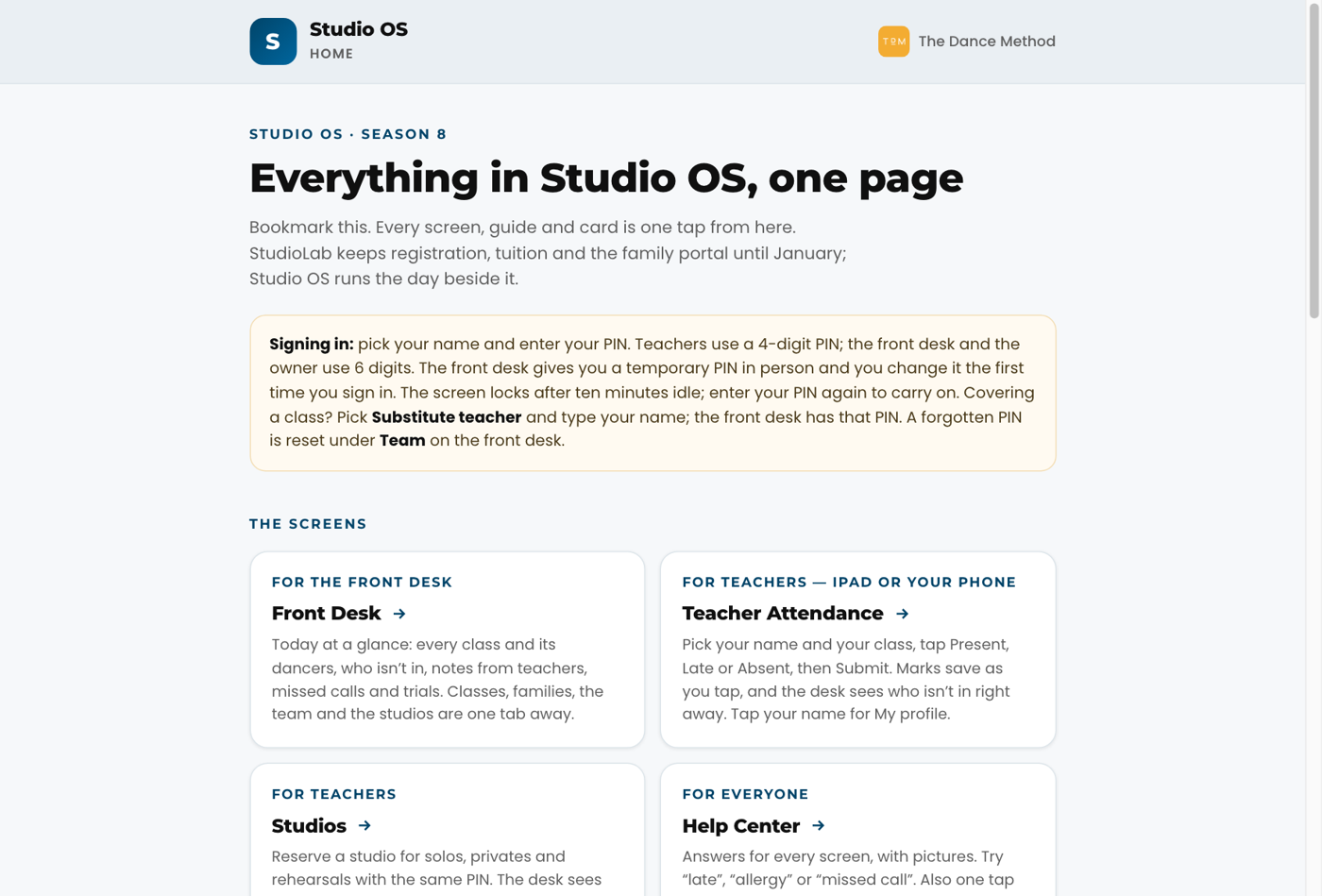
Studio OS is The Dance Method's system for running the day. Teachers take attendance on the attendance page (the studio iPad or their own phone), the front desk runs the day from the front desk console, and trial families get followed up. This season StudioLab keeps registration, tuition and the family portal until January 2027, and Studio OS refreshes from it every night. On our side it is one system: a dancer checked in by a teacher shows at the desk within seconds, and a note a teacher writes is on the dancer's record for the desk and Orielle.
Front deskHow do I log in?#
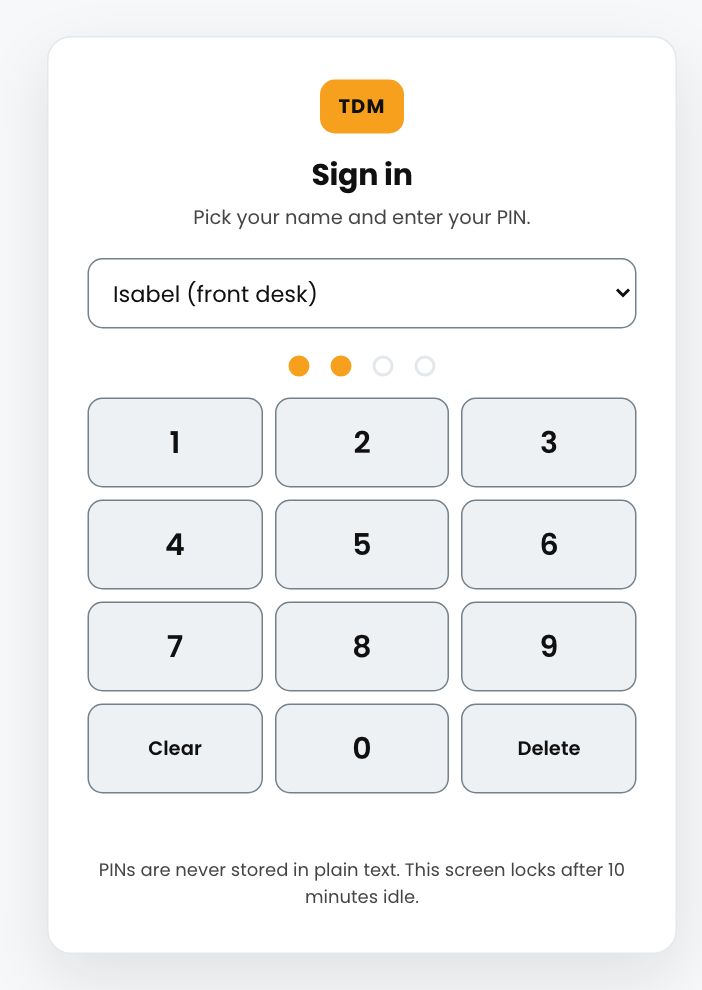
Open the Front Desk page (https://tdm.dsge.ca/console) and bookmark it. Pick your name from the list and enter your PIN. Orielle or the front desk gives you a temporary PIN in person; the first time you use it, the screen asks you to choose your own and enter it twice. That PIN is yours from then on. The screen locks after ten minutes with nobody touching it; enter your PIN again to carry on, or tap Switch person. Teachers do not use this page; they sign in on the attendance page the same way. Forgot your PIN? Orielle or the front desk sets you a new temporary one under Team and tells you in person; you choose your own at the next sign-in. Nobody can set up a PIN on their own, and after too many wrong guesses the sign-in screen pauses for ten minutes for everyone. Nothing here needs a Kanamé login.
EveryoneWhere do I go for help?#
This page. Use the search box at the top, or the role cards to jump to your section. For anything about the platform itself (email, texting, calendars, the mobile app) use Kanamé Support at https://support.kanameplatform.com. For anything about TDM specifically (classes, policies, fees) ask Isabel at the front desk: (204) 560-2936 or hello@thedancemethod.com. If something in Studio OS itself is not working (a screen will not load, a button shows an error, a number looks wrong), tell DSGE at https://help.dsge.ca/get-help/?studio=tdm. It comes straight to the people who build Studio OS, and you will hear back within one business day. A screenshot of what you are seeing helps most: the form takes up to three, and you can paste one straight in, drag it onto the form, or choose it.
Related
EveryoneCan I use dark mode?#
Studio OS opens light, however your iPad or phone is set. To switch to dark, tap the moon button at the top of the front desk console or the attendance page. It stays dark on that device until you tap it again. The Studios page inside the console follows whichever you picked.
EveryoneWhat is the Studio OS home page?#
One page with every Studio OS link: the front desk console, the attendance page, this help center, the printed cards, the staff manual and the owner guide, plus a plain note on what runs where this season. It is the Home button (four squares) at the top of the console, and at the end of the tabs on a phone. It is for the front desk and the owner; teachers have their own home on the attendance page (see *How do I get around as a teacher?*). Opened from the attendance app, Home goes back to the app's home instead (see *How do I open Studio OS on my phone?*).
Front deskWhat do I do on my first day?#
Three things. 1. Log in and open the Front Desk console. 2. Read the Today card top to bottom: the day in one line, the four numbers, anything under Needs you now, then every class with its dancers. 3. Tap one family in the search box to see what a family record looks like. That is the whole job on day one. The manual sections below cover each screen.
EveryoneHow do I fill in my profile?#
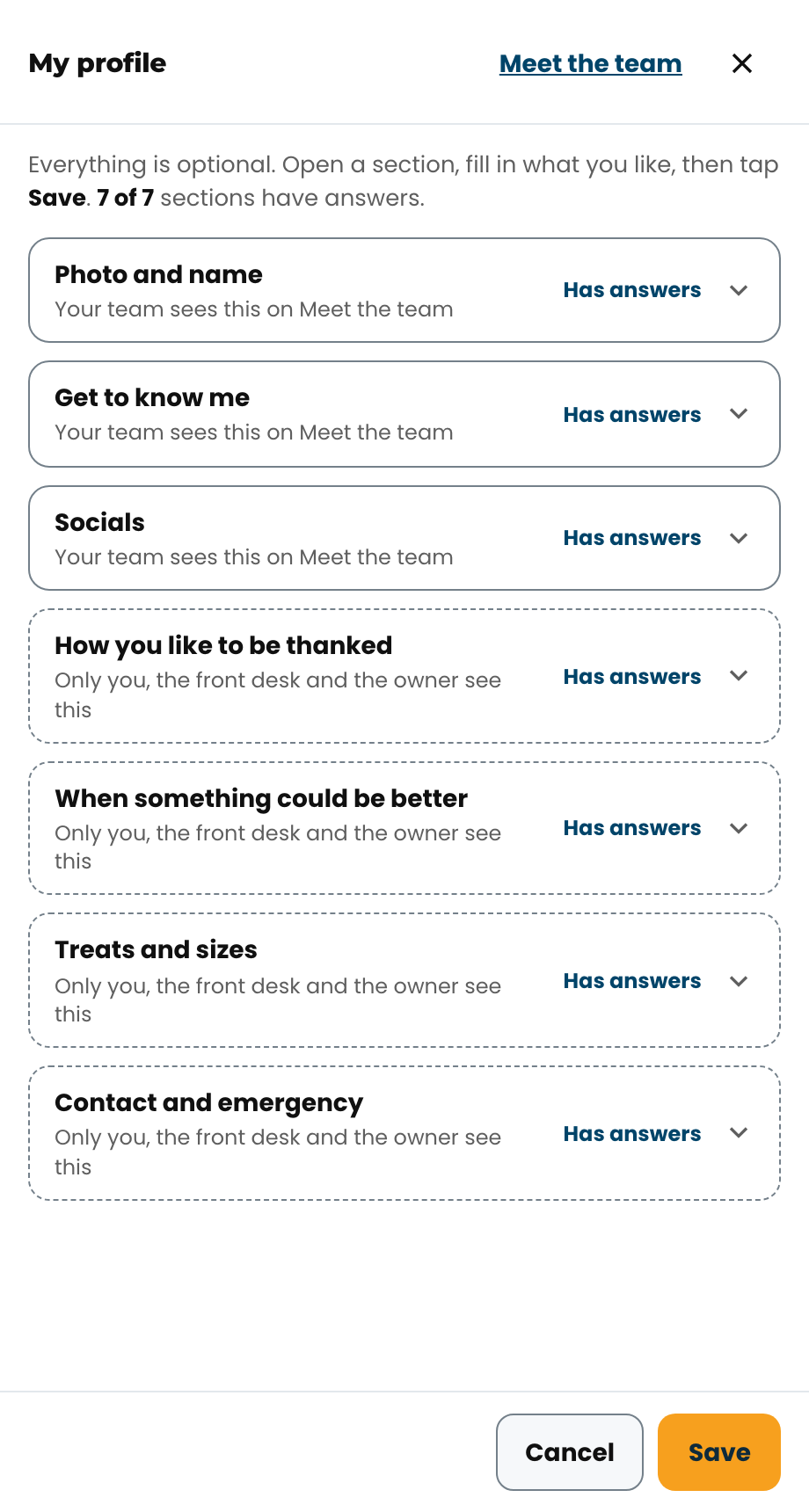
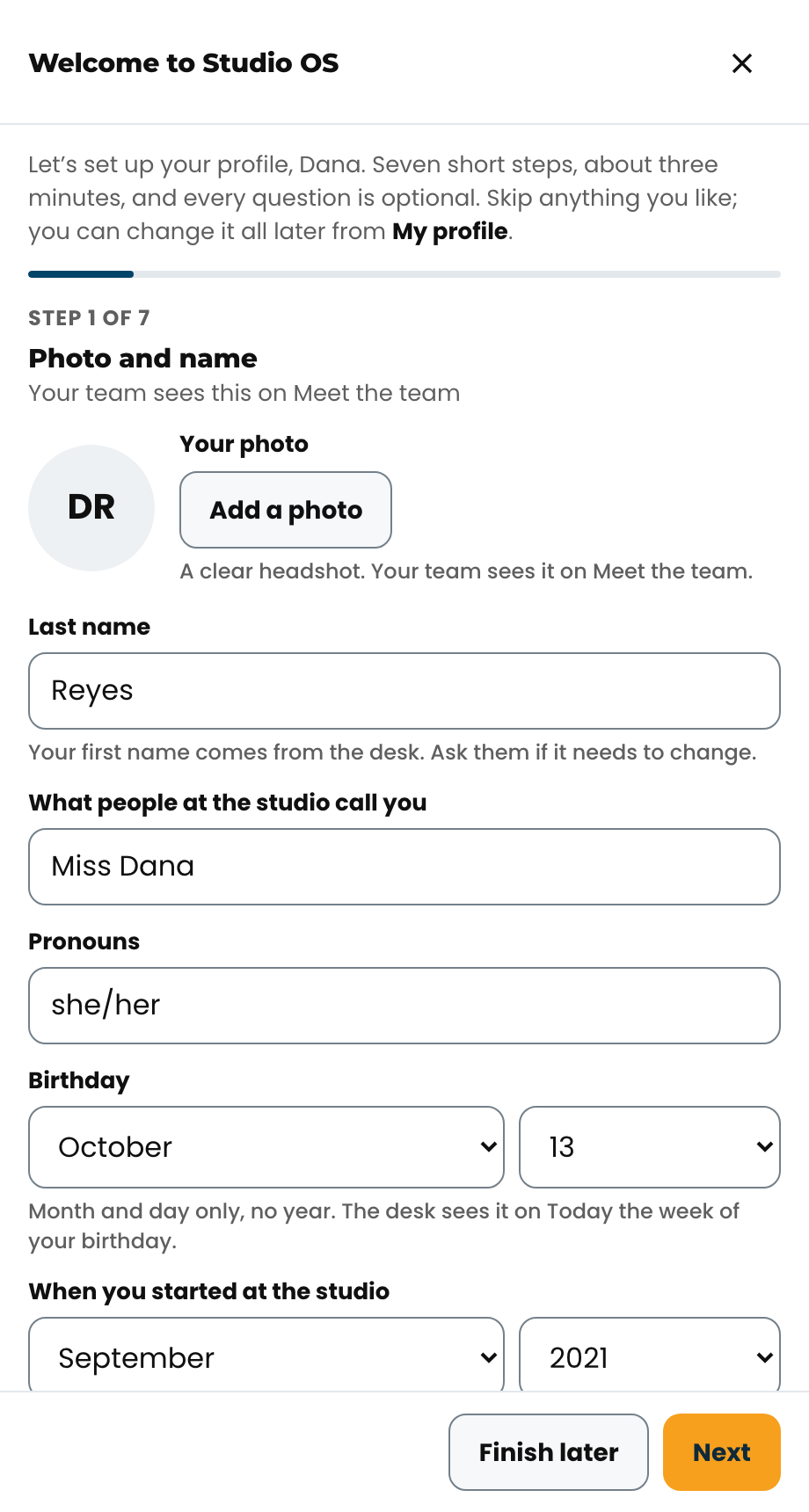
Sign in first, then open My profile. On a teacher's home screen it is the My profile button (it says how far you have got, or Set up my profile if it is empty), and on every teacher page it is a tab at the top. In the front desk console, tap the button with a person and a pencil beside your name, or open Team and tap My profile (that is the way on a phone). Your profile is seven short sections that fold open: tap one to open it, fill in what you like, and tap Save at the bottom. Everything is optional, and you can come back and change it any time. Each section says who sees it, and the top says how many have answers.
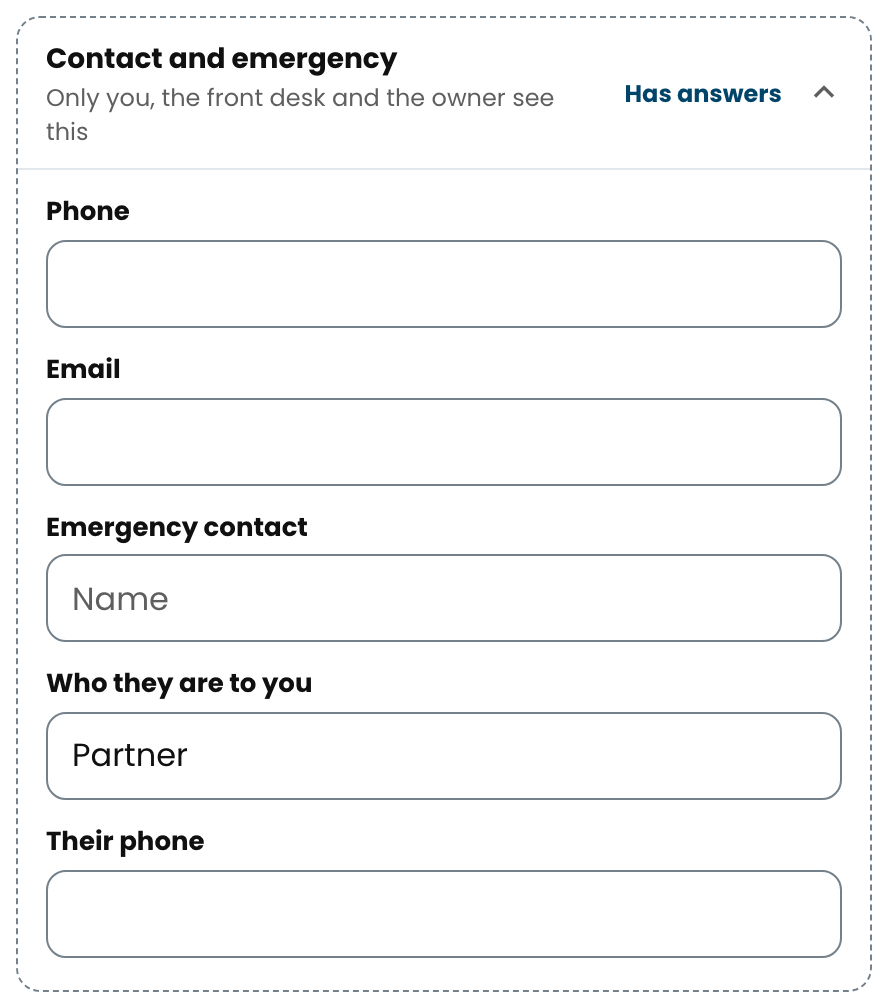
1. Photo and name: your photo, last name, what people at the studio call you, pronouns, birthday (month and day, never the year) and the month you started at the studio. 2. Get to know me: pets, your go-to coffee or snack order, what you are into outside the studio, a fun fact, a song that always gets you moving, and your dance story if you dance. 3. Socials: your Instagram, TikTok or one other link. 4. How you like to be thanked, 5. When something could be better, 6. Treats and sizes and 7. Contact and emergency are only for you, the front desk and Orielle.
Your first name comes from the desk; ask them if it needs to change. The substitute sign-in is shared by everyone who covers a class, so it has no profile of its own. The first time you sign in and choose your own PIN, Studio OS walks you through the seven sections one at a time; tap Finish later to stop and pick it up from My profile.


EveryoneHow do I add my photo to my profile?#
Open My profile, open Photo and name, and tap Add a photo. On a phone or the iPad you can take one or pick one from your photos; on a computer, pick a file. A clear headshot works best: Studio OS crops it to a square around the middle and saves it straight away. Your photo shows on your card in Meet the team and on your profile at the front desk. Change photo swaps it and Remove takes it off. The front desk can also add or remove a staff photo from your profile on Team.
Related
EveryoneWhy does my profile ask how I like to be thanked?#
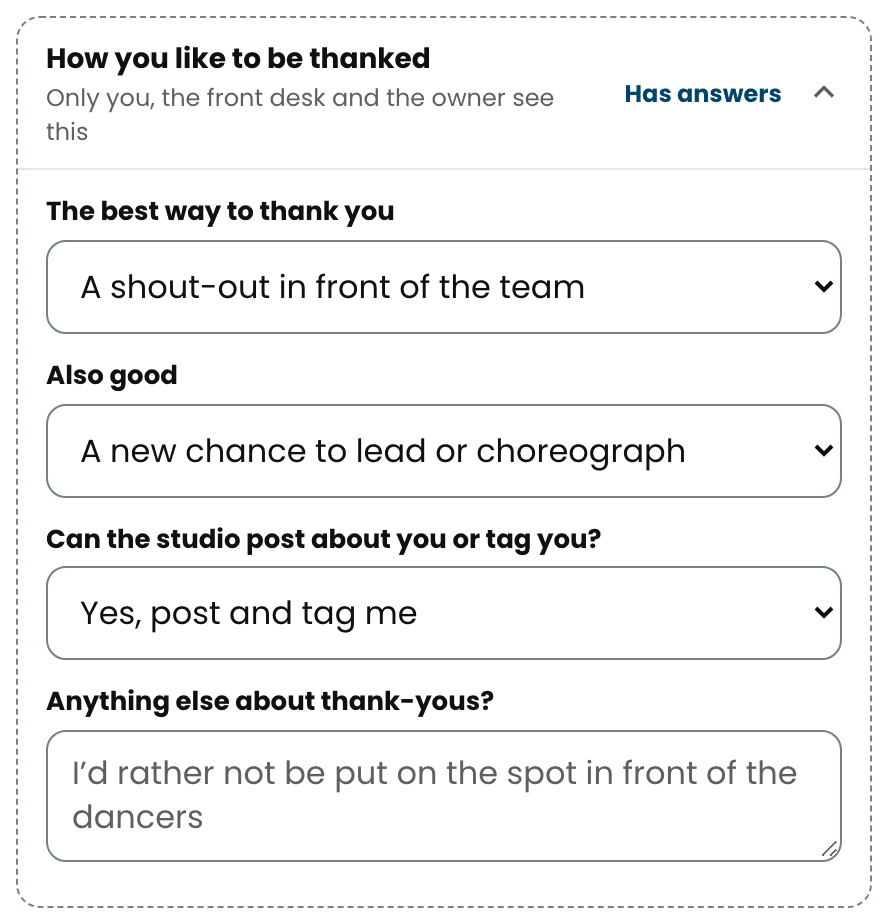
Because people feel thanked in different ways. One person loves a shout-out in front of the team; another would rather hear it quietly, one on one, or get a handwritten note, a treat, a coffee with Orielle, or a new chance to lead or choreograph. Telling the studio lets them thank you in the way that actually lands. In How you like to be thanked, pick the best way and a second one that is also good, and say whether the studio can post about you or tag you: Yes, post and tag me, Post, but don't tag me, Ask me first each time or Please don't post me. In When something could be better, pick how you would like to hear it (in person, a phone call, or in writing) and when (right away, after class, or at a planned check-in). Add a line in your own words if you like. Only you, the front desk and Orielle see these answers; they are never on your card in Meet the team.
EveryoneWhat is Meet the team?#
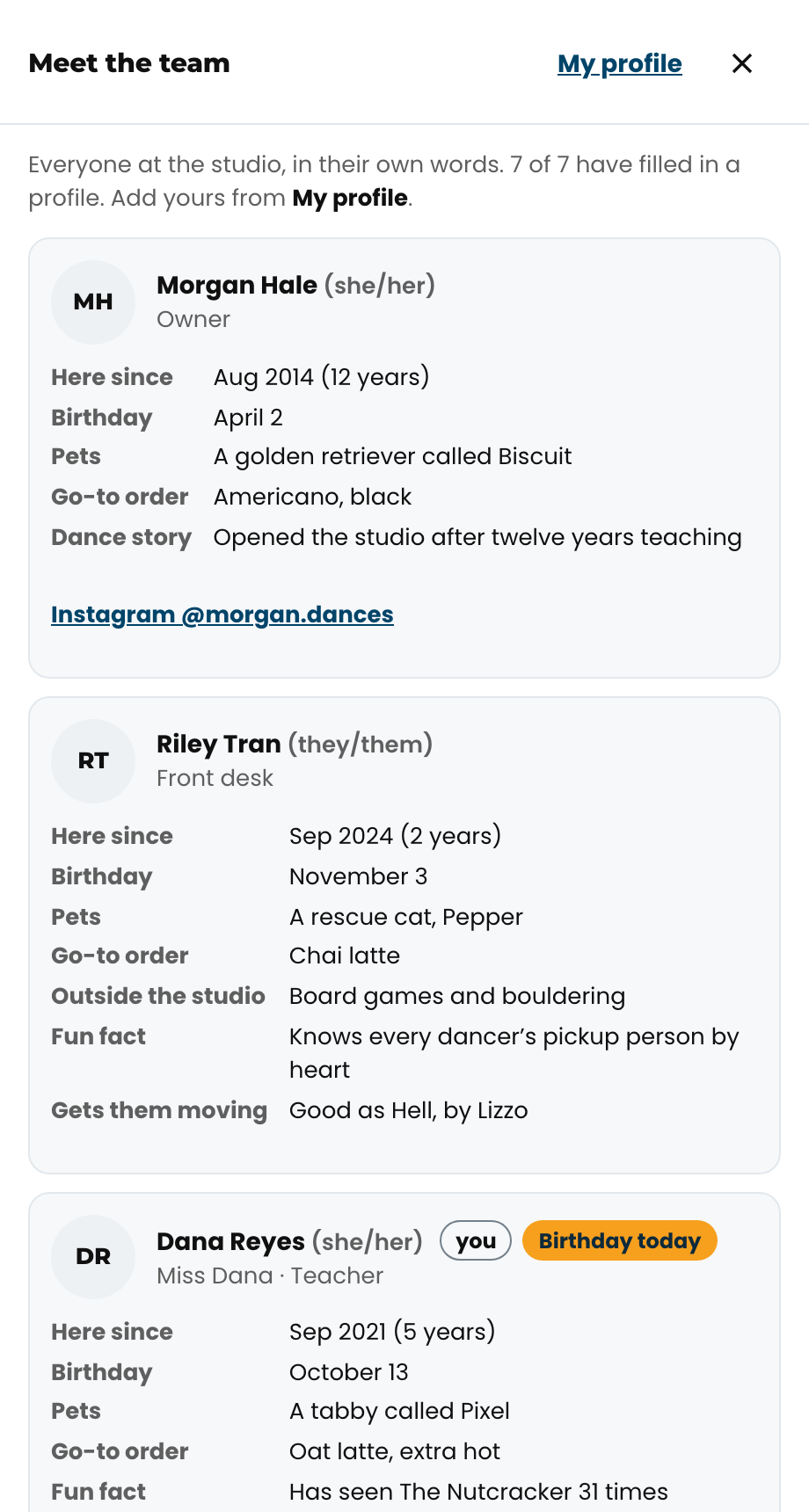
Everyone at TDM, in their own words: one card per person with their photo, pronouns, what people call them, how long they have been at the studio, their birthday, the answers from Get to know me, and links to their socials. Open it from Meet the team at the top of My profile, or from Meet the team on the console's Team tab. A card with a birthday in the next seven days carries a tag, and the front desk sees the week's team birthdays on Today. A card that says Has not filled in a profile yet means just that.
EveryoneWho can see what I put in my profile?#
Every section says who sees it. Photo and name, Get to know me and Socials are your card in Meet the team, seen by everyone who signs in to Studio OS at TDM, teachers included. The sections with a dashed edge (How you like to be thanked, When something could be better, Treats and sizes, and Contact and emergency) are seen only by you, the front desk and Orielle. None of it goes to families, the family portal, the website or Kanamé, and no year of birth is ever stored, so nobody can work out your age from it.
Front desk 28
Front deskWhat do the class cards on Today mean?#
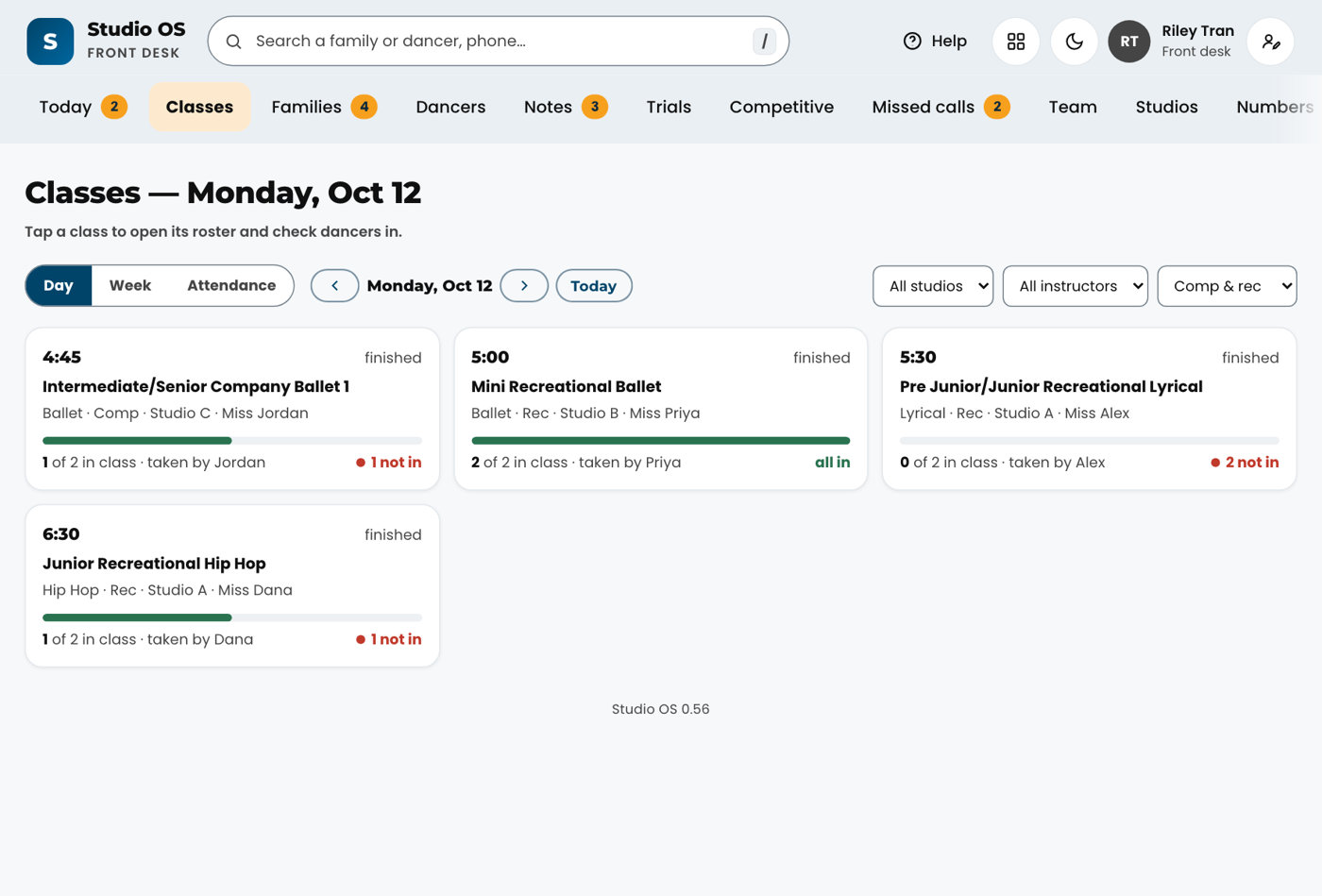
Under The day, each row is one class today, in order, with its time, room and teacher. A class that is on now or finished shows how many dancers are in against how many are expected. Not marked yet means the teacher has not started attendance, so nobody is flagged. N not in means the teacher has started and those dancers have no mark: they are the Not in class list. A class still to come shows who is expected and how many spots are left. The class on now has a gold edge. Tap a row to show or hide its dancers, and Open roster for the full roster. On the Classes tab, the same class as a card also names who took the register (Taken by; (updated) means it was reopened and submitted again).

Related
Front deskThere is a fire or an emergency. What do I do?#
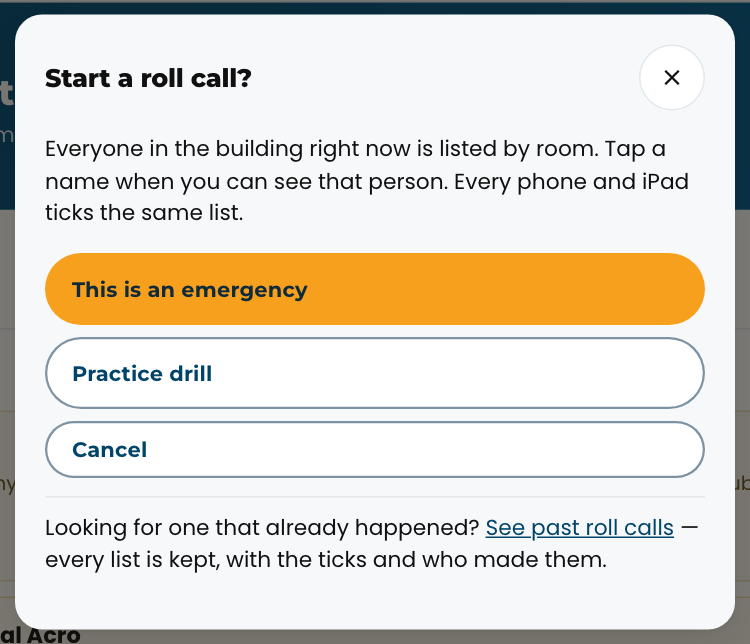
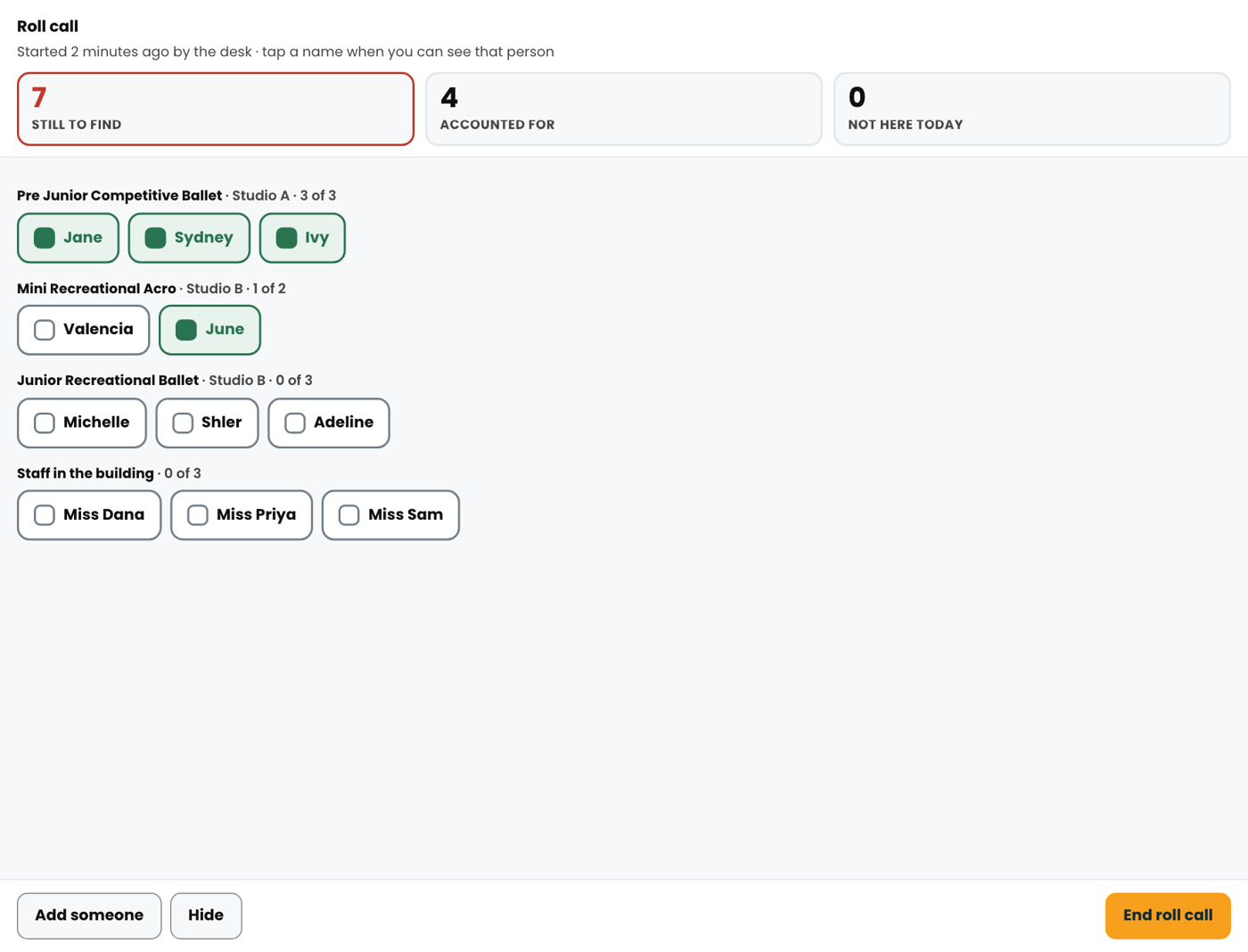
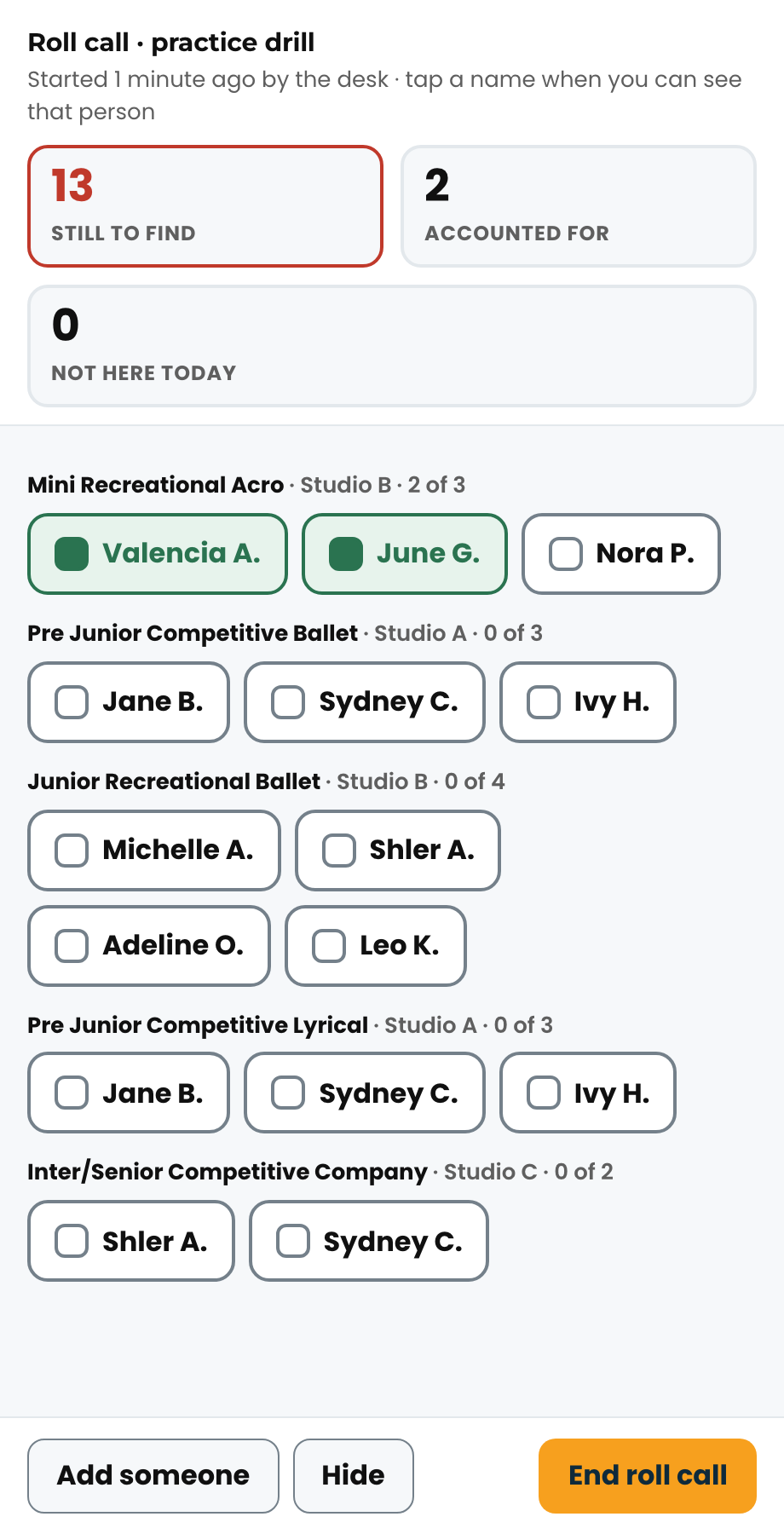
Get everyone out first. Then, from anywhere in Studio OS, tap Roll call and choose This is an emergency. Studio OS lists every person who should be in the building right now, grouped by room: the dancers in each class, their teachers, and anyone else on a Studio OS screen in the last three quarters of an hour. Take the iPad or your phone to the meeting point and tap a name when you can see that person. The big number at the top is how many are still to find. When it reaches zero, everyone is accounted for.
Anyone the register already marked absent or away is listed separately under Not here today and is not counted, because they were never in the building. If one of them turns up, tap them and they move across. Add someone records a person who is not on the list, like a sibling in the lobby or a waiting parent.
Every phone and iPad ticks the same list, so you and the teachers at the other exits are working on one count. Tap Hide to use the rest of the console while it stays open; a red bar keeps the count in front of you. When it is over, tap End roll call and add a note. The list is kept as the record of what happened.

Front deskCan we practise a roll call without it being real?#
Yes, and you should. Tap Roll call and choose Practice drill. It behaves exactly the same and is recorded as a drill rather than an emergency, so the record afterwards tells the two apart. Run one early in the season with a full studio so the teachers have done it once before they have to do it for real.
Front deskDo families get a birthday message?#
Yes. At 9:00 in the morning on a dancer's birthday, the family gets a text and an email from The Dance Method, wishing the dancer a happy birthday by name. Brothers and sisters who share a birthday share one message, and a dancer who is the account holder is wished happy birthday directly. It goes to dancers enrolled in a class this season. A family that has turned off texts or emails in Kanamé (do not disturb) does not get that one. Both land on the family's conversation in Kanamé, so you can see exactly what went out, and a reply comes back to you there. The birthdays coming up this week are on Today, under Coming up.
The email ends with "Rather not get birthday messages? Just reply and let us know." If a family asks, open their contact in Kanamé and add the tag birthday-messages-off. That stops the birthday text and email and nothing else. Don't turn on do not disturb for this: it would also stop every other text or email the studio sends them.
Front deskWhat is on the Today screen?#
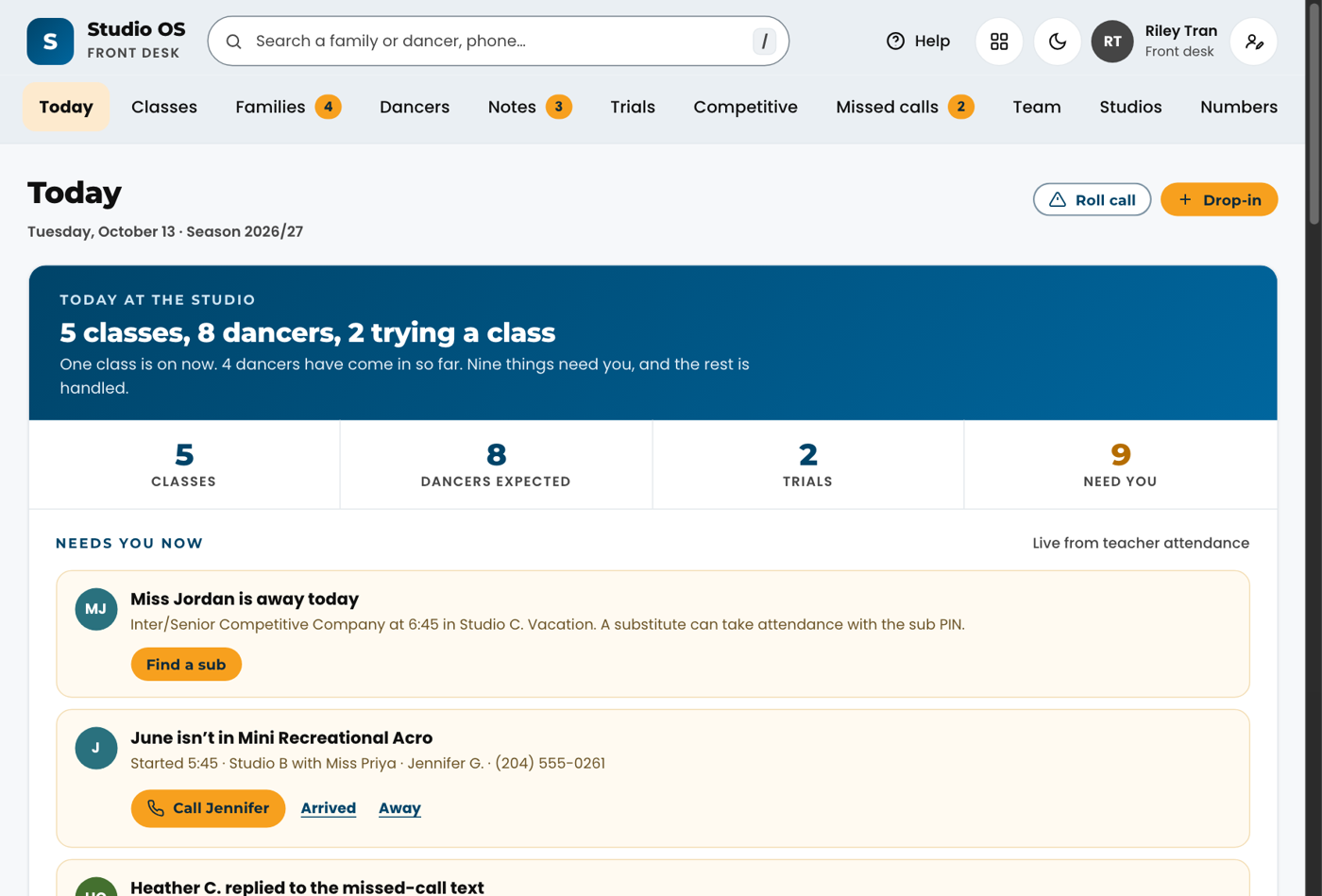
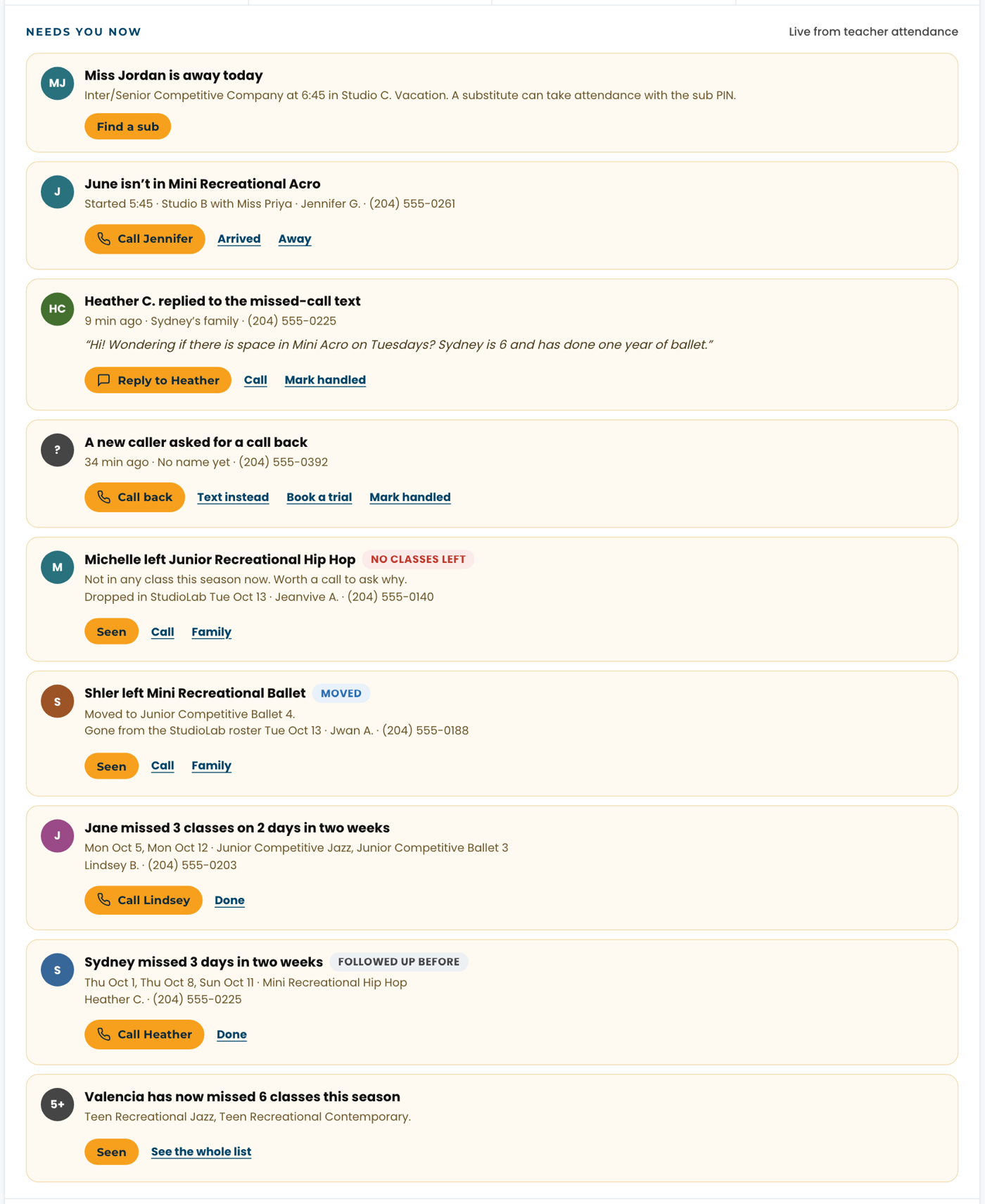
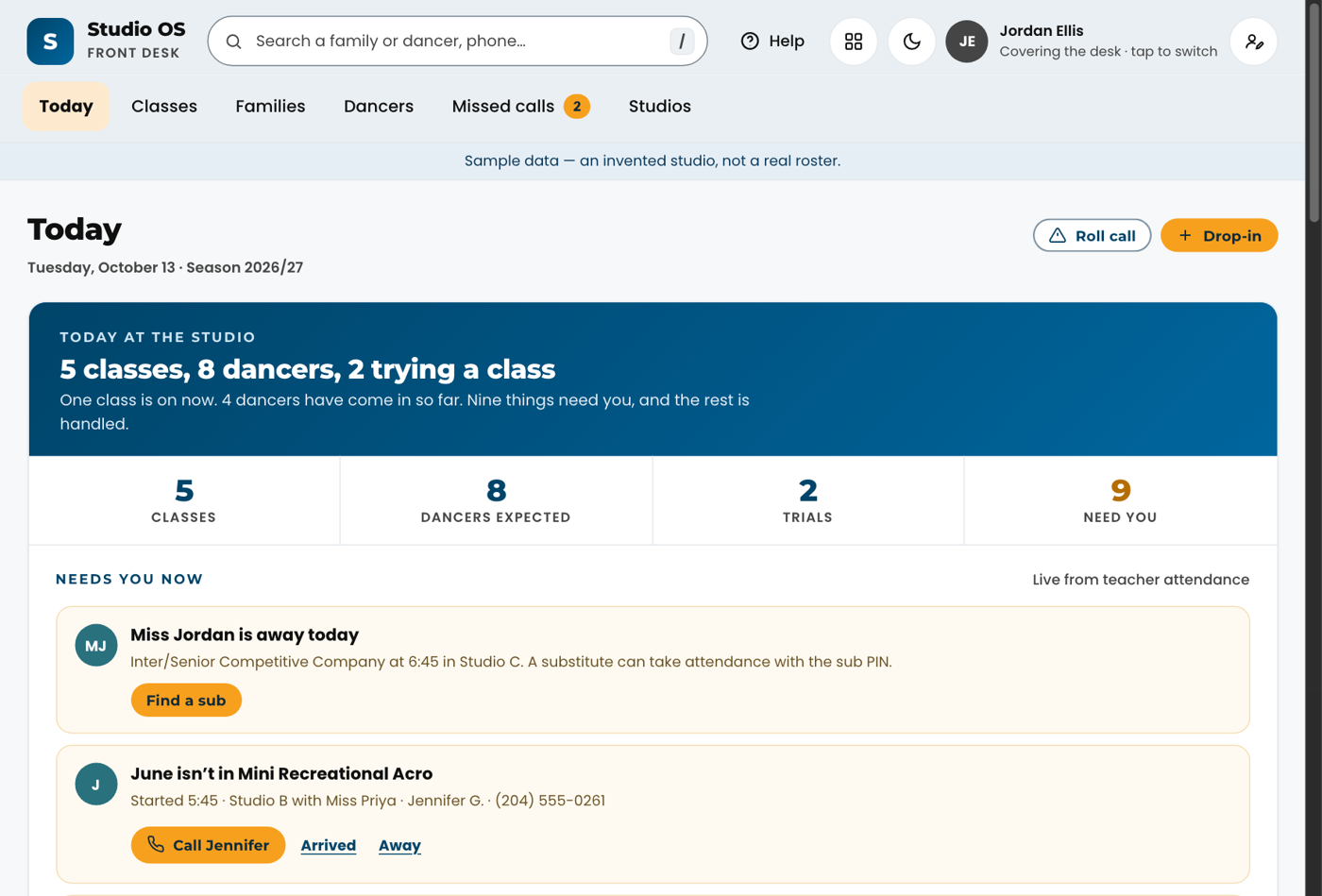
Today is one card for the shift, the screen you leave open. At the top, the day in a sentence (the classes, dancers and trials, what is on now, and how many things need you), then four numbers: Classes, Dancers expected (each dancer counted once, however many classes they have today), Trials and Need you. Tap a number to go to it. Needs you now only appears when something does, one card each with the one thing to do in gold: a teacher away (Find a sub), a dancer not in class (Call the parent, or Arrived), a note or incident from a teacher (Seen), a missed call that needs a person (Reply or Call back), a trial family you asked to check in with today (Call), and a dancer who left a class in StudioLab (Seen). That last card says whether they moved to another class, are still in their other classes, or have no classes left this season (worth a call to ask why), with Call and Family beside it; a dancer who comes back on the roster drops off by themselves. Several dancers not in the same class share one card (usually a register half-way through), each with its own Call and Arrived, and Open the roster in gold. Then The day: every class in order with its time, room and teacher, and every dancer as a chip. The chip's colour is the dancer's state: grey expected, green in class, amber late, red not in class or absent, dashed away (excused), blue trial. Small letters on a chip flag an allergy (A), a medical note (M), a birthday (a cake that says today on solid gold on the day itself, or the day it falls on, like Thu, for the week ahead, so a dancer who won't be in on the day can still be wished happy birthday) and a note from the teacher (N). Tap a chip to open the family; tap a class row to fold it away; Open roster takes you to the full roster. The class on now has a gold edge, finished classes fold away by themselves, and the whole card refreshes as teachers mark attendance. Handled without you lists what ran on its own today: missed calls that got the automatic text back, and attendance in from the iPads. Coming up shows closed days, events and competitions in the next two weeks, then Birthdays this week: the dancers with a birthday in the next seven days (tap one to open the family), then Team, staff whose birthday falls this week, from their own profiles. Under it, Work anniversaries this month names anyone who started at the studio this month a year or more ago (from the month they gave in their profile), with how many years; tap a name to open their profile.

Front deskHow do I find a family or a dancer?#
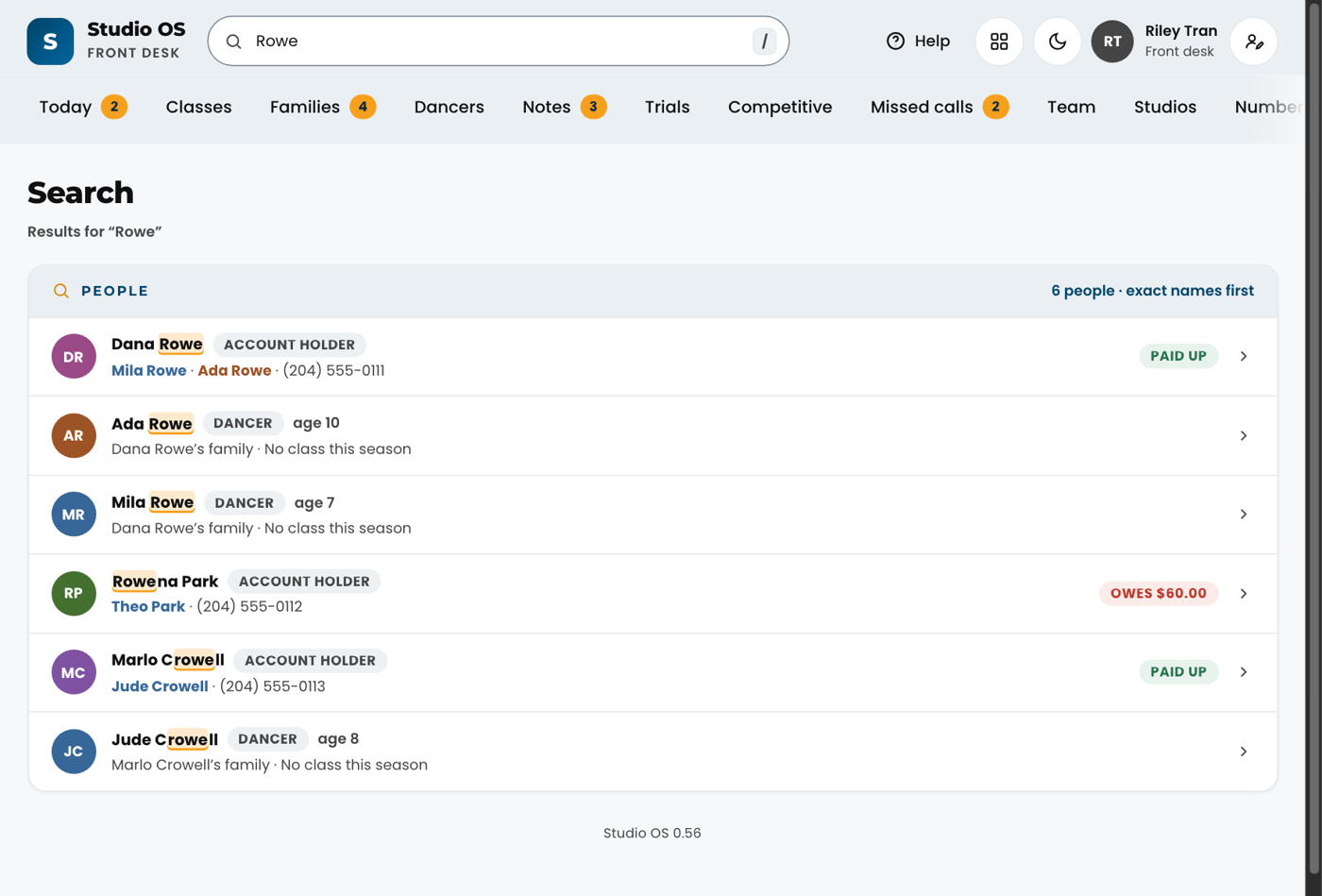
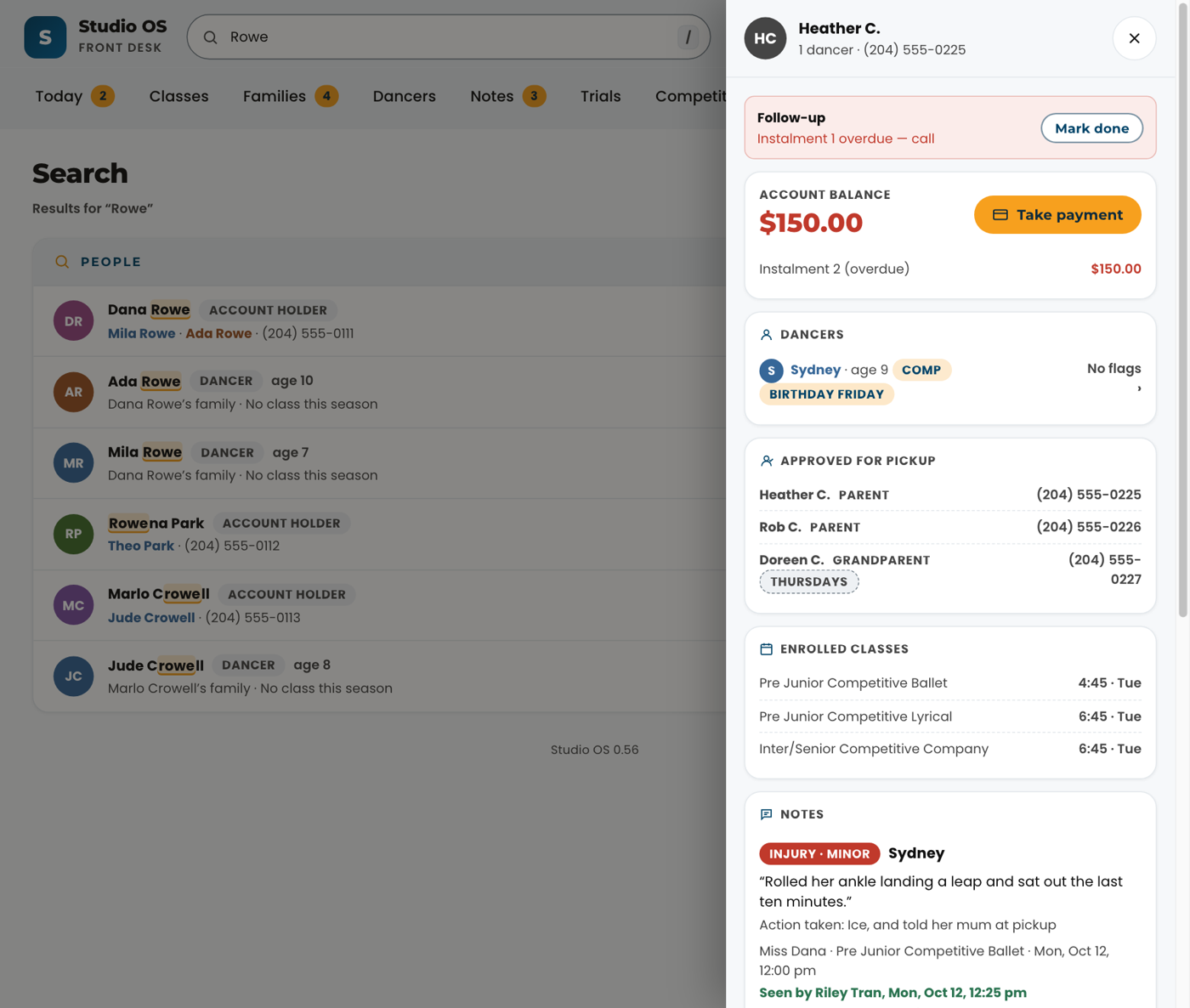
Tap the search box at the top (or press the / key) and type a name, phone number or email. Everyone who matches gets a row, labelled Account holder (the parent on the account) or Dancer, so a last name shows the parent and each of their dancers side by side. Exact names come first, then names that start with what you typed, then names that contain it, then phone and email matches; this season's families come before past ones. The letters that matched are highlighted, so you can see why each row is there. Tap an account holder to open the family, or a dancer to open the dancer.
Front deskWhat is in the family drawer?#
Everything about one family on one panel: the account balance, the dancers with age, allergy or medical flags and their classes, the guardian's phone and email, the waiver status, any open follow-up, approved pickup people, and notes from teachers about each dancer. Where a change is made (a new phone number, a payment) depends on the season; the answers below say where.
Front deskA dancer has arrived but the teacher has not marked them in. What do I do?#
On the Today screen under Needs you now, or on the class roster, tap Arrived next to the dancer's name. That checks them in from the desk. The teacher's list updates on the iPad within a few seconds.
Front deskA dancer is missing from class. What do I do?#
Needs you now on Today lists every dancer a teacher has not marked in once the class has started, and their chip in the class turns red. Tap the gold Call button (it names the parent) to ring them from an iPad or phone; the dancer moves off the list and their chip reads Called. When several dancers from one class are not marked, they share one card with a Call beside each; the teacher is often still taking the register, so a look at the roster first can save a call. If the parent says the dancer is sick or away, tap Away: the dancer is excused for that class and it never counts as a miss.
Front deskWhere do notes and incidents from teachers show up?#
Under Needs you now on Today, newest and most serious first, with the dancer, the class, the teacher and the parent's number; the dancer's chip in the class block carries an N. Read it, act on it if it needs a call, then tap Seen. Seen takes it off Today for the desk only: it stays in Notes (the tab), marked Seen by you, and it stays new for Orielle there until it has been read. It is also on the dancer's record and under Notes in the family drawer. Teachers cannot message parents from the attendance page; the desk and Orielle decide what the parent hears.
Front deskWhat are the attendance follow-ups on Today?#
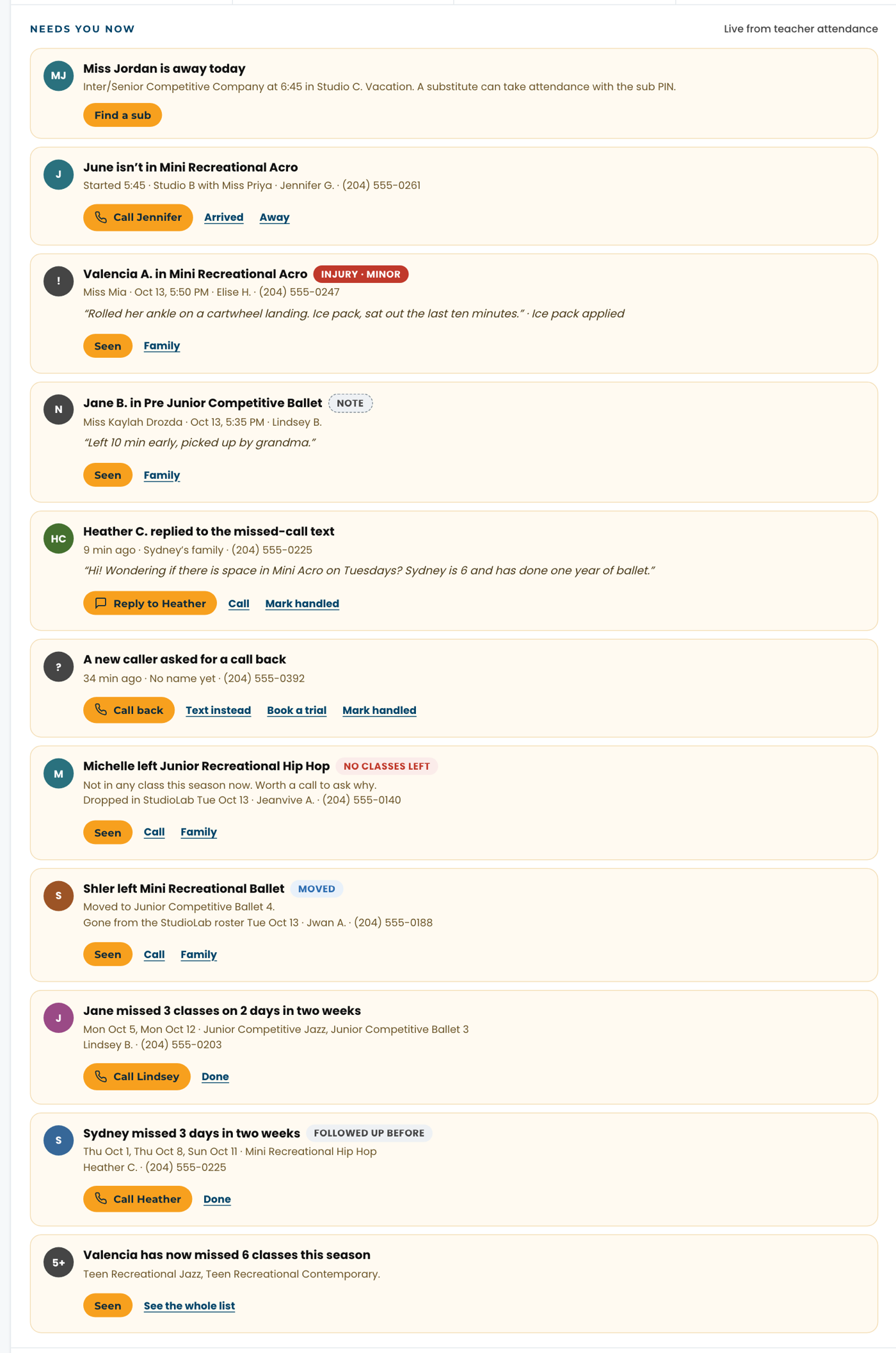
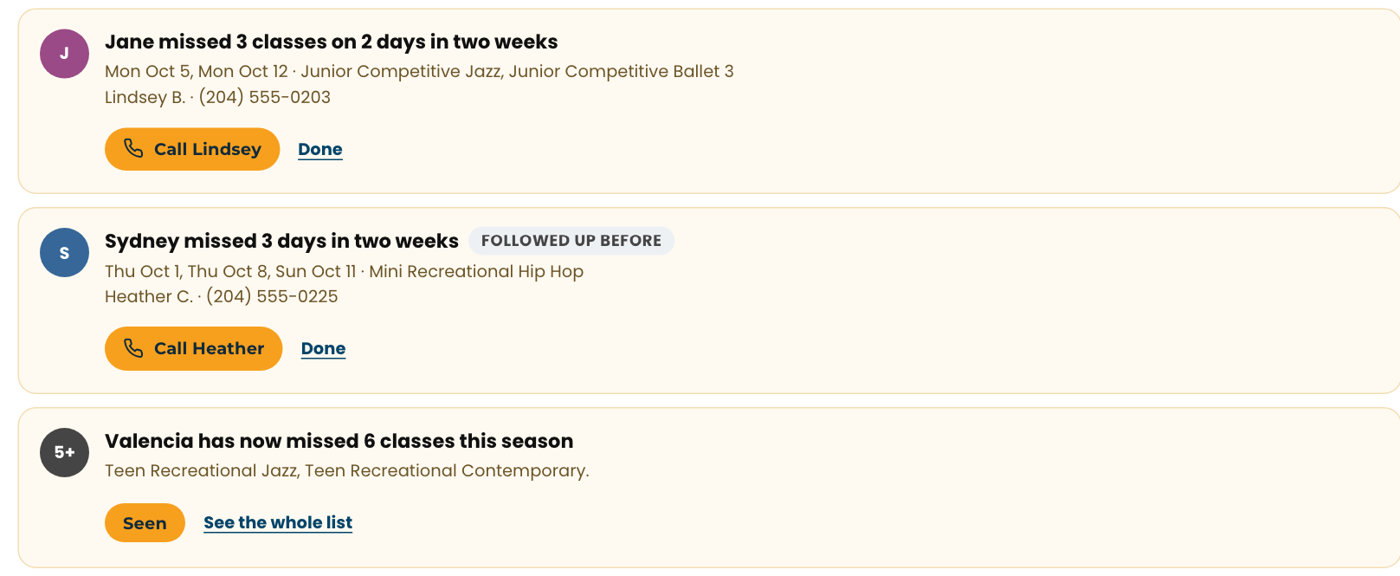
When a dancer misses classes on 2 different days within 2 weeks, a card appears under Needs you now on Today, for Orielle and the front desk. A night with three classes missed counts as one day. The card names the days, the classes and the parent. Tap Call to ring the family (or Text to open their conversation in Kanamé), then tap Done and pick what happened: Spoke with the family, Left a message, They had let us know or No follow-up needed. Add a note if it helps; it is saved on the dancer's record and in Kanamé. The card goes away and comes back only if the dancer misses 2 more days. Followed up before on a card means this dancer has had one.
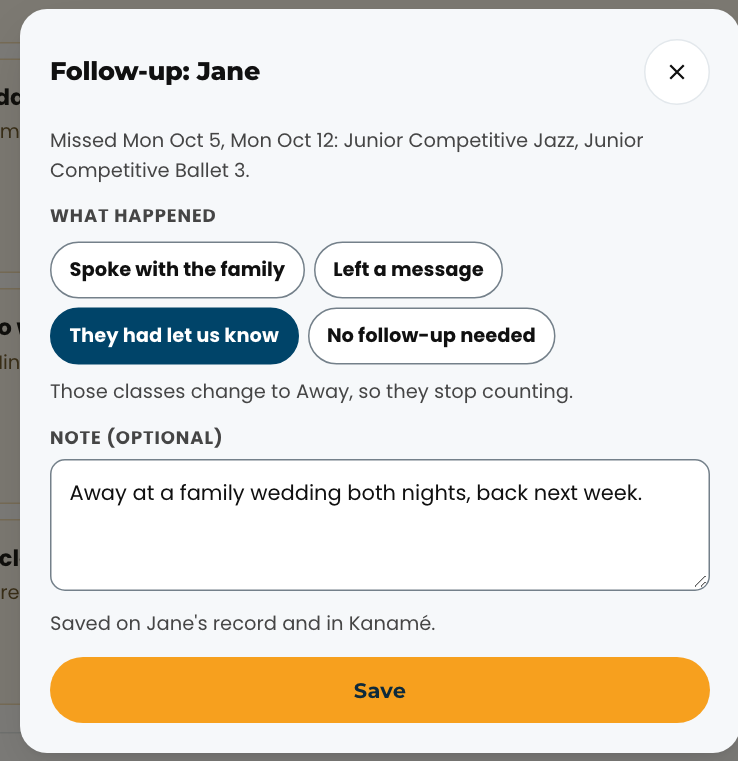
Front deskA family told us their dancer would be away. How do I stop it counting as a miss?#
On the day: on the dancer's isn't in card under Needs you now, tap Away. The dancer is excused for that class. Already marked absent: when the follow-up card comes up, tap Done and pick They had let us know; those classes change to Away. Away never counts toward a follow-up or the 5 or more list.
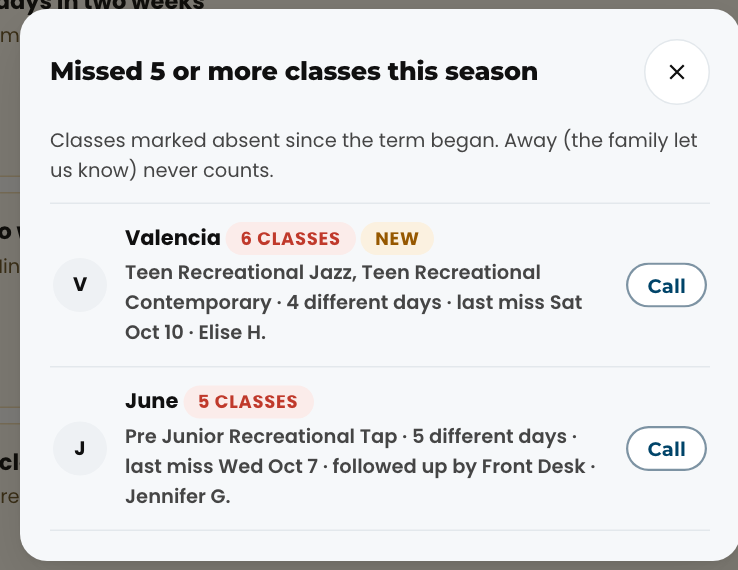
Front deskWhich dancers have missed 5 or more classes this season?#
When a dancer reaches 5 classes marked absent this season, one card says so under Needs you now; tap Seen to clear it. See the whole list shows every dancer at 5 or more, with the number of different days, their classes and whether they have been followed up. The same list is on the attendance report. It is there so you know; there is nothing to tick off.
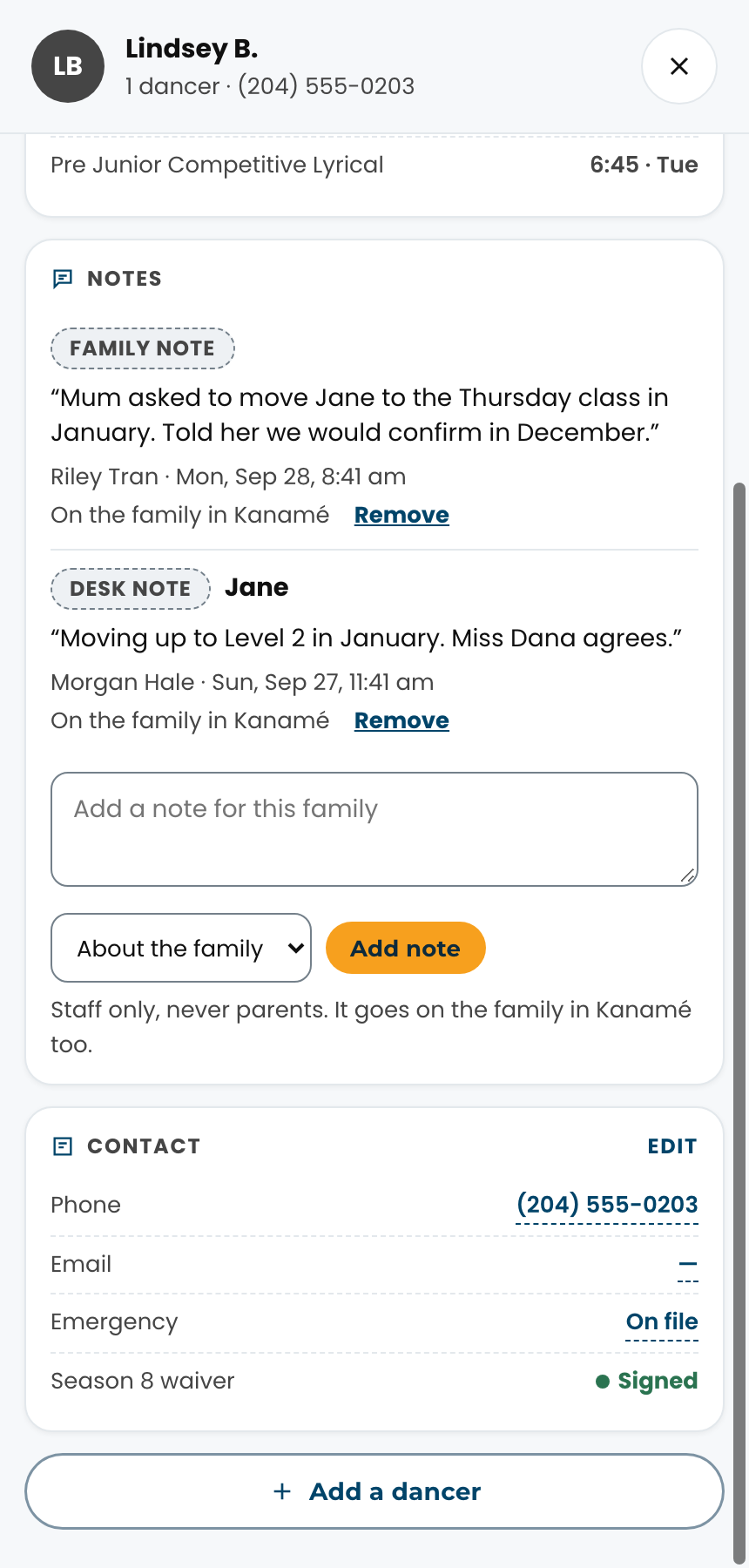
Front deskHow do I add a note on a family or a dancer?#
Open the family (tap their name anywhere, or search) and scroll to Notes. Type the note, pick who it is About (the family, or one of their dancers), then tap Add note. On a dancer's record the box is already about that dancer. Notes are for staff only and never go to parents. Every note also goes on the family's contact in Kanamé within a couple of minutes, so it is there when you open them in Kanamé too.
To take one back, tap Remove under it. Only the person who wrote it or an owner can remove a note; it comes off the family in Kanamé, and Notes keeps a record that it was removed.
Front deskHow do I record who is allowed to pick up a dancer?#
In https://connect.kanameplatform.com open the family's contact and fill in Approved pickup people: one person per line, with their relationship and phone (for example "Grandma Sue, grandmother, 204-555-0199"). Within the hour it shows under Approved for pickup on the family drawer in the console and on the teacher's roster card, so whoever hands the dancer over can check it. Until a family has a list, confirm with the parent before releasing a dancer. Later on, parents will be able to fill this in themselves.
Front deskHow do I post a notice for families?#
Not yet. Notices post to the family portal, which opens in January 2027. Until then the console's Notices screen says so, and family messages go out the way they do today.
Front deskDoes the console keep itself up to date?#
Yes. While it is open, attendance, teacher notes and the roll call refresh every minute or so, and missed calls arrive within a couple of minutes. Registrations, classes and balances come across twice a day, overnight and again before the desk opens, and changes made in Kanamé come across every hour. When any of those land, or a new version of Studio OS is out, the console reloads itself the next time nobody is using it: nothing open, nothing typed, no roll call, and two minutes untouched. It comes back on the same screen and you stay signed in, so there is nothing to refresh by hand.
Front deskHow do I text, call or email a family from the console?#
Open the family (or the trial card) and tap Conversation. It opens that family's contact in Kanamé, with their texts, calls and email in one thread, so you never search for the same person twice. Inside Kanamé it opens right there in the same window; when you are done, tap Studio OS in the sidebar and you are back on the same family. Opened on its own, Studio OS opens Kanamé in a new tab. The console is where you run the day; Kanamé is where you talk to people. Call next to a phone number dials it directly.
Front deskHow do I text or email every family in one class?#
In Kanamé, open Contacts, add the filter Tag, and pick the class's tag. Every class this season has one, made from the class name, its day and its start time, for example szn8-class-junior-competitive-jazz-wed-445pm. Type a word from the class name and choose it from the list. Select all, then use Send SMS or Send Email at the top, the same as any message to a group. A family with two dancers in the class gets one message, and replies come back to Conversations like any other text.
The tags follow StudioLab. A dancer added to a class there gets the tag overnight, and one who drops comes off it overnight. Two classes with the same name, day and start time also carry the room (…-wed-445pm-room-b), so each class always has its own tag. If you message one class often, save the filter as a smart list and turn on sharing, so the rest of the team can use it too.
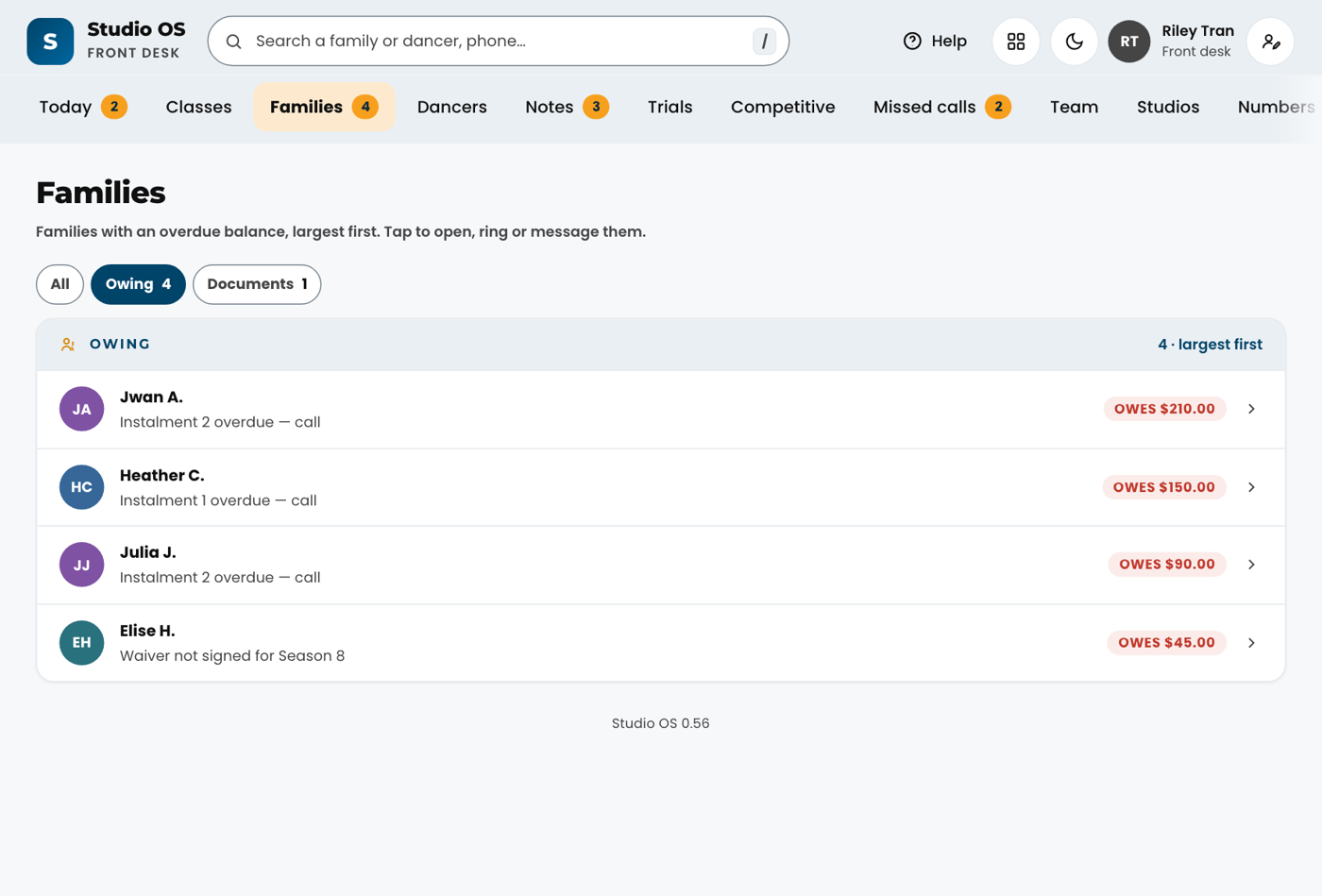
Front deskWhat is the Families screen?#
Families lists every family with a dancer in a class this season, A to Z, each with their dancers, phone number and a tag: Owes and the amount, Waiver to sign, or Paid up. Two filters sit above the list: Owing shows every family with an overdue balance, largest first, and Documents shows families with terms or a waiver still to sign. The number on the Families tab is the owing count. Tap a family to open it, ring or message them, and see their dancers, classes, balance and pickup list. Dancers have their own tab. Trial families to call back are on the Trials board, and callers to ring back are under Missed calls, so each list has one job.
Front deskWhere do I find a dancer?#
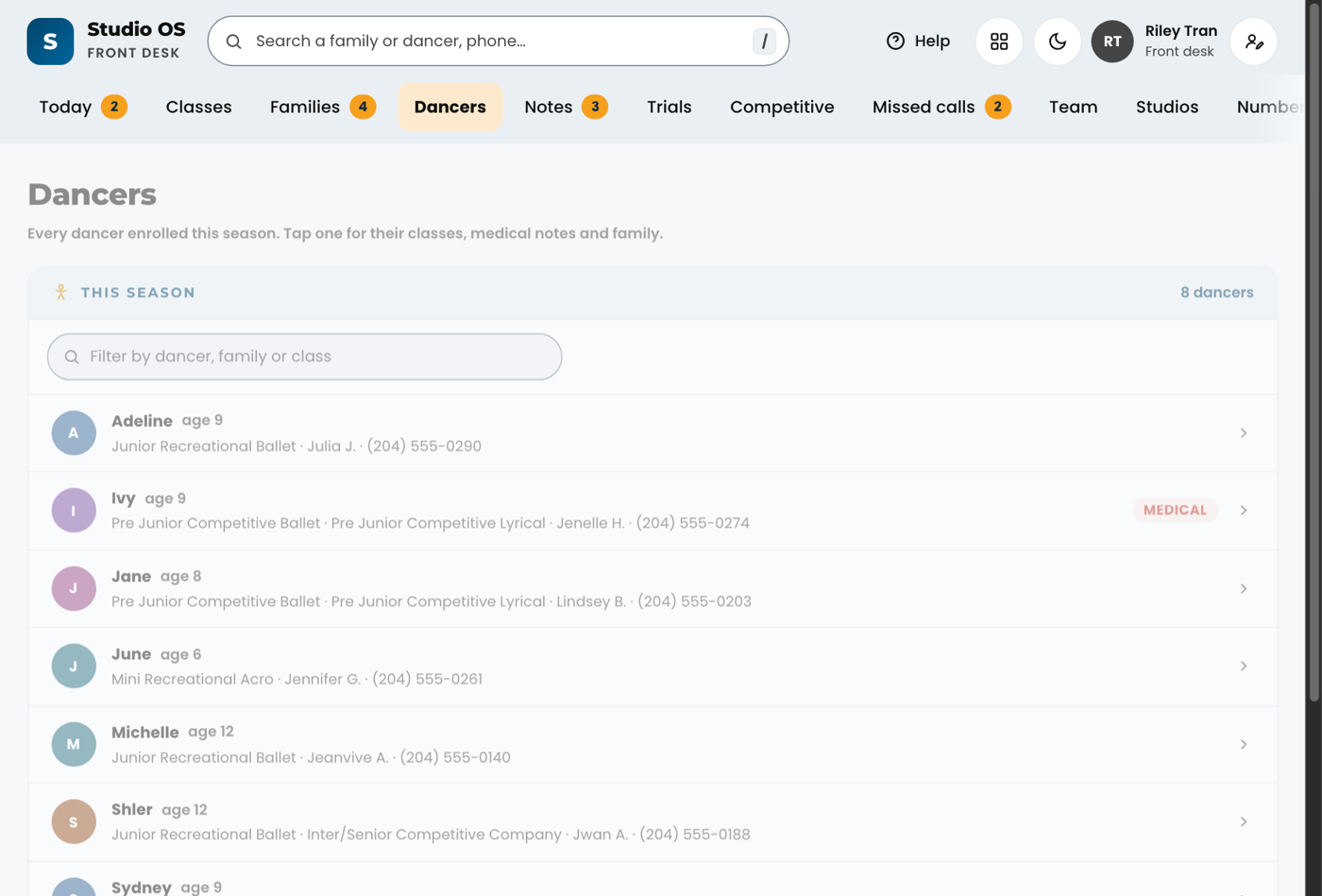
Type their name in the search bar at the top, or open the Dancers tab: every dancer enrolled this season, with age, their classes and their family. The filter box narrows it by dancer, family or class name. Tap a dancer for their classes, medical notes, attendance and teacher notes.
Front deskWhat is the Missed calls screen?#
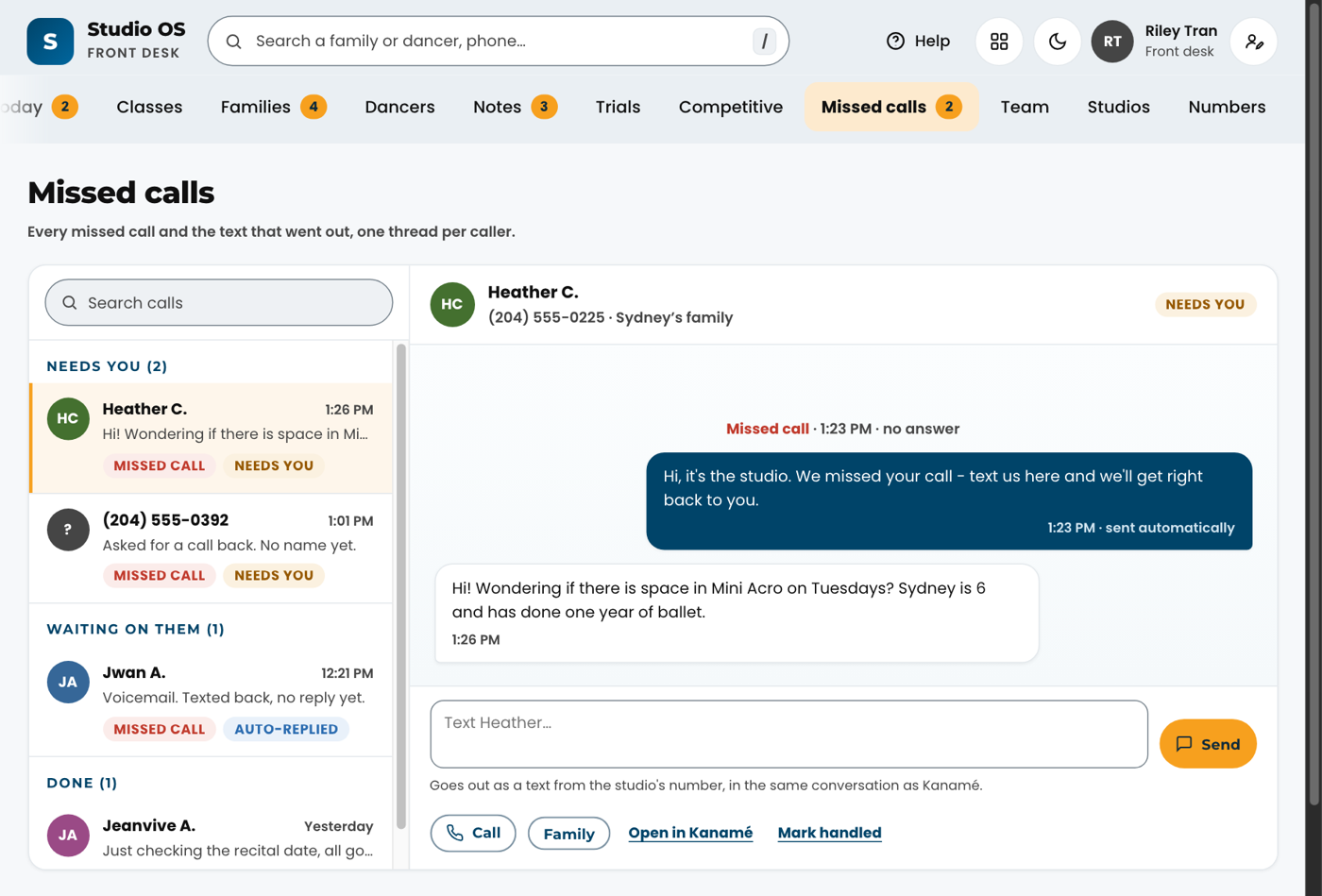
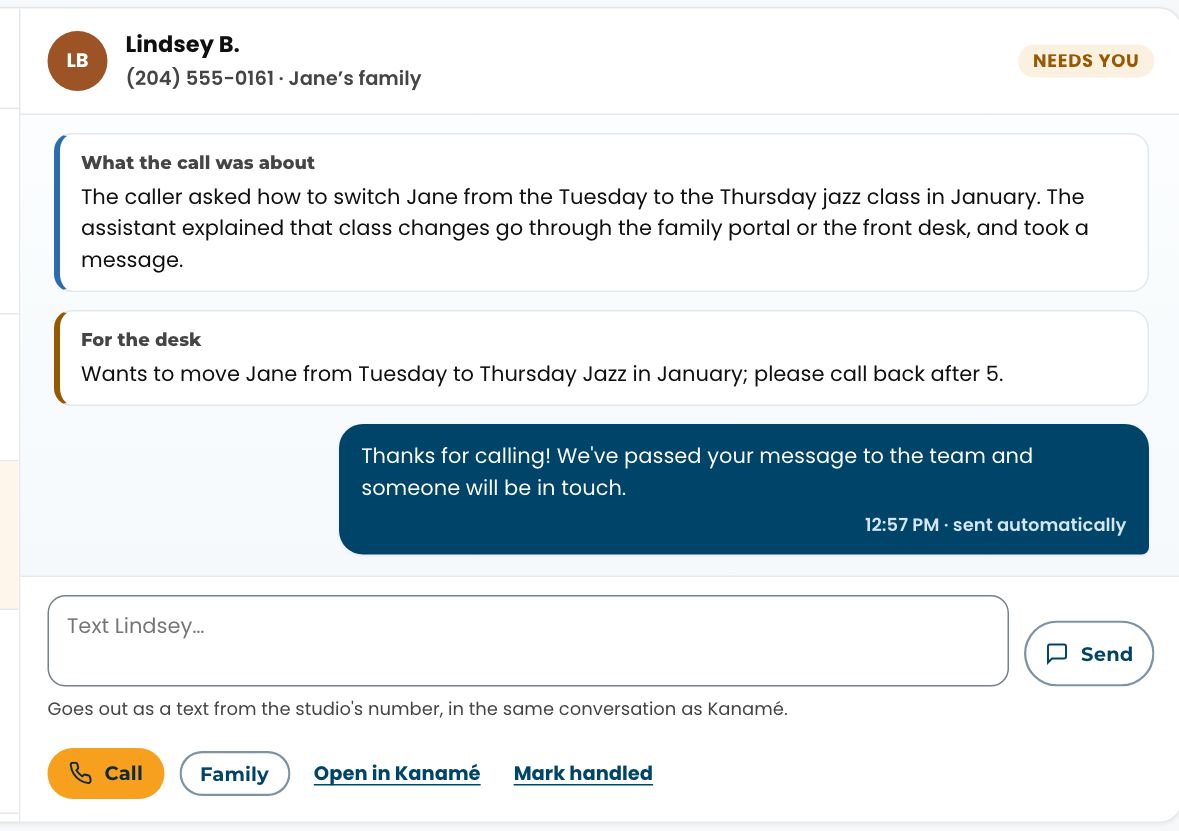
Every call the studio missed in the last 30 days, and what came of it, one thread per caller. When a call is missed, TDM's phone system texts the caller back automatically and opens a callback task. Callers sit down the left in three lanes, newest first: Needs you (they replied or asked for a call back and nobody has answered yet), Waiting on them (the text went out, no reply yet, under 48 hours) and Done, which says how each one closed: handled here and by whom, answered in Kanamé (and by whom), the callback task closed there, or no reply in 48 hours. Tap a caller to read the whole exchange on the right: the missed call, the automatic text, their replies and anything the studio sent since. A studio family shows by name with their dancers; anyone else shows by the name they gave or their number. Search calls finds a caller by name, number or anything they wrote. It refreshes every couple of minutes.
Front deskA call says "Answered by" someone, or "Called back, no answer". What does that mean?#
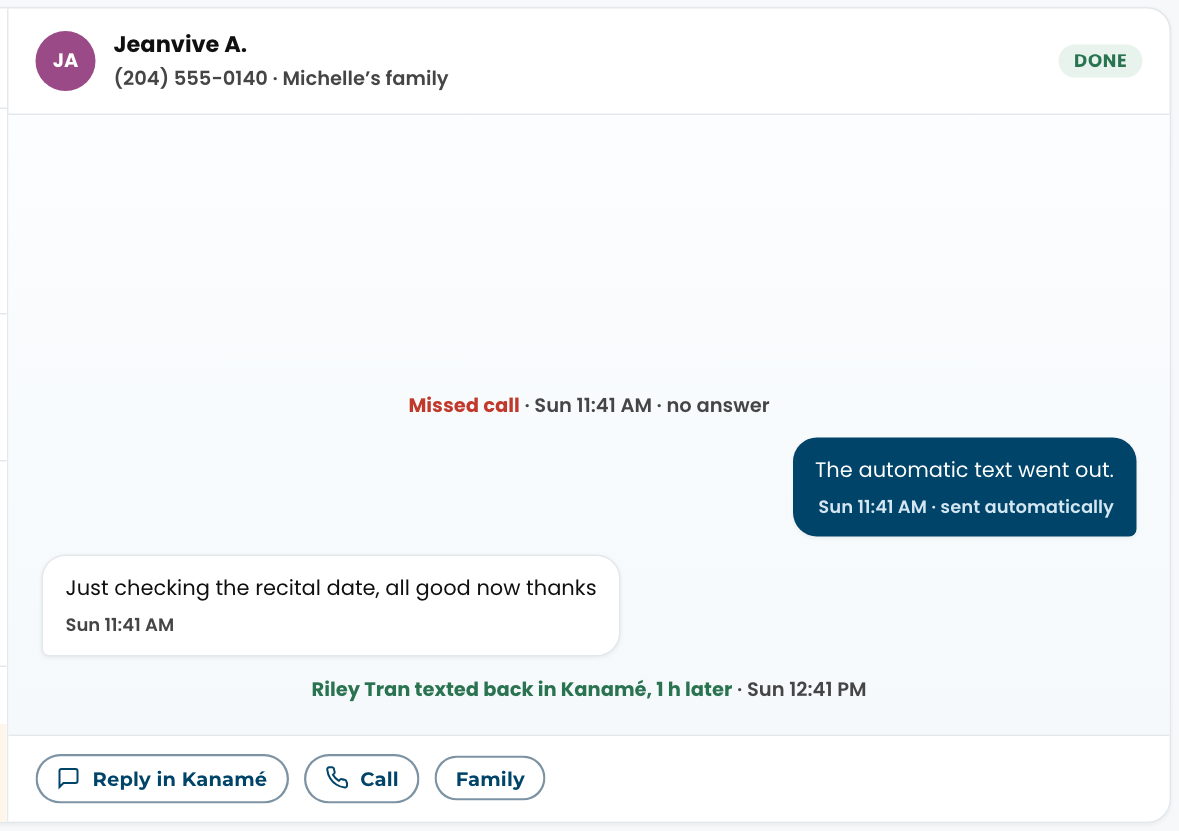
Someone at the studio replied to that caller in Kanamé after the missed call: a text they typed, or a call back. The label names who, and the thread on the right says how and how long after, for example texted back in Kanamé, 2 days later. It is often Orielle replying from a personal login or phone, which is why the desk may not have seen it happen. Called back, no answer means the call back went to voicemail or wasn't picked up: it counts as answered, so read the thread and decide whether to try again. A reply sent days after the call may be about something else; the thread shows exactly what was said.
Front deskSomeone called and we missed it. What do I do?#
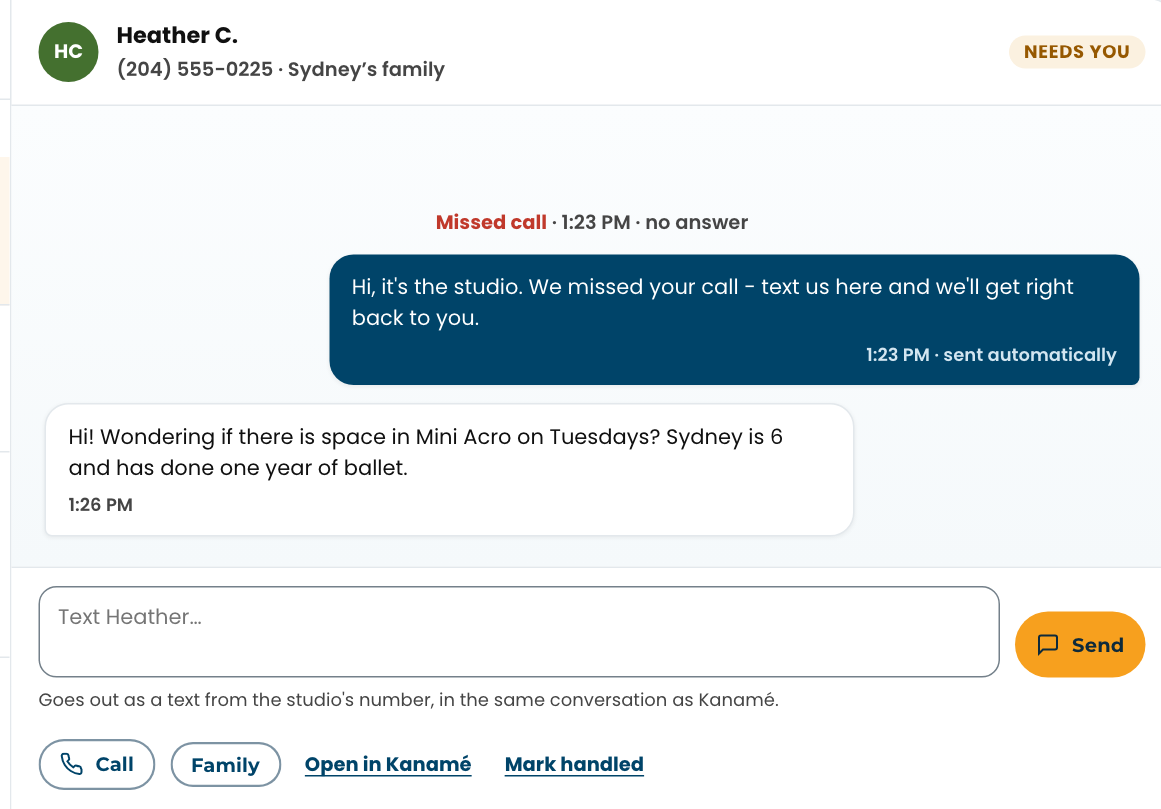
Open Missed calls (the ones that need a person also sit under Needs you now on Today) and tap the caller under Needs you. Read what they wrote, then answer. To text them, type in the box under the conversation and tap Send: it goes out from the studio's number within a few seconds, in the same conversation as in https://connect.kanameplatform.com, and the caller moves to Done. Call rings them. The gold one is the one that fits: Call when they asked for a call back, Send when they wrote. Open in Kanamé opens the whole thread there, for a photo, an email or anything longer (inside Kanamé it opens right there, and Studio OS in the sidebar brings you back to the same caller). When it is dealt with some other way, tap Mark handled; that closes the callback task in the phone system too. Family opens a studio family; a new caller asking about classes gets Book a trial, with their name and number already filled in.
Front deskWhat are the calls marked "Phone assistant"?#
Calls the studio's phone assistant answered when nobody at the desk could pick up. Each one is a thread in Missed calls, marked Phone assistant, with What the call was about (the phone system's own summary), For the desk (anything the caller left for a person: a message, a call back they asked for, a class change) and the free trial it booked, if it booked one. A call that left something for the desk sits under Needs you, and on Today under Needs you now, until you call or text them back or tap Mark handled. Urgent means the assistant also sent the urgent alert to Orielle during the call. Everything else goes straight to Done: the assistant answered it, and a trial it booked is already on the Trials board with its confirmation sent. Test call marks a call to the private test line, which never needs you. Handled without you on Today counts the day's calls, and the Saturday email has the week in one line.
Front deskI sent a reply from Missed calls. How do I know it went out?#
Your text shows in the conversation as Sending… for a few seconds, then with the time and your name ("Isabel from Studio OS"). It's in the caller's conversation in Kanamé too. If it shows Not sent, the reason is under it: most often the number has asked not to get texts, so call them instead. Edit and send again puts the text back in the box. A half-typed reply stays in the box if the screen refreshes or you look at another caller.
Front deskA parent's phone number or email has changed. Where do I update it?#
In StudioLab, as before. Studio OS refreshes from it twice a day, overnight and again before the desk opens, so the console shows the new number after the next refresh. If the family also texts or emails with the studio through https://connect.kanameplatform.com, update the contact there too so replies reach the right number.
Front deskHow do I look at an earlier day's attendance, or last week's?#
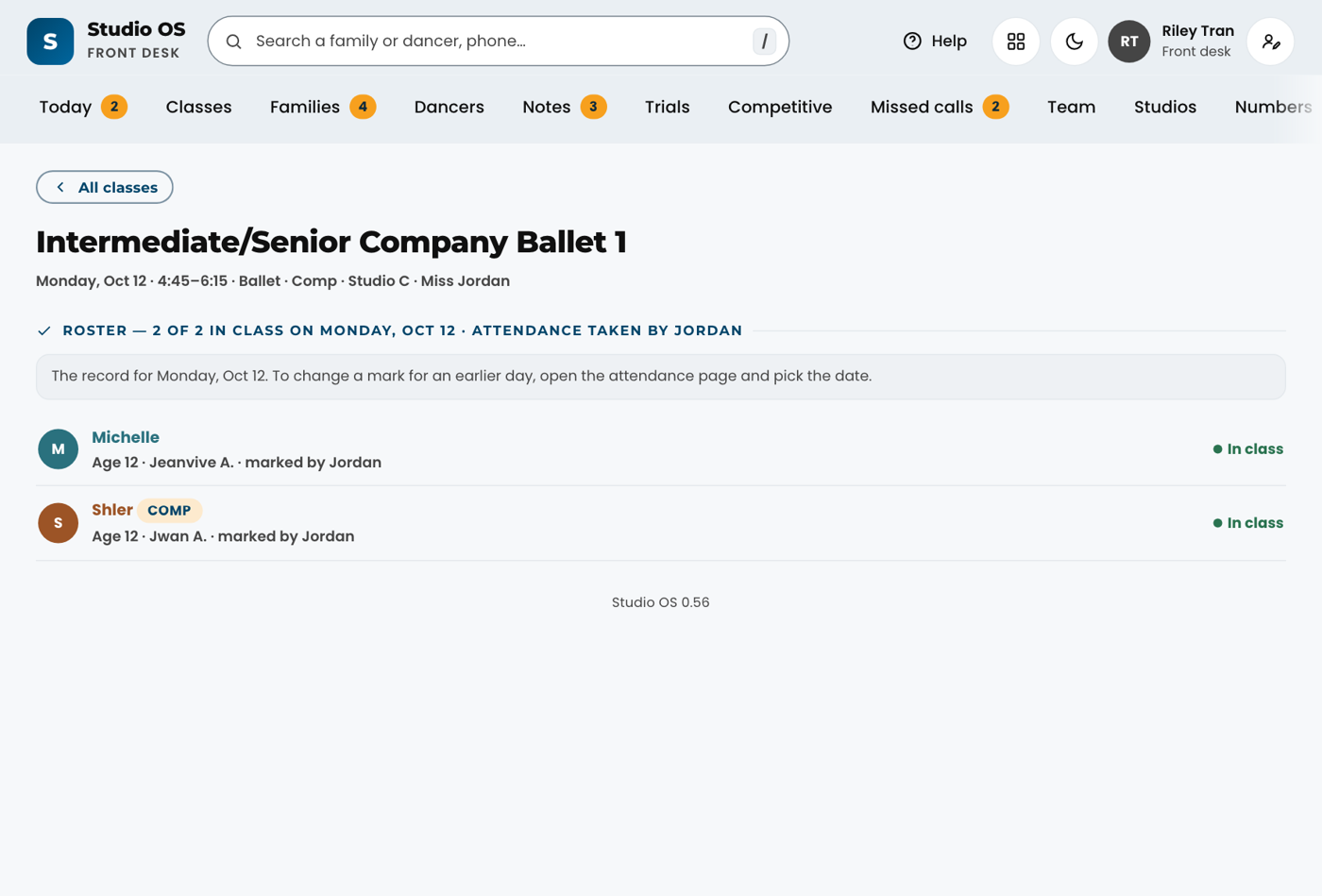
Open Classes. The arrows beside the date move one class day at a time, back to the first day of the season and forward for planning; Today brings you back. On a past day every card says how many were in class and who took attendance, or no attendance taken if nobody submitted. Tap a class for that day's register: who was in, late, away or absent, and which teacher marked each one. It is a record, so nothing on it can be changed there. To fix a mark for an earlier day, use the attendance page's Class date picker (Teachers section). Week shows the whole week with its dates, and the same arrows move a week at a time.
Teachers 18
TeachersHow do I get around as a teacher?#
Open the attendance app from your home screen and sign in the way you always do: pick your name and type your PIN. You land on your home, with two choices. Take attendance opens today's register for your classes. Book a studio opens the studio calendar, where you reserve a room for a rehearsal, a private or a solo. Under them are My profile and Help for teachers. Once you are in, the same tabs sit under the header on every page: Home, Attendance, Book a studio, My profile and Help, so you can always see where you are and get back. The arrow button at the top right signs you out. That is all of Studio OS a teacher needs: the front desk console, family records and the studio's numbers are for the front desk and Orielle only, and a teacher PIN cannot open them, unless you are covering the front desk that day (see "I'm covering the front desk today").
TeachersI'm covering the front desk today. How do I get in, and what can I do?#
Orielle or the front desk lets you in from their Team screen, for today or set up ahead for the day (or days) you are covering. Then open the front desk (https://tdm.dsge.ca/console), or tap Studio OS on the home of your attendance app. On the front desk sign-in, tap Covering the desk today?, pick your name and type your usual PIN. You have Today, Classes, Families, Dancers, Missed calls and Studios: check dancers in, take a register, call or text a family, answer a missed call, book a trial and leave a note for the front desk. Money, past notes, the trials board, the numbers and the staff screens stay with Orielle and the front desk, so you will not see them. If they set it up ahead, your PIN opens the front desk from the start of your first day; sign in before then and the card tells you the day it starts. Your cover ends at midnight on your last day, or sooner if they end it, and the front desk then goes back to its sign-in. Your own teacher screens work as usual all day.
TeachersWhy does attendance matter so much?#
Because in an emergency it is the only list there is. If the alarm goes and the building empties through the nearest doors, the front desk needs to know, in seconds, who was in which room. A register taken at the start of class, with the late arrivals added as they come in, is that list: it says who is inside, who is outside, and who never arrived, so every child can be accounted for at the meeting point. Marking present is not paperwork. Take it in the first minutes of every class, add anyone who arrives late, and submit it. If a dancer leaves early, tell the front desk so the record is right.
TeachersThe alarm has gone. What do I do with my class?#
Take your class out of the nearest exit first. Then tap the warning triangle at the top of the attendance page and confirm. Your own class is at the top of the list, with every other class below it. Tap a dancer's name when you can see that person. The number at the top counts how many are still to find, across the whole studio, and the front desk sees your ticks as you make them — it is one list, not one each.
If a dancer's name is under Not here today the register already had them absent or away, so they are not counted; tap them only if they are actually with you. Tap Add someone for anyone else standing with your group. You do not need to end it — the front desk does that.
TeachersHow do I take attendance?#
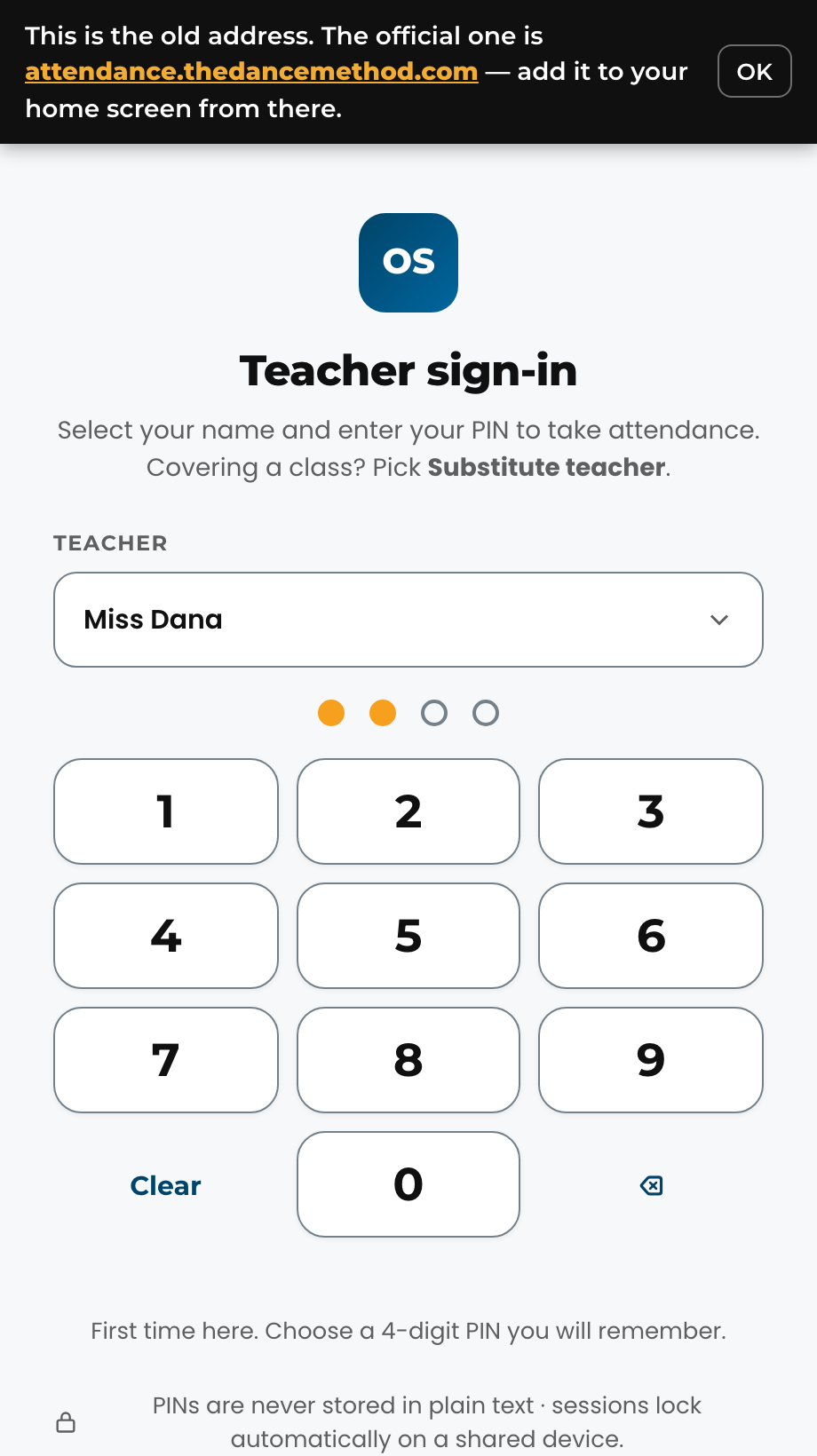
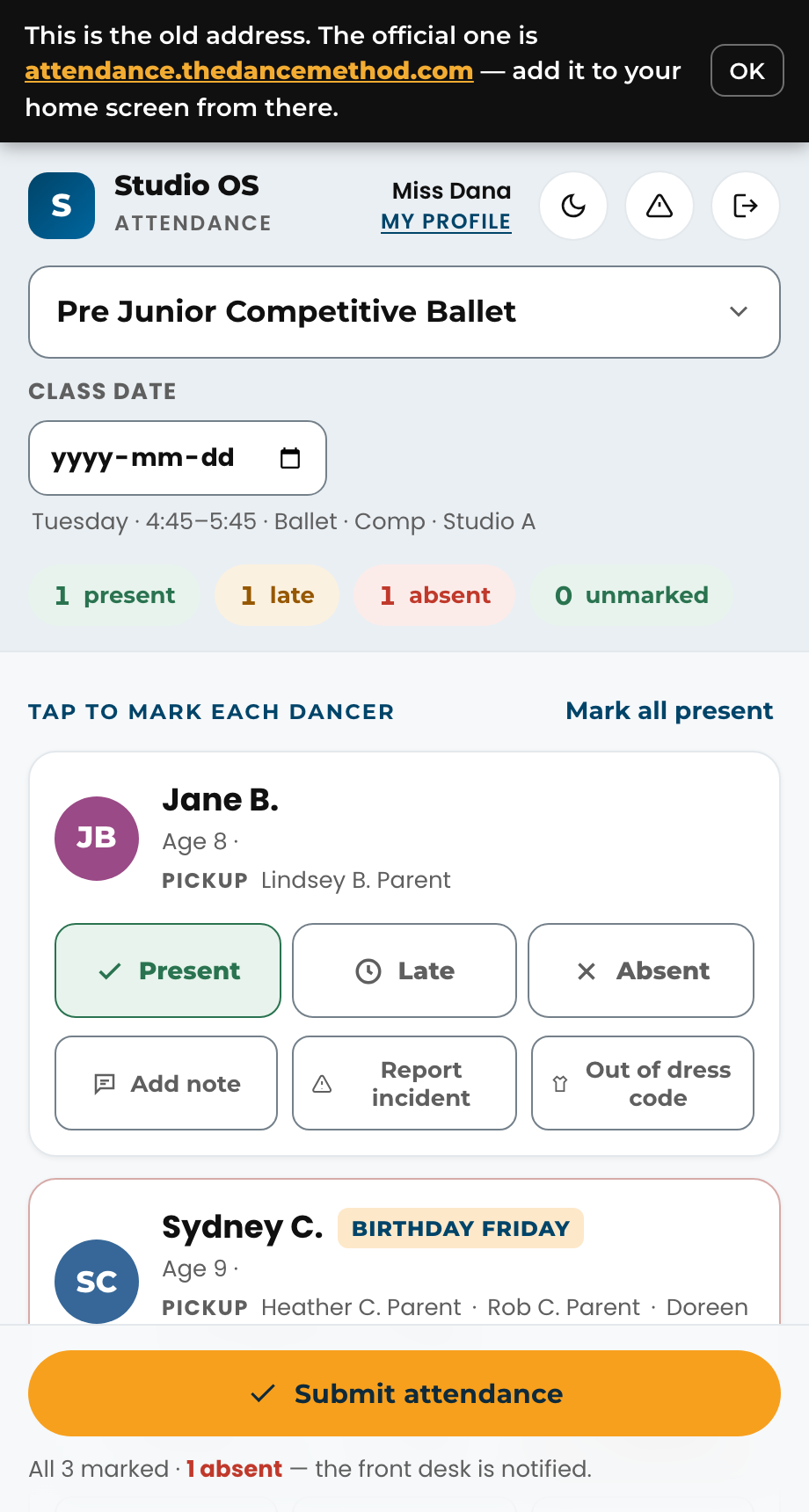
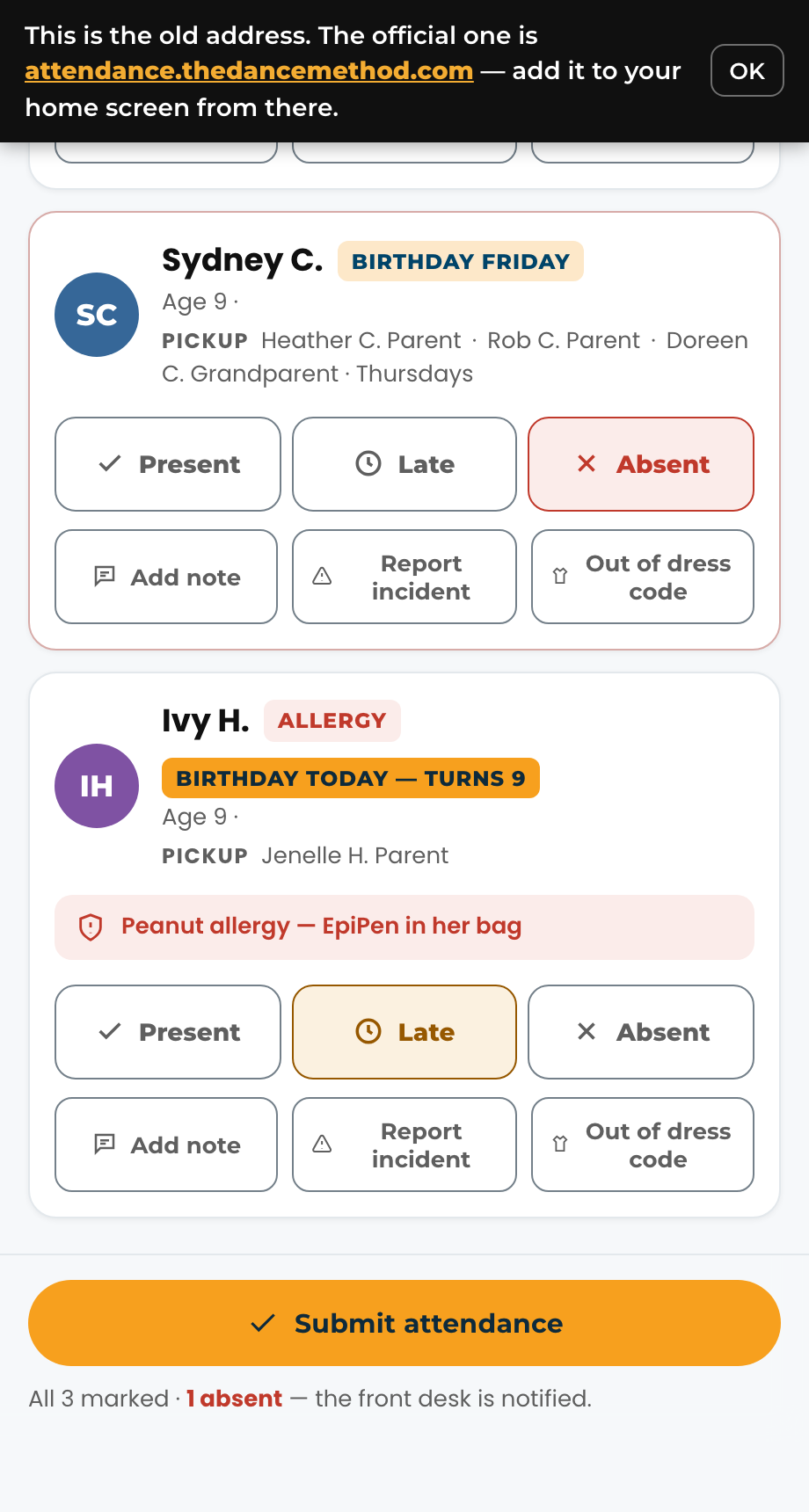
On the studio iPad, or on your own phone or laptop, open the attendance page (https://attendance.thedancemethod.com/attendance), pick your name, enter your PIN (the front desk gives you a temporary one in person the first time, and the screen asks you to choose your own), and pick your class. Every dancer on the roster is a card. Tap Present as each one arrives. Tap Late if they arrive after the first ten minutes, and Absent for anyone who has not shown by the end of warm-up. The front desk sees your marks as you make them, and a dancer the desk checks in at the counter shows as present on your list too. When the register is right, tap Submit attendance in the bar at the bottom of the screen; it stays there while you scroll through the class.
Related
TeachersHow do I put the attendance page on my phone as an app?#
Open https://attendance.thedancemethod.com/install on your phone and follow the steps there. On an iPhone it is Share, then Add to Home Screen, then Add; on Android it is one Install button. You get a TDM icon on your home screen that opens straight to the sign-in, full screen, with no browser around it. If you already have an Attendance icon from before the studio address existed, delete that one first (press and hold, Remove App, Delete App) and add the new one — the old copy stops getting updates. Your PIN is the same.
TeachersA dancer is on my roster who should not be, or someone is missing.#
Tell the front desk. They can fix an enrolment, and the list updates on the iPad. Season classes don't take drop-ins; drop-in classes have their own list (see Drop-in classes). You do not need to do anything else on the iPad.
TeachersThere is a Trial badge next to a name. What do I do differently?#
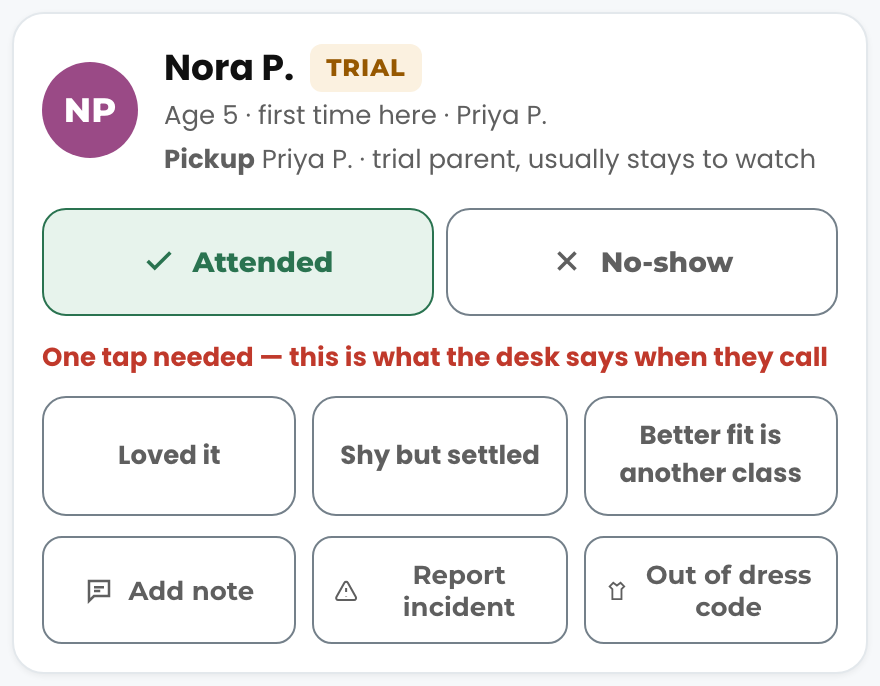
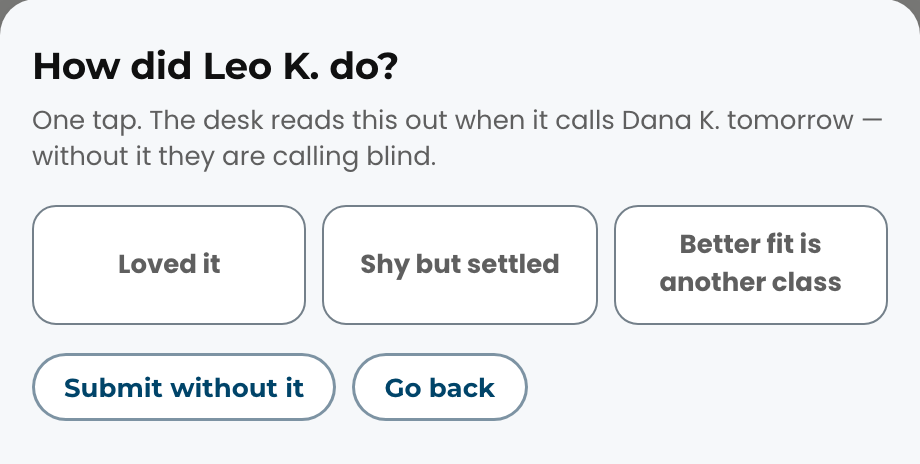
That dancer is trying the class for the first time. Greet them by name, and at the end of class mark them Attended (or No-show if they never came) and tap one of three notes: Loved it, Shy but settled, or Better fit is another class. That one tap is what the front desk reads out when it phones the parent the next day, so it matters more than it looks. If you forget, Submit attendance asks you for it before it files the register — answer it there, or tap Submit without it if you genuinely have nothing to say.
TeachersA dancer arrived after I submitted attendance. Can I change it?#
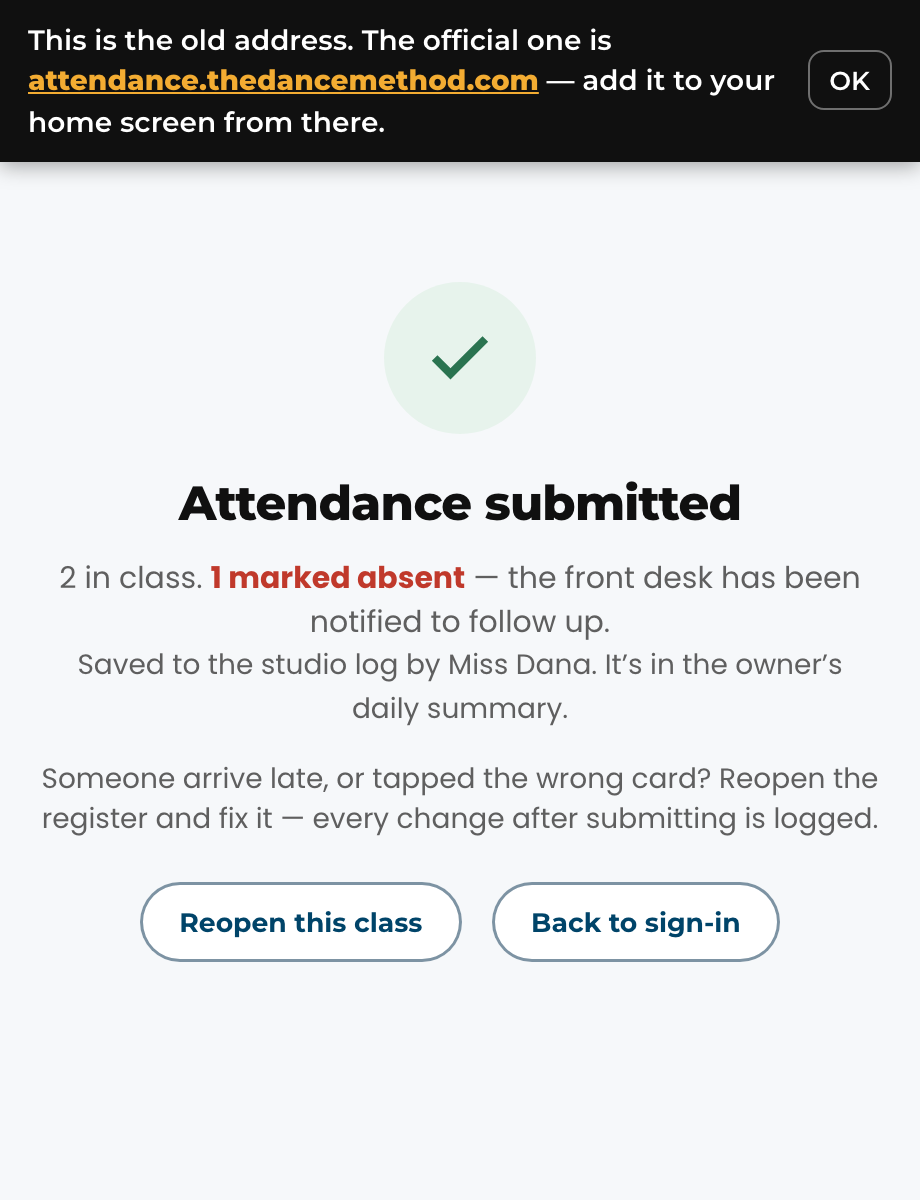
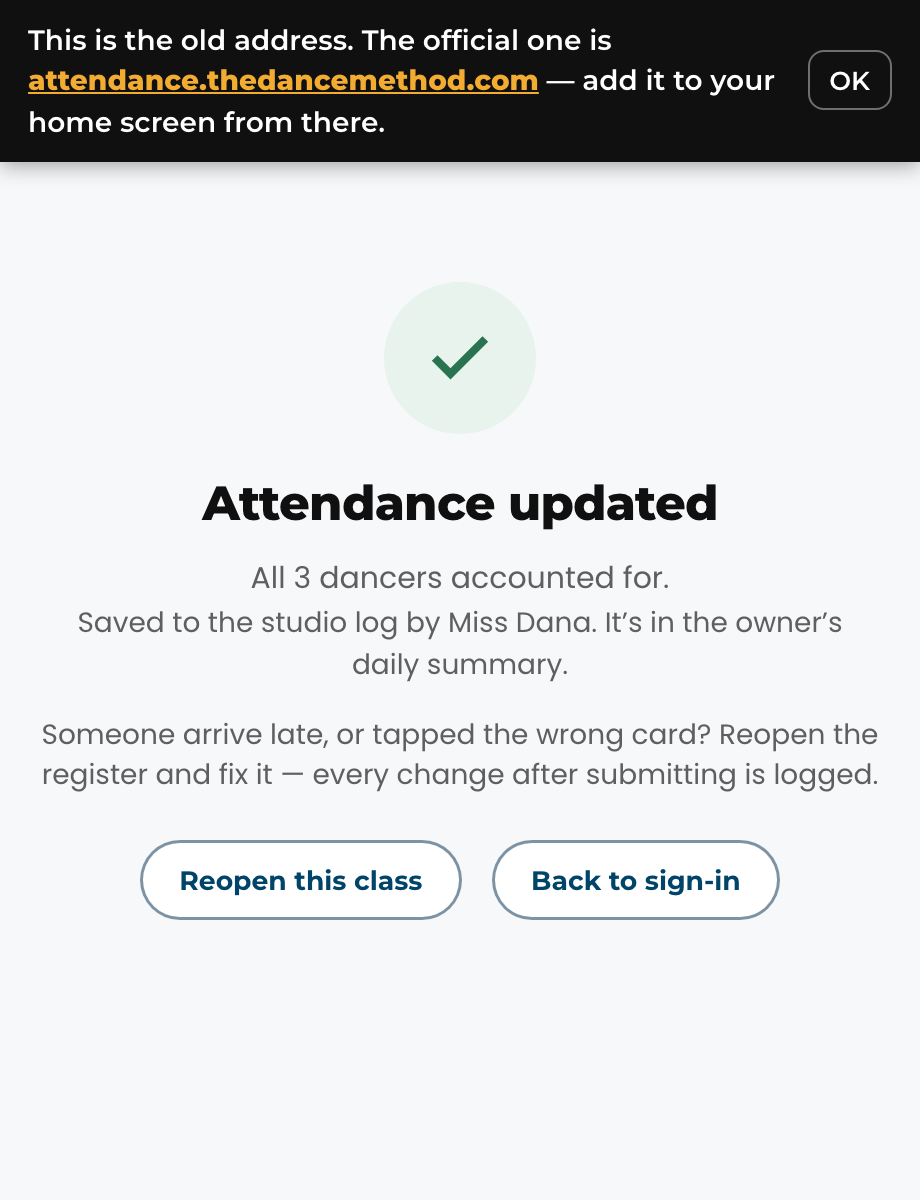
Yes. Nothing is locked. On the Attendance submitted screen tap Reopen this class, tap the dancer's card to Late (or Present), then Submit attendance again. The screen now says Attendance updated. If you have already gone back to sign-in, sign in again and pick the same class; your earlier marks are still there.
TeachersI tapped the wrong card. Can I fix a mark?#
Yes, the same way: reopen the class, tap the right mark, submit again. Every change made after a register was submitted is kept as a correction with your name and the time, so the front desk and the owner can see what changed. You never need to ask anyone to unlock it.
TeachersI need to take or fix attendance for an earlier day. How?#
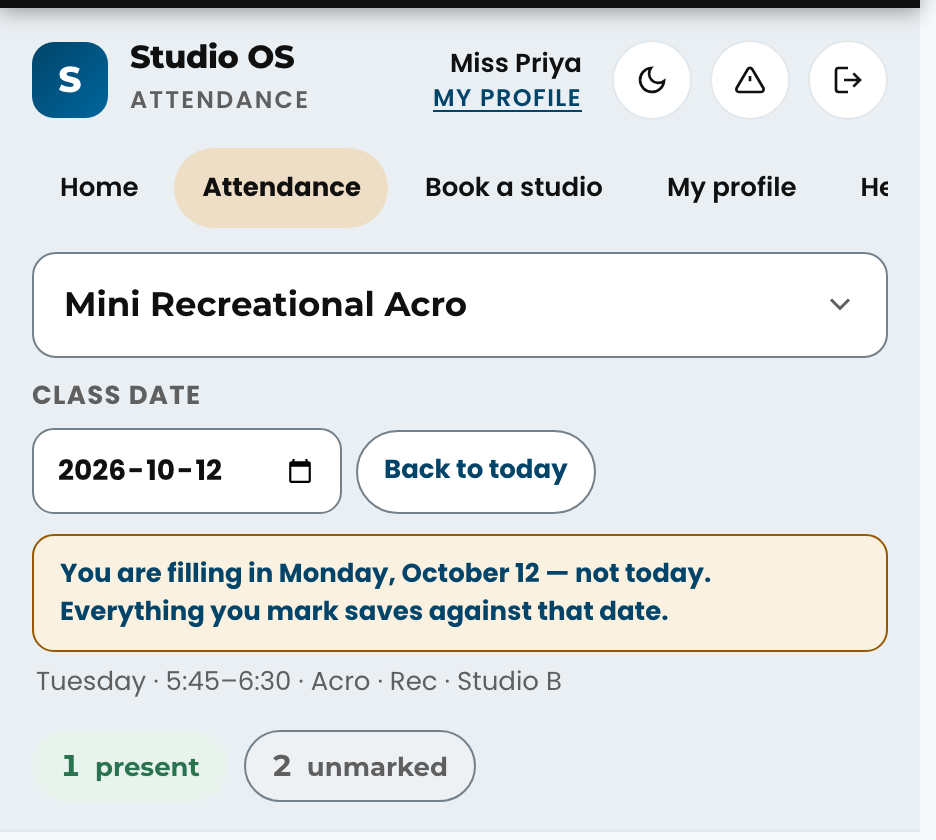
Above the class list, tap Class date and pick the day. The list changes to that day's classes and a yellow line reminds you that everything you mark saves against that date, not today. Mark and submit as usual, then tap Back to today. The picker goes back to the first day of the season and never forward (a class that has not happened cannot be taken), and a day the studio was closed is refused with the reason. The front desk can do the same for any class, which is how a past day's register gets corrected.
TeachersDoes attendance I take on my phone show up at the front desk?#
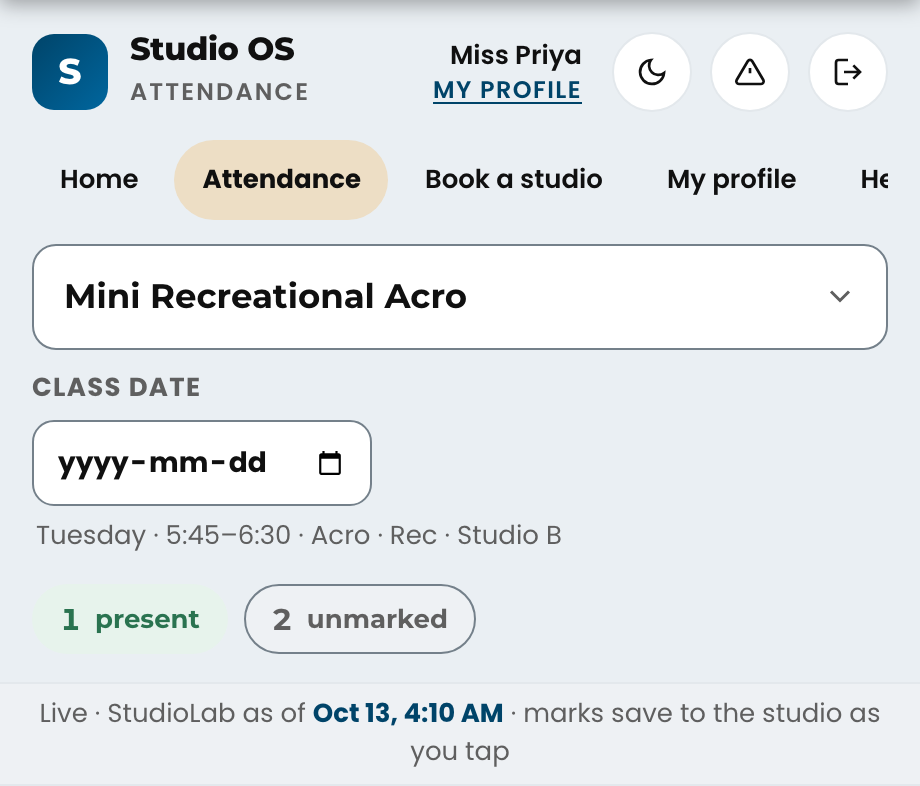
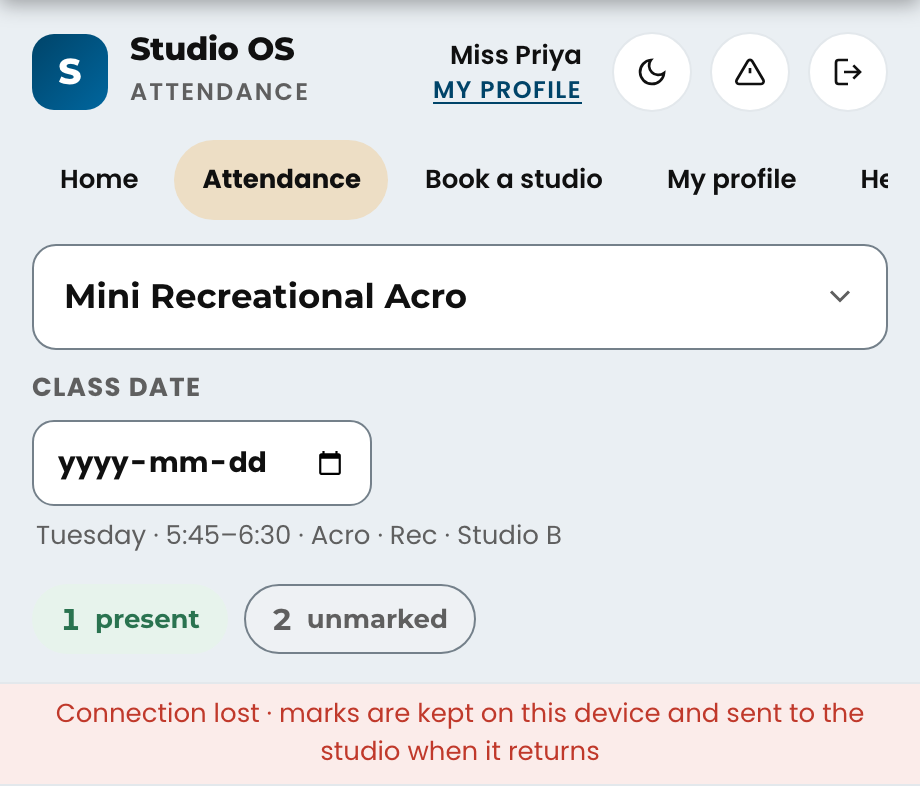
Yes. Every tap saves to the studio as you make it, and the front desk sees it on their Today screen straight away. The top bar of the page says marks save to the studio as you tap when everything is connected. If the connection drops, the bar turns red and says the marks are being kept on your device; they send themselves the moment the connection comes back, so leave the page open if you can. You can also switch devices mid-class: sign in on the other one, pick the same class, and your marks are there.
TeachersI need to leave a note about a dancer.#
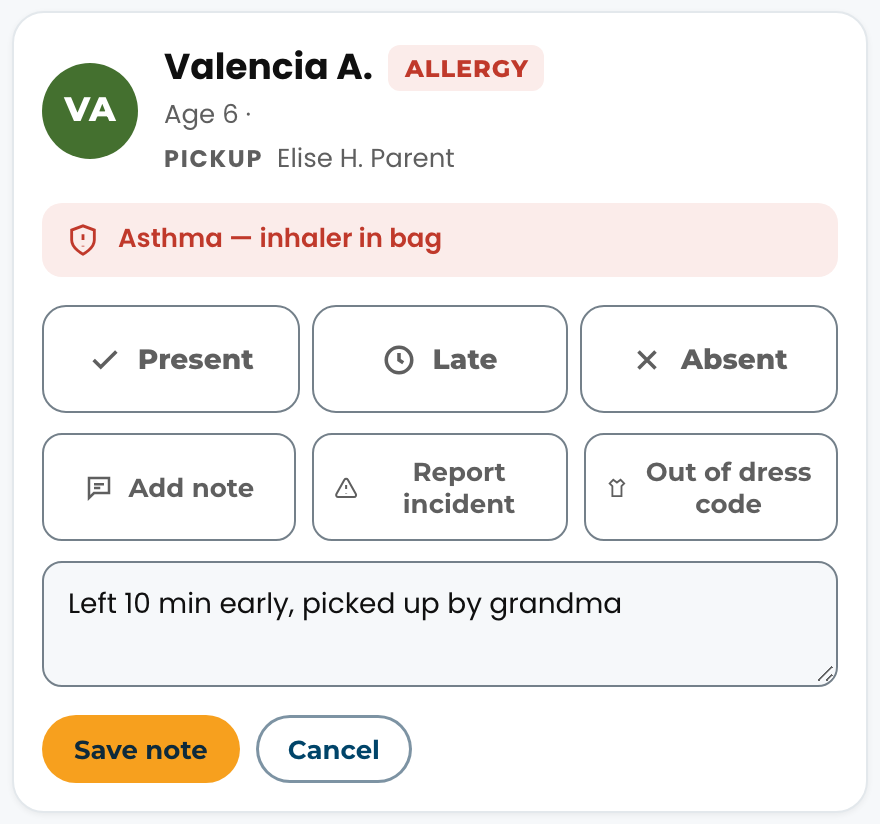
Tap the dancer's card, then Add note. Keep it short and factual. The note goes to the front desk and Orielle: they see it on Today, in Notes and on the dancer's record, and it is kept on the family's record in Kanamé. If you change or remove a note later, the earlier version is kept for the owner. It is never sent to a parent from the attendance page. Anything urgent (an injury, a safeguarding concern), also tell the desk in person.
TeachersWhat does the Birthday tag on a dancer mean?#
A gold tag beside a dancer's name on the attendance page. On the day itself it is solid and says Birthday today with the age they turn. For a birthday in the next seven days it is lighter and says the day, Birthday tomorrow or Birthday Thursday, so you can wish them a happy birthday in class even when they won't be in on the day. The front desk sees the same birthdays on Today.
TeachersA dancer is out of dress code. How do I flag it?#
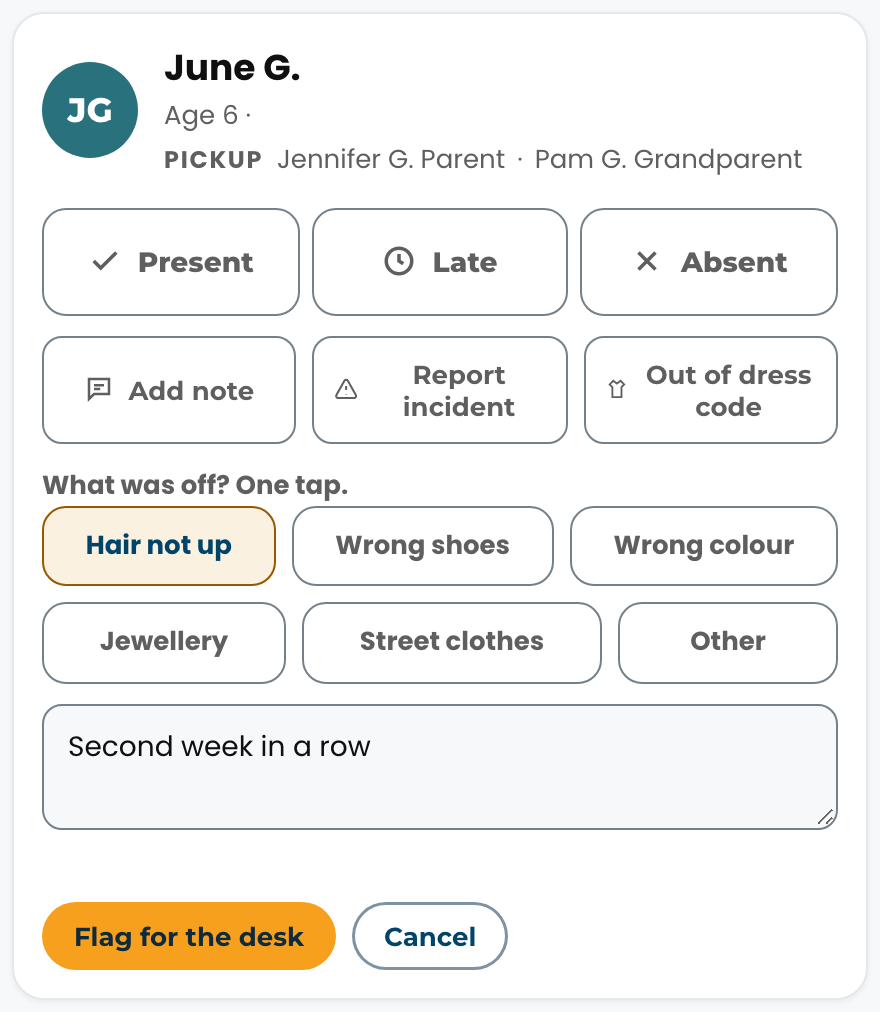
On the dancer's card tap Out of dress code, tap what was off (for example Hair not up or Wrong shoes), add a note if it helps, then Flag for the desk. The card then reads Out of dress code with the reason. The front desk and Orielle see it on Today, under Notes (the Dress code button lists every flag), and on the dancer's record, which counts how many times it has happened this season, so a pattern shows without anyone keeping track. Nothing is sent to a parent from the attendance page; the studio decides what the family hears. Flagged the wrong dancer? Tap Out of dress code again and Remove flag.
TeachersA dancer was hurt or something happened in class. How do I report it?#
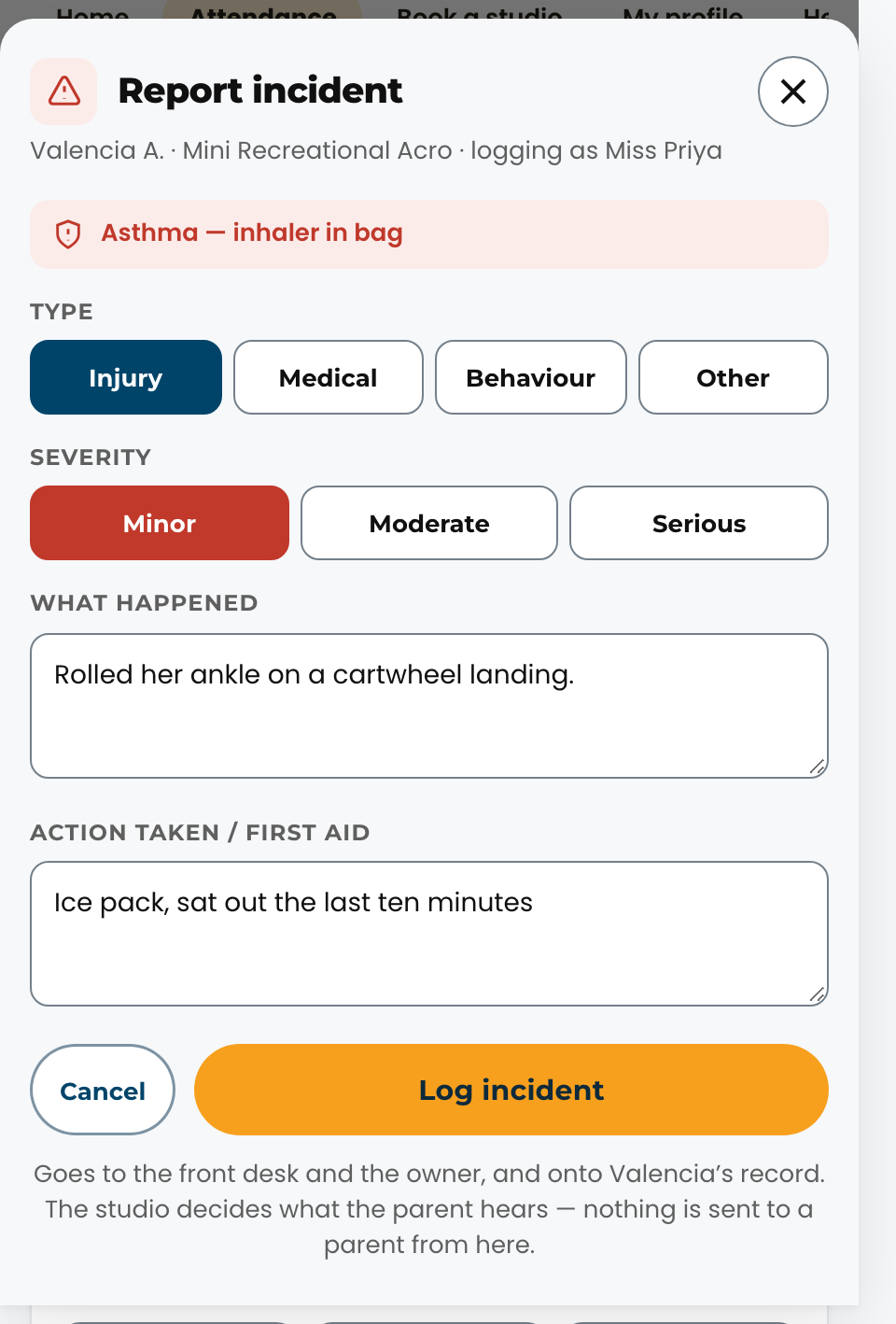
On the dancer's card tap Report incident, pick the type (Injury, Medical, Behaviour, Other) and how serious it was, write what happened and what you did (first aid, sat out, called the desk), then Log incident. It goes to the front desk and Orielle right away and stays on the dancer's record. The studio decides what the parent hears and who says it; nothing is sent to a parent from the attendance page. For anything serious, also tell the desk in person before the dancer leaves.
TeacherHow do I add costume options for my routines?#
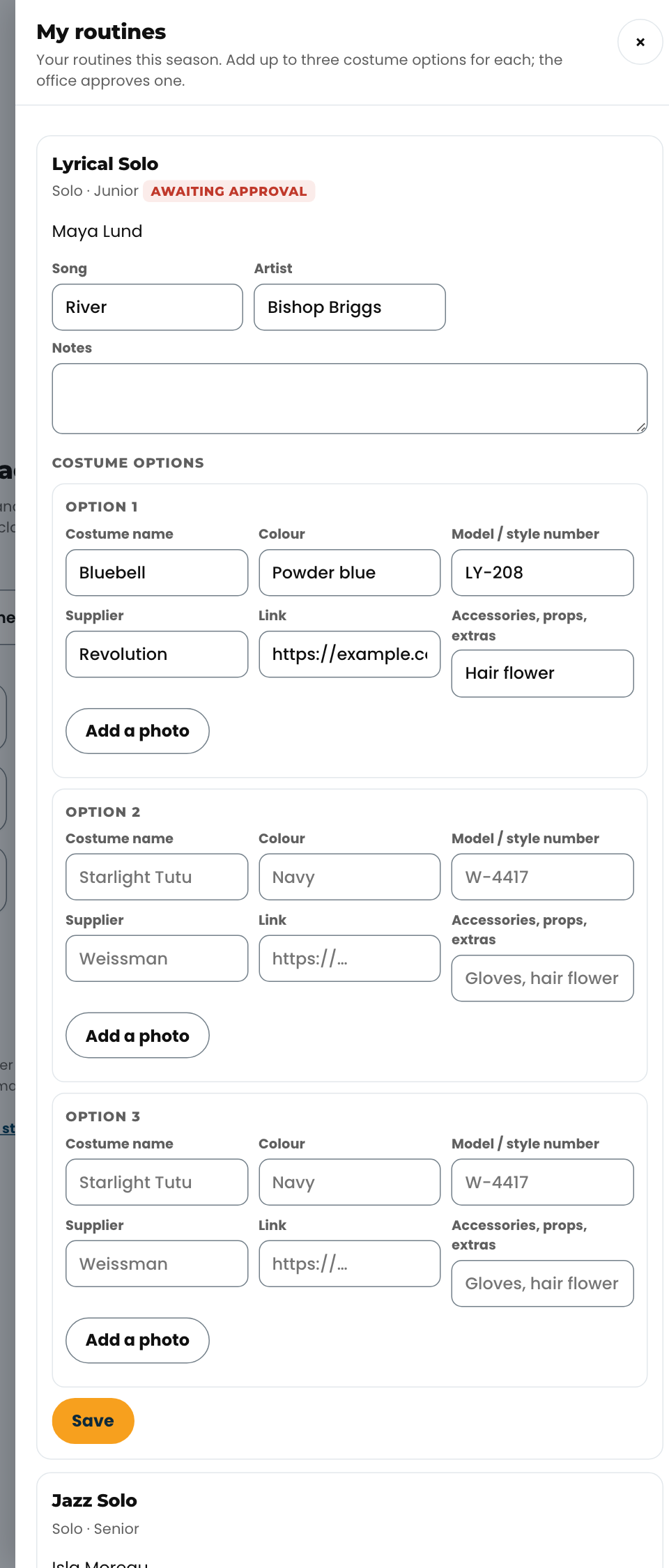
On the Studio OS home after you sign in, tap My routines. Each of your routines shows its dancers. Add up to three costume options (name, colour, model or style number, supplier, a link, extras, and a photo if you have one), the song and the artist, and tap Save. Once the office approves one, the options are locked; ask the desk to change it.
Front deskA substitute is teaching today. How do they take attendance?#
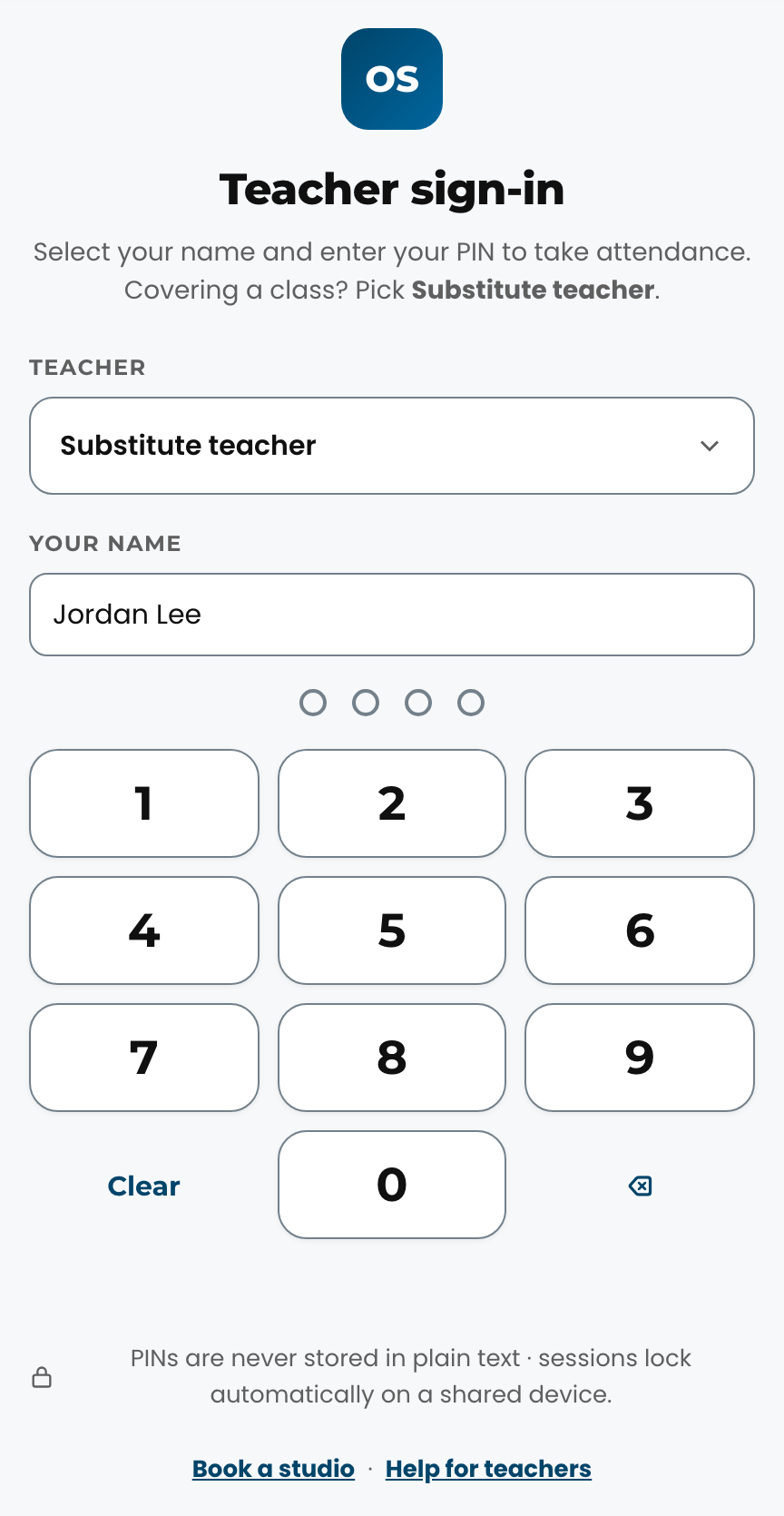
Subs do not need their own account. On the attendance page they tap Substitute teacher, enter the studio's sub PIN (the front desk or owner has it; ask, it is never emailed), and type their name when asked. They then see every class today, not just one, and take attendance the normal way. Their name is recorded on every mark. If the sub PIN needs changing, the owner or front desk sets a new one under Team in the console (the Substitute teacher row) and the old one stops working straight away.
Trials 13
EveryoneHow does a trial class work in Studio OS?#
A trial is booked (by the parent online, or by the desk) and appears as a card on the Trials board in the front desk console, in the Booked column. The dancer appears on the teacher's roster with a Trial badge; after class the teacher taps Attended (or the dancer stays unmarked as a no-show) and one note about how it went. The next morning the card moves on its own: Attended becomes Follow-up (call the family to register) and No-show becomes Rebook (call to find a new date). The desk works the Follow-up and Rebook columns, and closes each card as Registered or Not now with a reason. Every move is kept with who made it and when, and the same trial shows in Kanamé on the family's contact so the whole story is in one place.
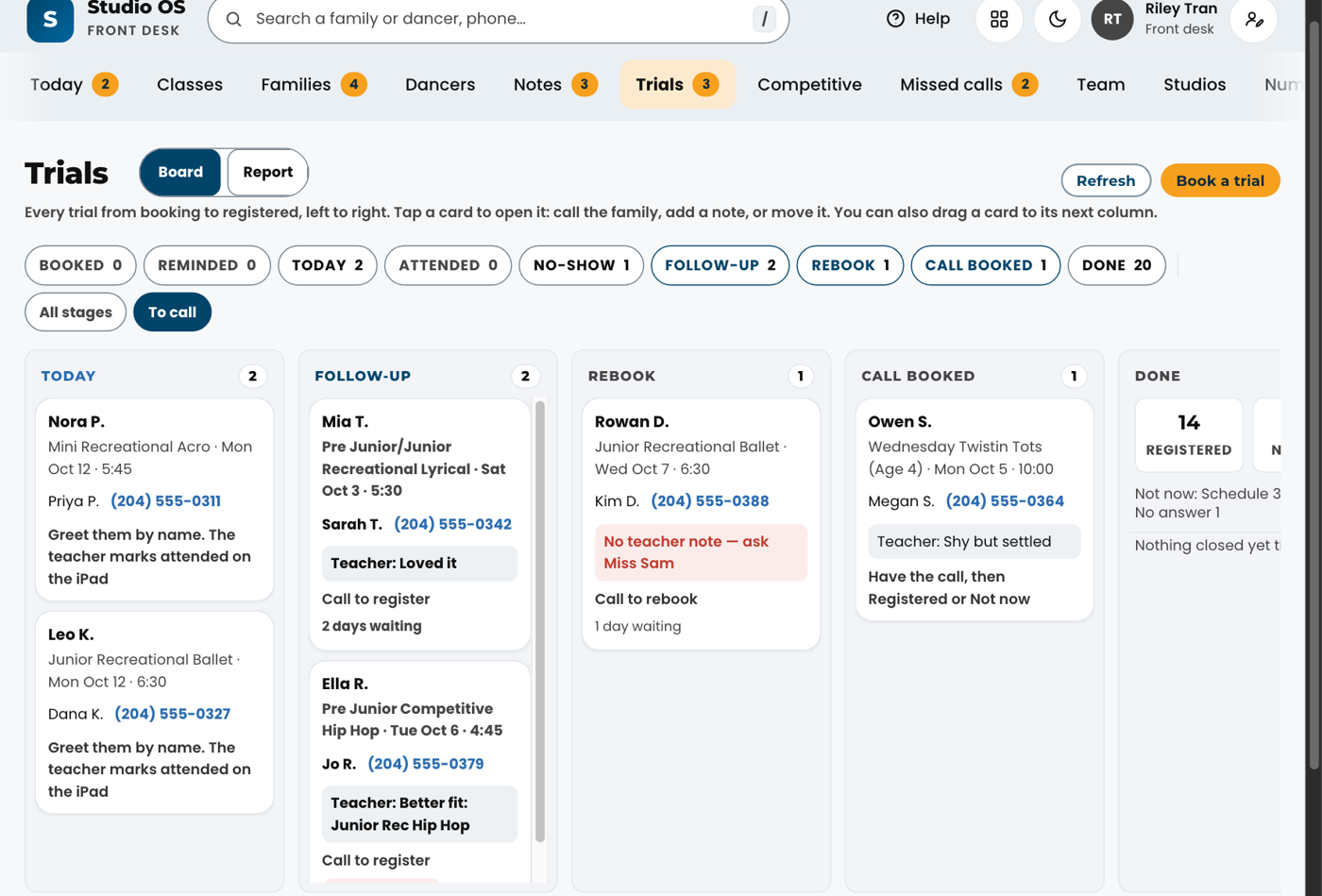
Front deskA card says "No teacher note". What do I say on the call?#
It means nobody has recorded how the class went, so you are calling without the one thing the parent most wants to hear. The card names the teacher — ask them, then add it as a note on the card so the next person is not calling blind either. Do not treat a missing note as "the class went badly": it almost always means the teacher was not asked. Since Season 8 the iPad asks for it at the moment the register is submitted, so it should be rare.
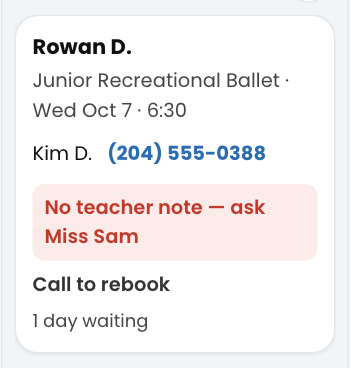
Front deskWhat are the columns on the Trials board?#
The board opens on To call: the columns the desk acts on (Today, Follow-up, Rebook, Call booked, Check in later and Done). Tap All stages to see every column, left to right: Booked (a trial is on the calendar), Reminded (the reminder went out), Today (the trials happening today, greet them by name), Attended, No-show, Follow-up (call to register: this is the column that fills classes), Rebook (call to find a new date), Call booked (a call with Orielle is on the calendar), Check in later (families who asked to wait, each with the day you'll check in) and Done (registered and not-now, with the counts and the last ten). An empty column folds into a thin strip so the busy ones have the room. Each card shows the dancer, the class and date, the guardian and a tappable phone number, the teacher's note, how many days it has sat in that column, and what to do next. A card with no phone number says so in red rather than hiding.
Front deskHow do I move a trial card?#
Tap the card and tap the new stage in the drawer, or drag the card into the column. Both do the same thing. Today is not a stage (it is the trials with today's date), so cards cannot be dropped there. Dropping a card on Done opens the drawer so you can pick Registered or Not now with a reason. You can move a card backwards too, for example if a family rebooks and you want it back in Booked. The drawer's History shows every move, who made it and when.
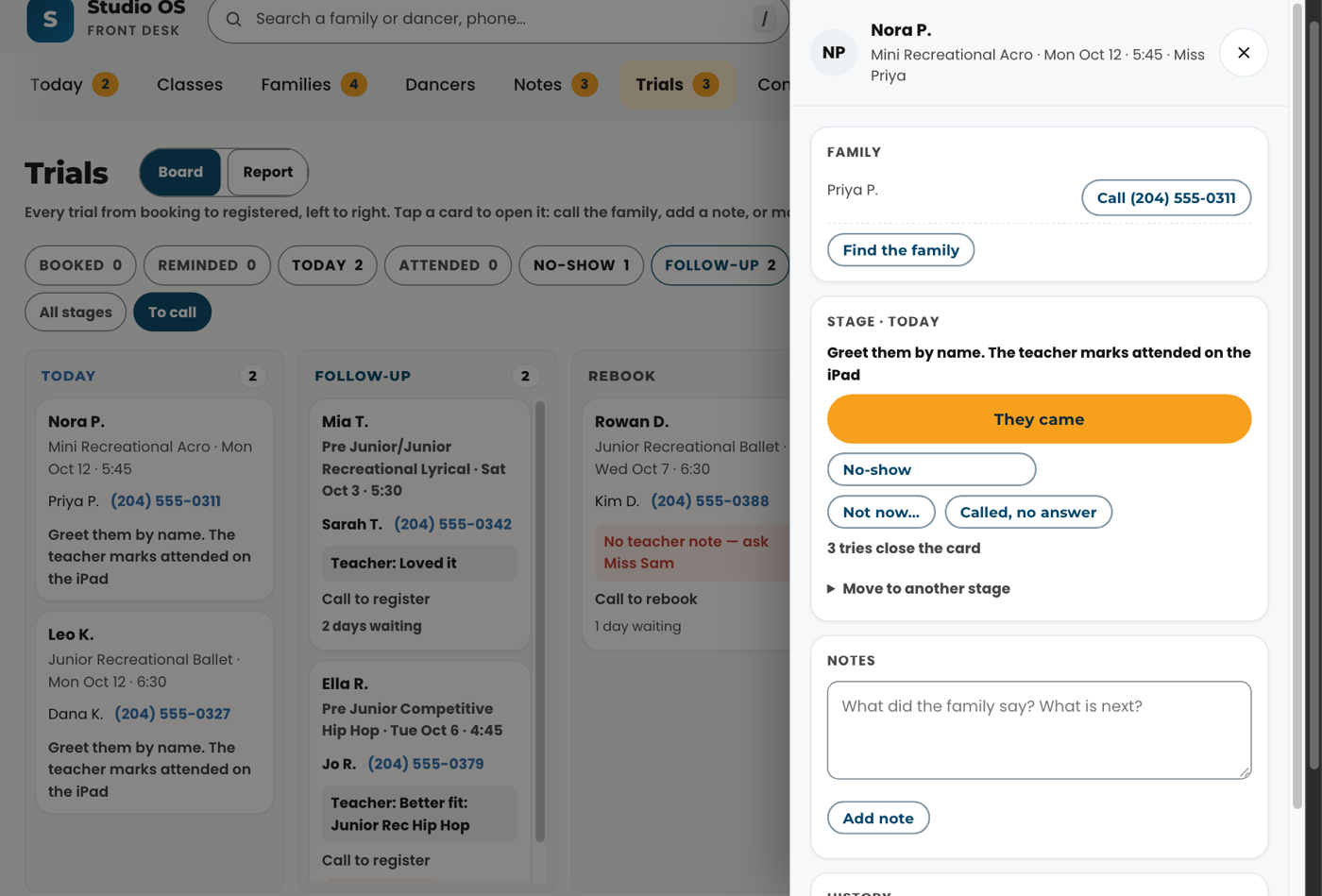
Front deskI called and nobody answered. What do I tap?#
Open the card and tap Called, no answer. Studio OS counts the tries and writes a note on the family's Kanamé contact. On the third try the card closes itself as Not now · no answer so it does not sit in Follow-up forever. If the family calls back later, open the card from Done and move it to whichever stage fits.
Front deskA trial family is not registering. How do I close the card?#
Open the card, tap Not now… and pick the reason: Price, Schedule, Age, Another studio, No answer or Other. Add a note if there is more to say. The reason is what the trials report uses to show Orielle why families do not come back, so pick the closest one rather than Other where you can.
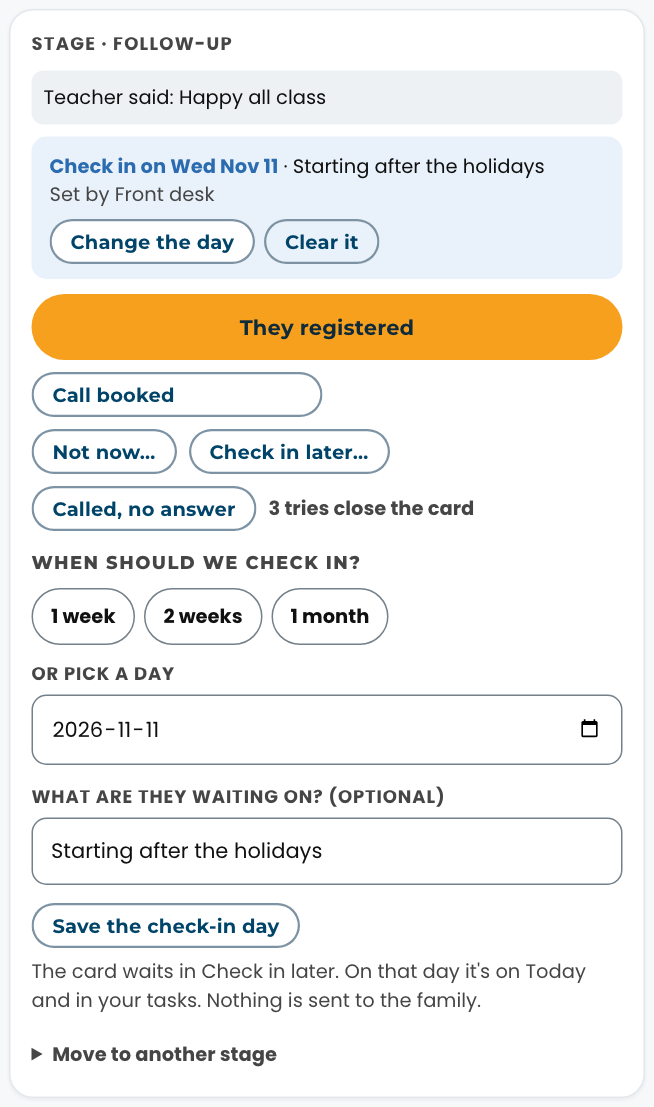
Front deskA family wants to wait before they decide. How do I check in with them later?#
Open their card and tap Check in later…. Pick 1 week, 2 weeks or 1 month, or any day from tomorrow to a year out, add what they're waiting on if you like ("starting after the holidays"), and tap Save the check-in day. The card moves to the Check in later column, out of the calling columns, so it stops asking for a call. On that day the family is on Today under Needs you now, with a Call button and what they were waiting on, and there's a call task in Kanamé for that day. They stay there until you move the card, pick a new day or tap Clear it. Nothing is sent to the family: the check-in is a call from a person. If they register first, the check-in ends by itself and its task is closed. Use Not now for a family that has said no, and Check in later for one that hasn't decided yet.

Front deskA trial family wants to register. What do I do?#
Register them in StudioLab as usual this season, then open the card and tap Registered. The card moves to Done, the follow-up stops, and the family's Kanamé contact is marked as a registered trial. If they book a call with Orielle first, tap Call booked so the card sits in that column until the call happens.
Front deskHow do I book a trial for a family at the desk?#
On the Trials screen tap Book a trial: the dancer's name, the class, the date, the guardian's name and phone. The card lands in Booked right away. Book it in StudioLab as well this season so the family gets their confirmation; Studio OS matches the two on the next refresh.
Front deskWhere do I see today's trials?#
In the Today column of the Trials board, and on Today under Trials today: the dancer, the class and time, the teacher, and the parent's phone. Greet them by name at the door.
Front deskHow do I add a note to a trial?#
Open the card, type in Notes and tap Add note. Notes stay on the trial (who, when) and are copied to the family's contact in Kanamé within a minute, so anyone looking the family up there sees the same thread. The teacher's one-tap note from class shows at the top of the card as "Teacher:".
Front deskWhat does "updates on the way to Kanamé" mean?#
Every move and note is copied to Kanamé (the family's contact, its trial opportunity and the trial::stage tag) by a job that runs every two minutes. That line at the top of the board counts what is still queued. It clears on its own; if it ever says an update failed, tell Isabel.
Front deskA family booked a trial on the website. What happens, and what do I do?#
Nothing to set up. The website's trial page asks a parent for their name, mobile and email, the dancer's first name and birth year, then shows only the recreational classes that fit that age with the next two dates. When they tap a date, the trial appears in the Booked lane on the Trials board within a moment, the family gets a confirmation text and email from the studio, and the parent's record in Kanamé carries the class, the date and the dancer's name with the tag trial-booked-online. A full class cannot be booked online: the page says Full and asks them to call. Treat a website trial exactly like one booked at the desk: it shows on the roster on the day, the teacher marks it, and the follow-up card appears the next morning.
## Drop-in classes
Studios 14
TeachersHow do I book a studio for a solo, a private or a rehearsal?#
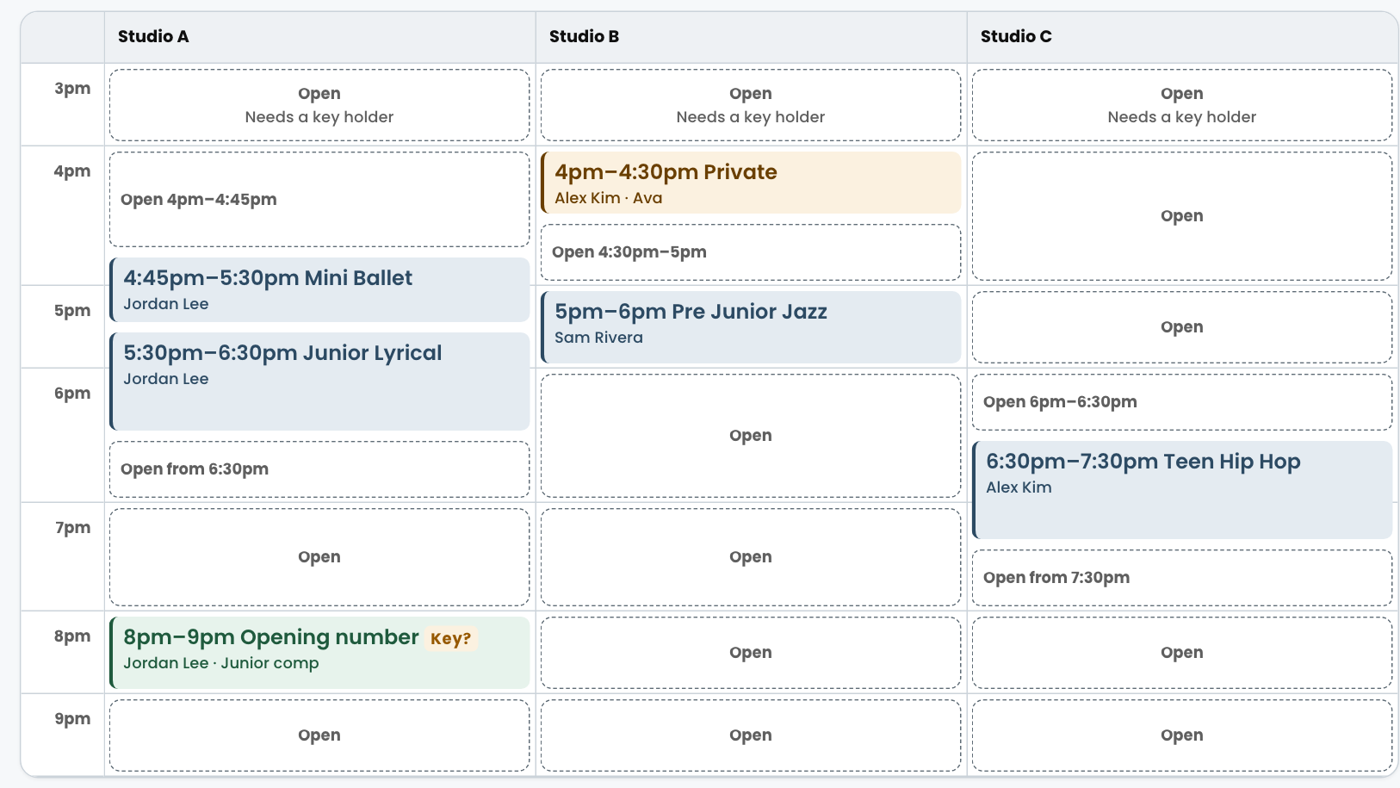
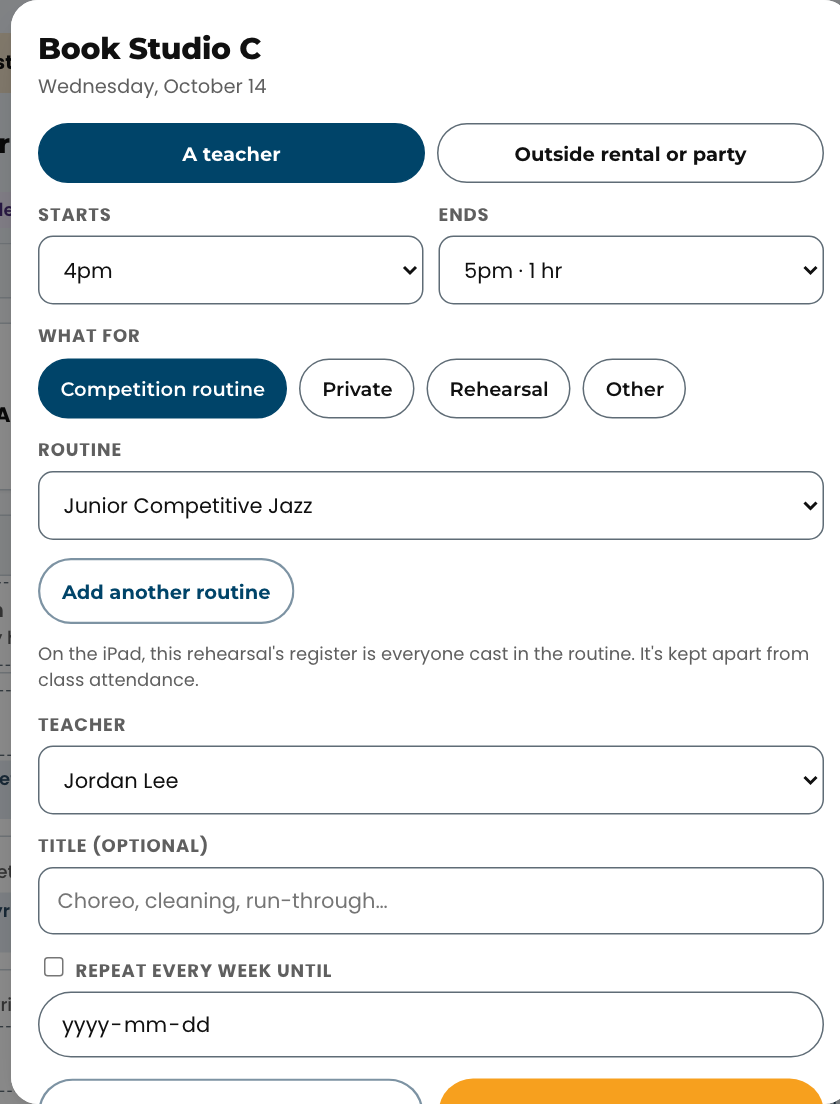
Open Studios (https://tdm.dsge.ca/reserve-a-studio) and sign in with the same name and PIN you use for attendance. At the desk it is the Studios tab in the console, no separate sign-in. Pick the day with the arrows or the date box. Each room is a column and the times run down the side; a class or booking is one block from its start to its end, even when it runs past the hour. On a phone the rooms sit side by side, and if there are more than fit, a button at the top right names the next one (tap it, or swipe the grid). A class that is closed to new dancers and has nobody in it isn't shown, and the room is free to book. A block that says Open is free; tap it. When only part of an hour is free, the block shows the free time, for example Open 4:30pm–5pm. Pick when you start and when you End: anything from 30 minutes, on the quarter hour, up to three hours. Each end time shows how long that is, and the list stops where the next class or booking in that room begins. Tap what it is for. If your studio uses Competitive, the first choice is Competition routine: pick the routine from the list (yours first; tap Add another routine if the session covers two groups) and the dancers come with it, along with the rehearsal's register on the iPad. Anything else (a private, a rehearsal that isn't for a routine): type the dancer or dancers and the style. Check the teacher is you and tap Book it. The block turns green with your name on it, and the desk sees it too.
Front deskSomeone called or walked in wanting to rent a studio, or book a birthday party. How do I book it?#
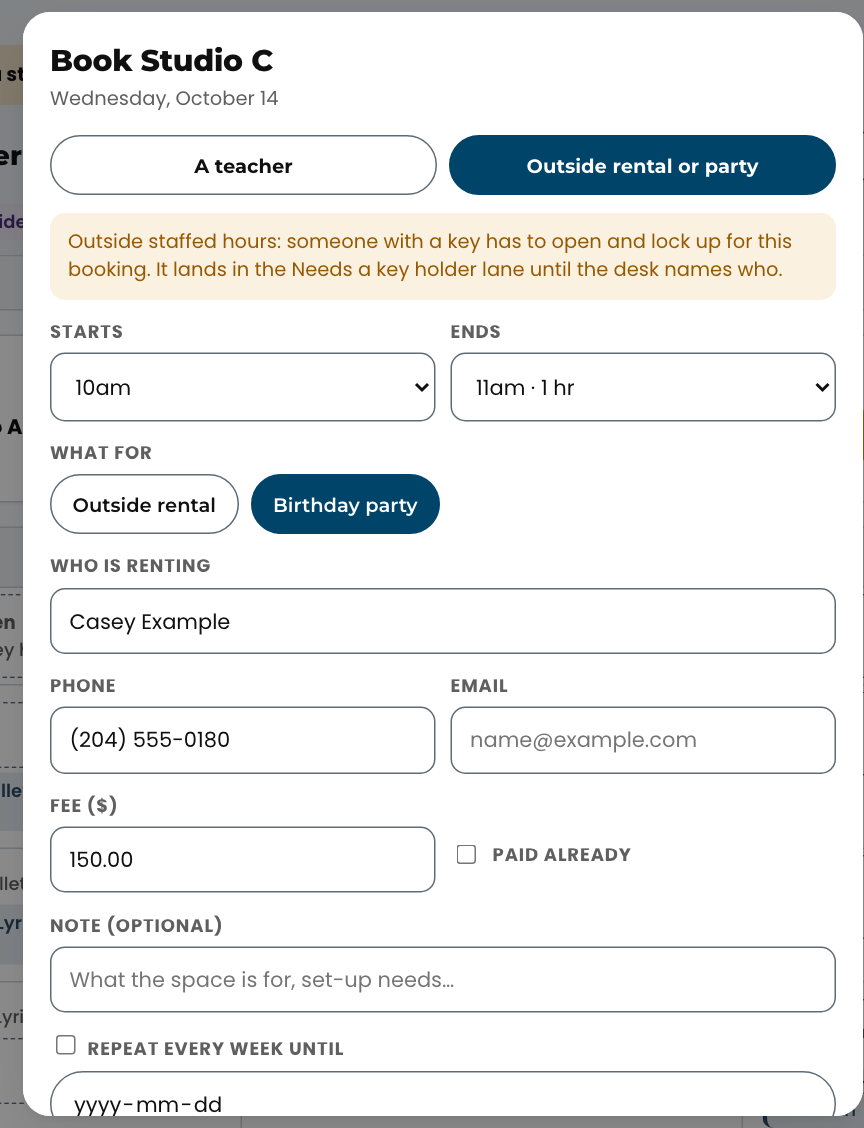
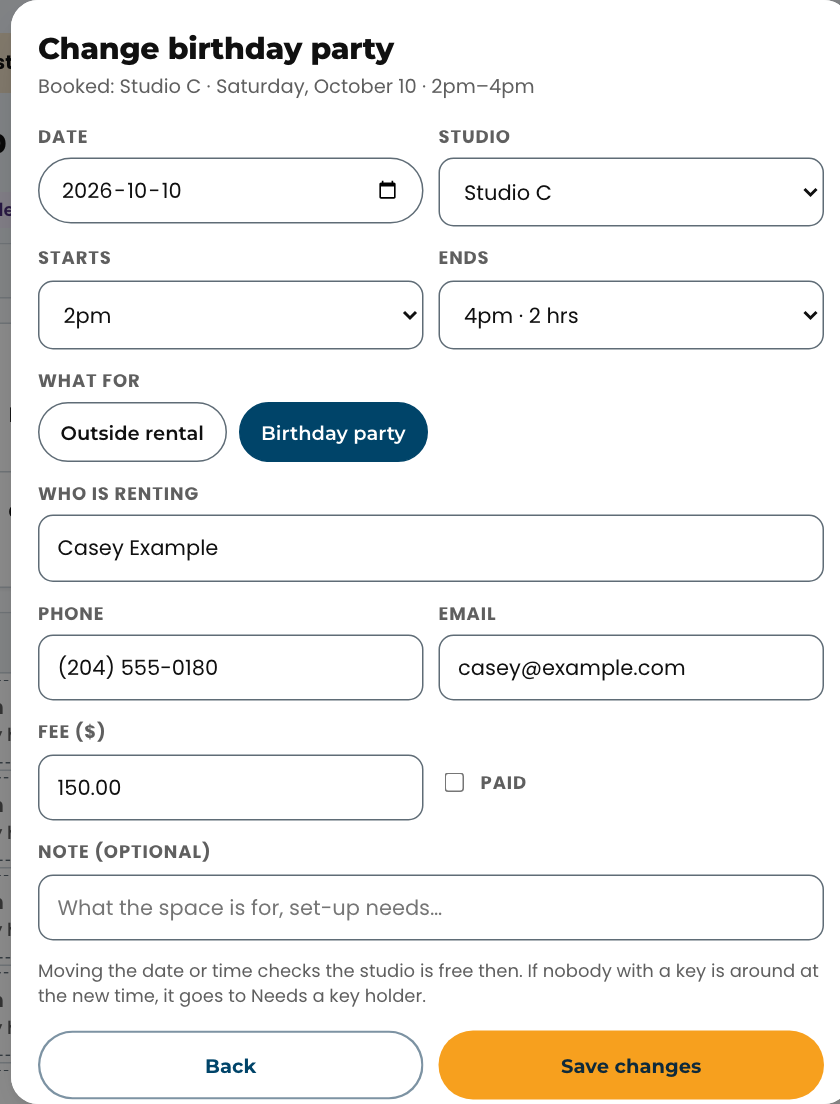
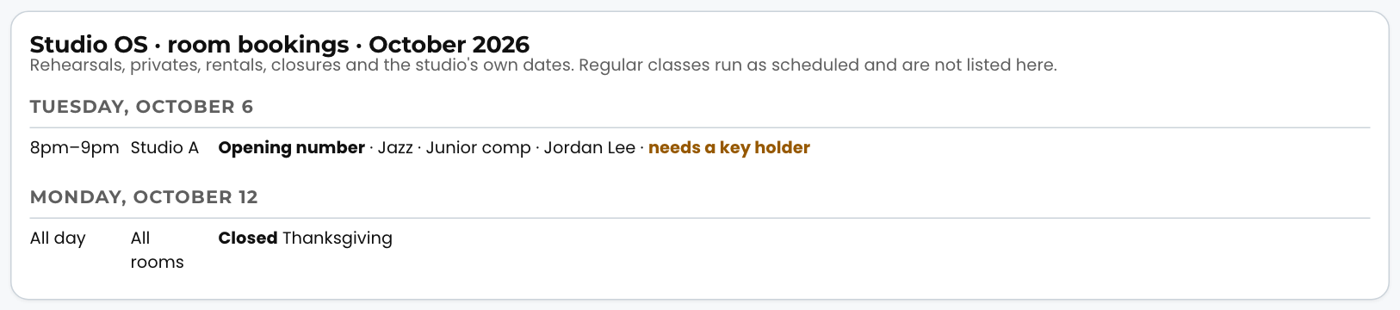
Open Studios, go to the day, and tap the Open block where it starts. At the top of the sheet choose Outside rental or party, then Outside rental or Birthday party. Type who is renting and their phone or email, set when it starts and ends (from 30 minutes up to six hours), and the fee. If they have already paid, tick Paid already. Tap Book it. The block turns purple with the renter's name and Unpaid or Paid on it; teachers see the block but not the renter's details. Outside staffed hours it lands in the Needs a key holder lane like any other booking, so name who will open and lock up.
Front deskA renter has paid. Where do I record it?#
Tap the purple block, then Mark paid. The Unpaid tag on the block goes and the month list shows the fee as paid. Mark unpaid reverses it. Unpaid rentals for the next month are counted in the morning summary.
TeachersWhy does a block say "Needs a key holder"?#
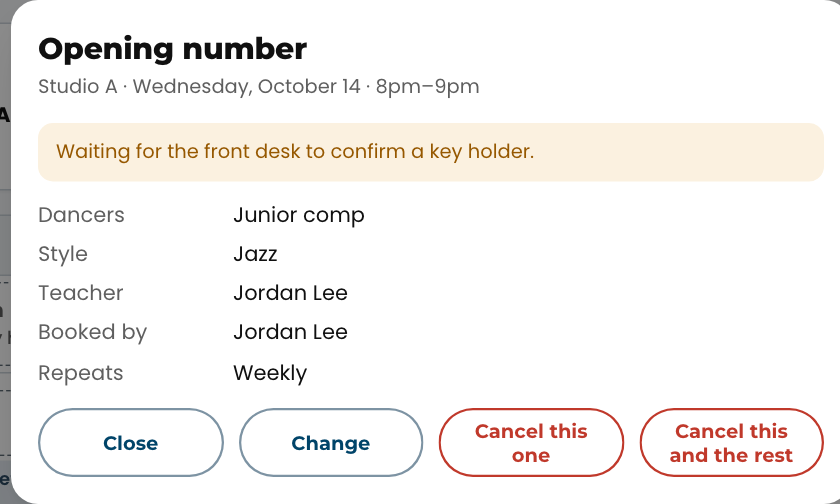
That hour is outside the front desk's staffed hours and no one who holds a key is teaching then. You can still book it. The desk gets a note and confirms who will open the studio, and your booking shows Key once they have. If nobody can open, the desk declines it and the block goes back to Open. If you hold a key yourself, you never see this note.
TeachersHow do I book the same time every week?#
On the booking sheet, tick Repeat every week until and pick the last date. One tap books every week. A week where the room is already taken is skipped and the confirmation tells you how many. To end a series early, open any booking in it and tap Cancel this and the rest.
TeachersHow do I cancel or change a booking?#
Tap the booking on the grid. You can change or cancel a booking you made, or one that names you as the teacher, from today on.
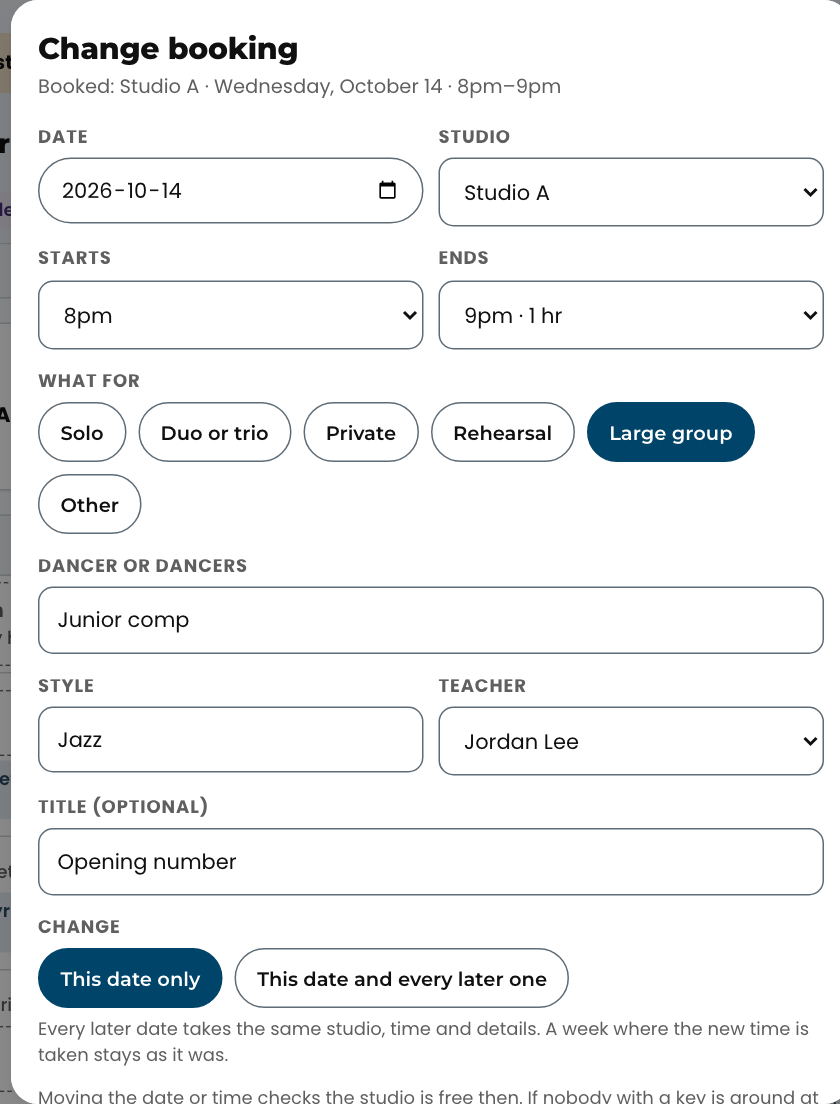
- Change opens the booking sheet filled in, with the Date and the Studio added. Change the start, the end, the studio, the date, what it is for, the dancers, style or teacher, then tap Save changes. If the new time is already taken, nothing changes and the sheet tells you, so pick another time or studio. A move outside the front desk's hours goes back to Needs a key holder. The booking then shows that you changed it.
- On a weekly series, choose This date only or This date and every later one.
- Cancel this one frees that time; Cancel this and the rest ends a weekly series from that date.
A booking from an earlier day has already happened, so only the front desk can change or cancel it; the booking says so. Outside rentals and birthday parties are changed at the front desk too.
Front deskHow do I change a booking or a rental: the time, the studio, the date or the details?#
Tap the booking on the grid, then Change. The booking sheet opens filled in, with the Date and the Studio added. Change what you need: the start, the end, what it is for, the dancers, style or teacher, or for a rental or party the renter's name, phone, email, the fee and Paid. Tap Save changes. If the new time is already taken in that studio, nothing changes and the sheet tells you, so pick another time or studio. Moving the time or the date checks the key again: outside staffed hours it goes to Needs a key holder, and anyone you named to open for the old time is cleared. On a weekly series, choose This date only or This date and every later one; a week where the new time is taken stays as it was, and the confirmation counts it. Paid always stays with its own date. The booking then shows who changed it last. A teacher's booking cannot become an outside rental (or the other way): cancel it and book it again. The front desk and Orielle change any booking, on any date. Teachers see Change on their own bookings from today on.
Front deskA teacher booked outside our hours. What do I do?#
The Needs a key holder list sits at the top of Studios when you are signed in as the desk or the owner. Each row is one booking. Tap I can open it if that is you, Someone else to type the name of the key holder who will, or Decline if nobody can. The teacher sees the result on their booking. The morning message also counts how many are waiting.

Front deskHow do I close the studio, or one room, for a holiday or a photo day?#
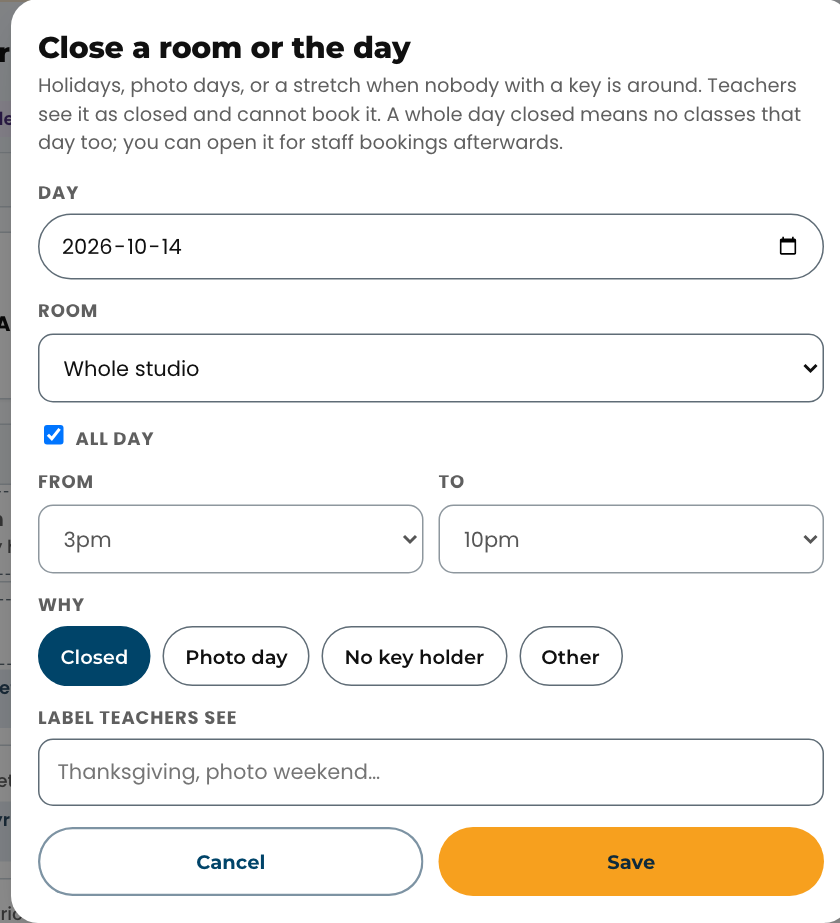
Tap Close a room or day, pick the day, choose the whole studio or one room, leave All day ticked or set the hours, pick why (closed, photo day, no key holder, other) and type the label teachers will see. Save. Teachers cannot book a closed block. A whole-studio, all-day closure also tells the attendance page there are no classes that day. If people had already booked that day, the confirmation says how many: open each booking to keep or cancel it.
Front deskHow do I open a closed day for staff bookings, or move or remove a closed day?#
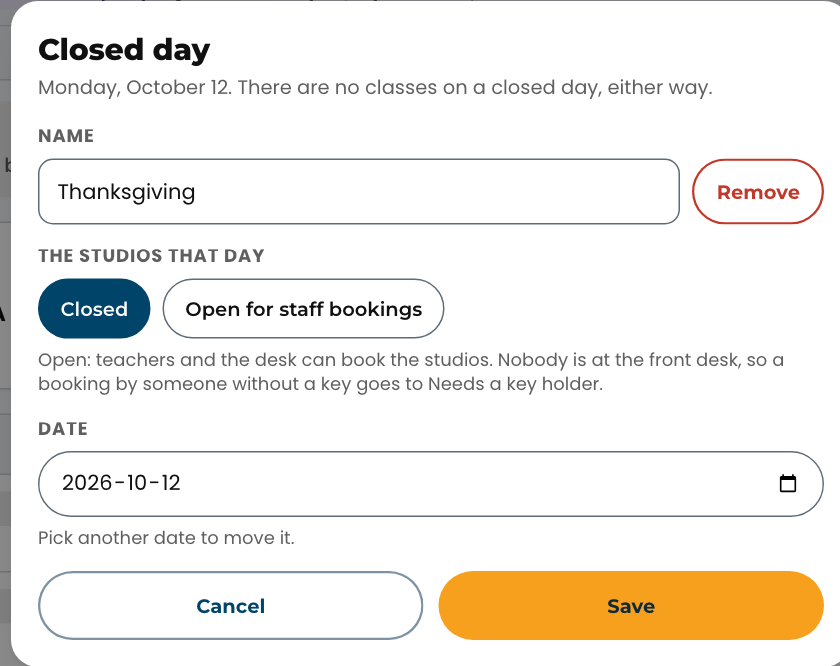
Go to the day in Studios. A closed day has one line above the grid, Closed all day, with its name. Tap Change. Under The studios that day, pick Open for staff bookings and tap Save: there are still no classes that day, but teachers and the desk can book the studios. Nobody is at the front desk on a closed day, so a booking by someone without a key lands in Needs a key holder for you to settle. Pick Closed to shut it again. The same sheet renames the day, moves it (pick another Date) or removes it with Remove, which makes it a normal day again, classes and all. Every closed day stays closed until someone changes it here. The season's holidays, like Truth and Reconciliation Day and Thanksgiving, are already in; only the front desk and Orielle can change them.

TeachersCan I book a studio on a holiday?#
Only if the front desk has opened that day for staff bookings. Go to the day in Book a studio: Closed all day means nobody can book it; No classes with a green line means the studios are open for bookings. Nobody is at the front desk on a holiday, so unless you have a studio key, your booking goes to the desk to arrange someone to open the building. You will see it confirmed or declined.

EveryoneWhere do I see the studio's own dates — observation weeks, the recital, competitions?#
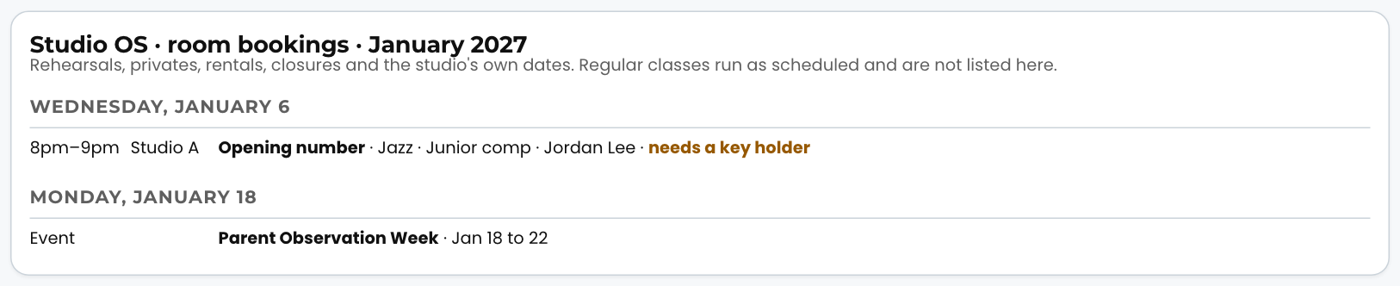
Switch Studios to Month. Alongside the rehearsals, rentals and closures, the list carries the dates Orielle has set for the season: observation and presentation weeks, ballot presentations, picture weekend, the recital, and the competitions. A week reads as one line rather than five. A competition line says that classes still run at the studio unless a closure says otherwise. The same dates answer What are the key dates this season? under Your studio, and the next two weeks of them sit on Today under Coming up.
Front deskCan I print the month?#
Tap Month, then Print. The page prints as a list by day: time, room, what it is, who, and any booking still waiting for a key holder. Use the arrows to move to another month first.
EveryoneThe alarm goes while I am on the Studios page. What happens?#
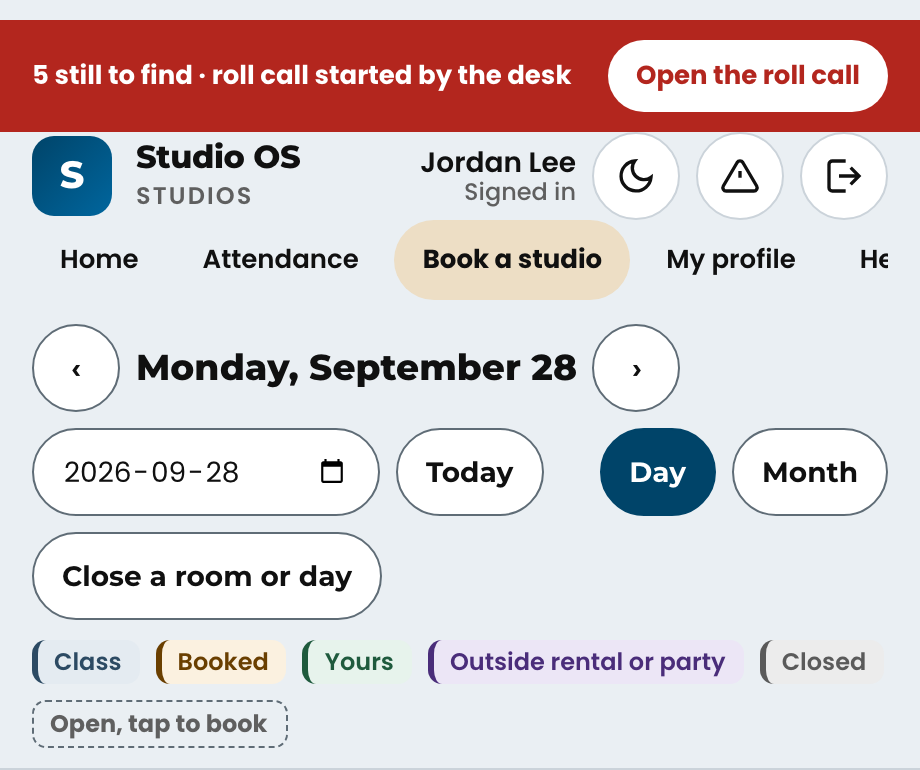
The same roll call you would see anywhere else in Studio OS. A red bar appears at the top of this page the moment anyone starts one, with how many people are still to find, and Open the roll call takes you to the list so you can tick the people you can see. You can also start one from here: the warning triangle beside your name, top right. This matters more than it looks. Signing in to Studio OS marks you as being in the building, so if a roll call starts while you are booking a room, the desk is already looking for you — the list counts anyone seen on a Studio OS screen in the last three quarters of an hour. Until September 2026 this page was the one staff screen with no roll call on it, so you could have been on the desk's list with nothing on your screen to tell you.
Drop-in classes 7
Front desk, OwnerWhat is a drop-in class?#
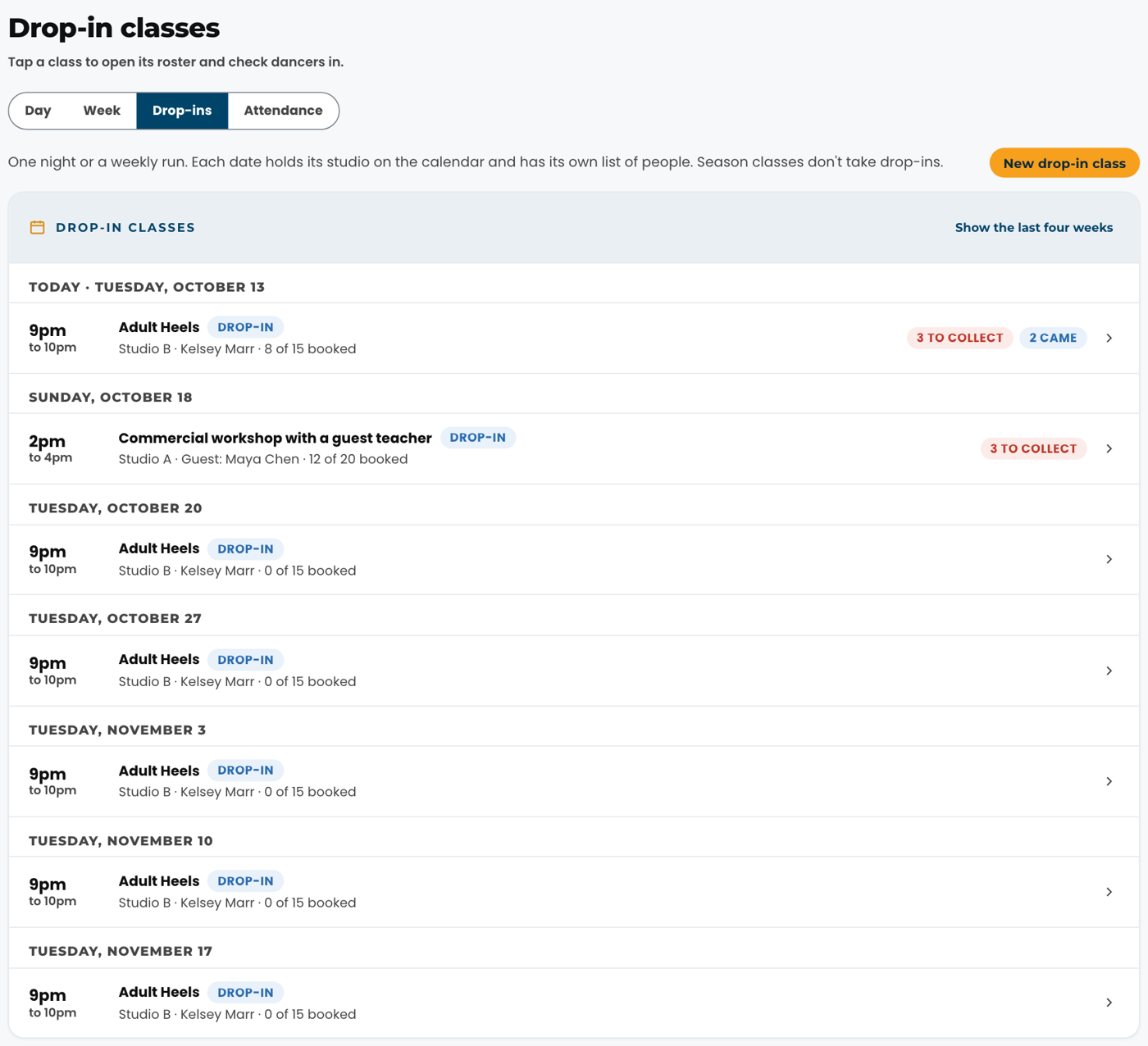
A class anyone can book one night at a time, most often 16 and up or adults: a guest teacher's workshop, or a night class that runs every week for a while (Heels, Thursdays at 9pm until December). It is made in Studio OS and nowhere else, and each date holds its studio on the calendar like a class, so nobody can book a studio over it. Season classes never take drop-ins: they are working on routines. Find every drop-in under Classes, Drop-ins, and today's on Today with a Drop-in tag and how many are booked.
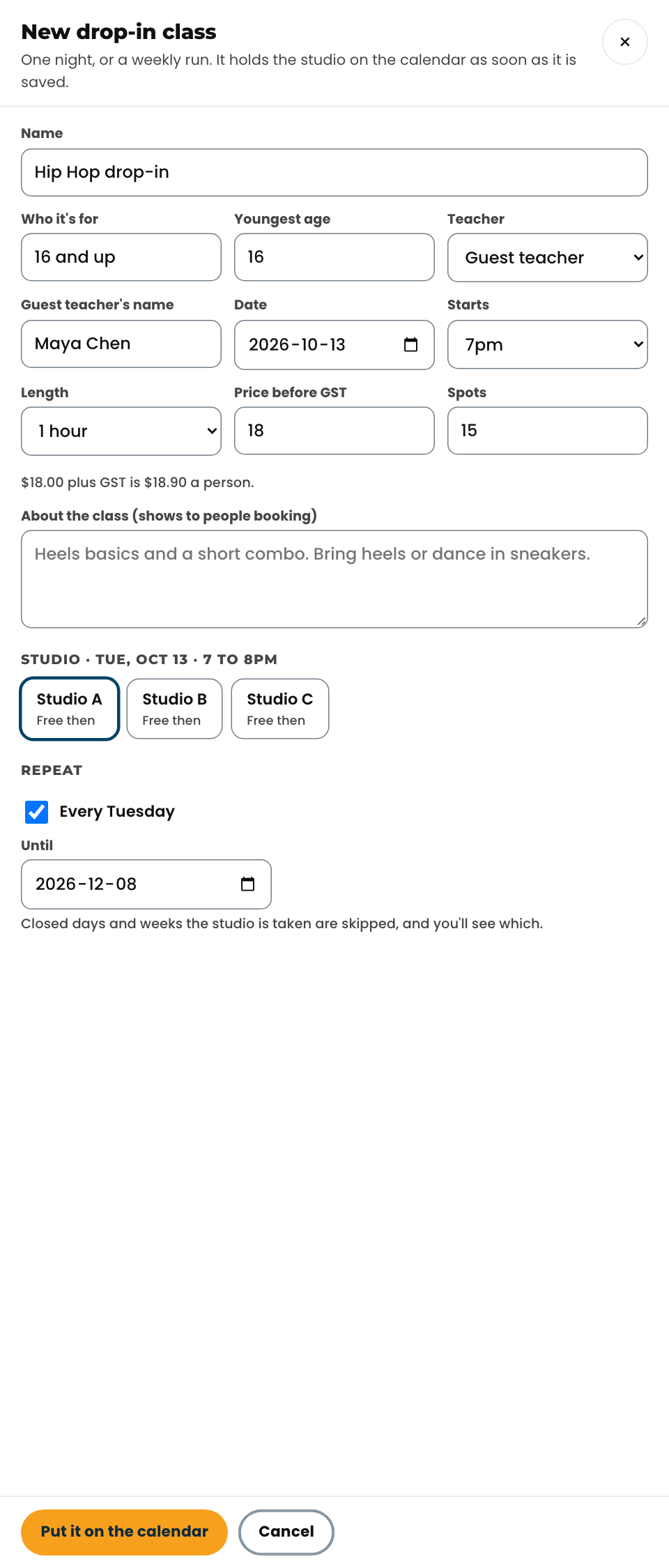
Front desk, OwnerHow do I make a drop-in class?#
Classes, Drop-ins, New drop-in class. Give it a name, who it's for, the youngest age, the teacher (or type a guest teacher's name), the date, start time and length, the price before tax, the number of spots, and a line about the class. Under Studio each studio says Free then or what is already in it; pick a free one. For a run of weeks, tick Every (the weekday) and pick Until. Tap Put it on the calendar. Closed days and weeks that studio is taken are skipped, and the screen tells you which.
Front deskHow do I add someone to a drop-in class?#
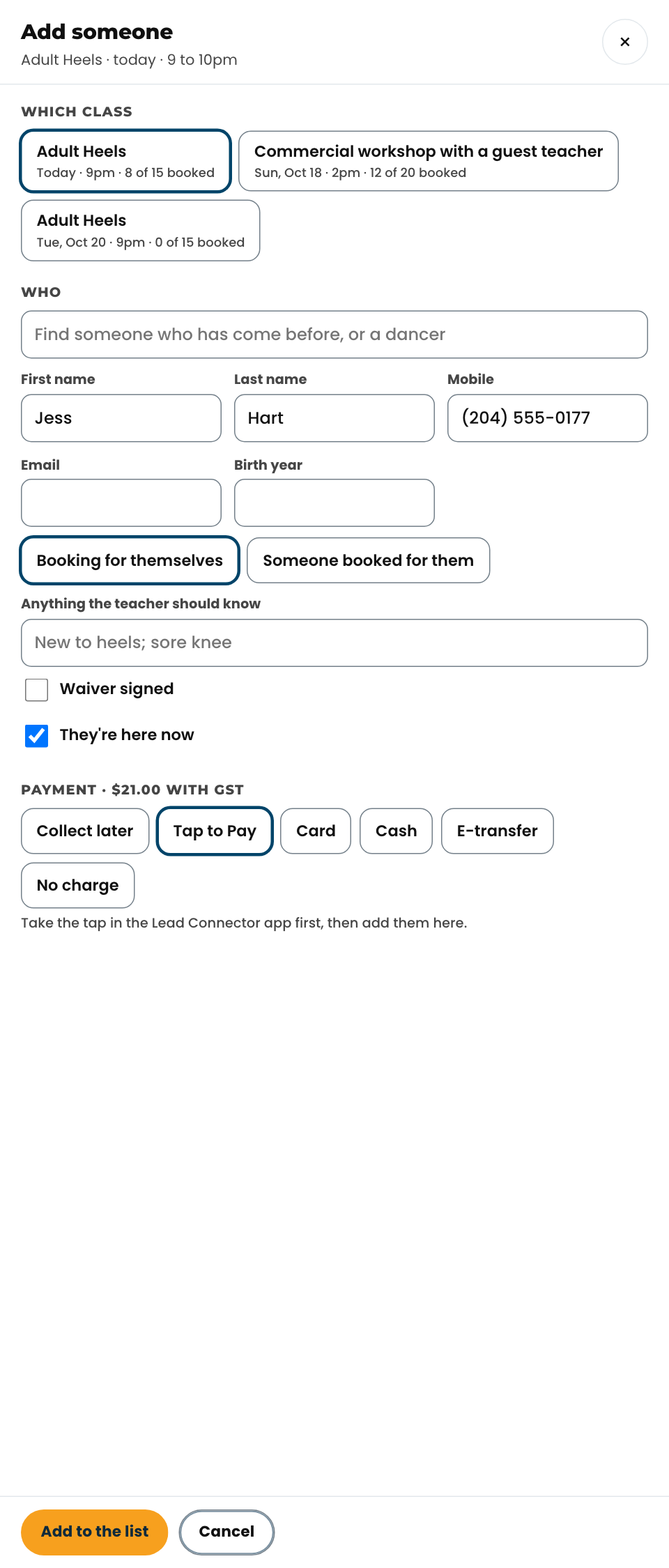
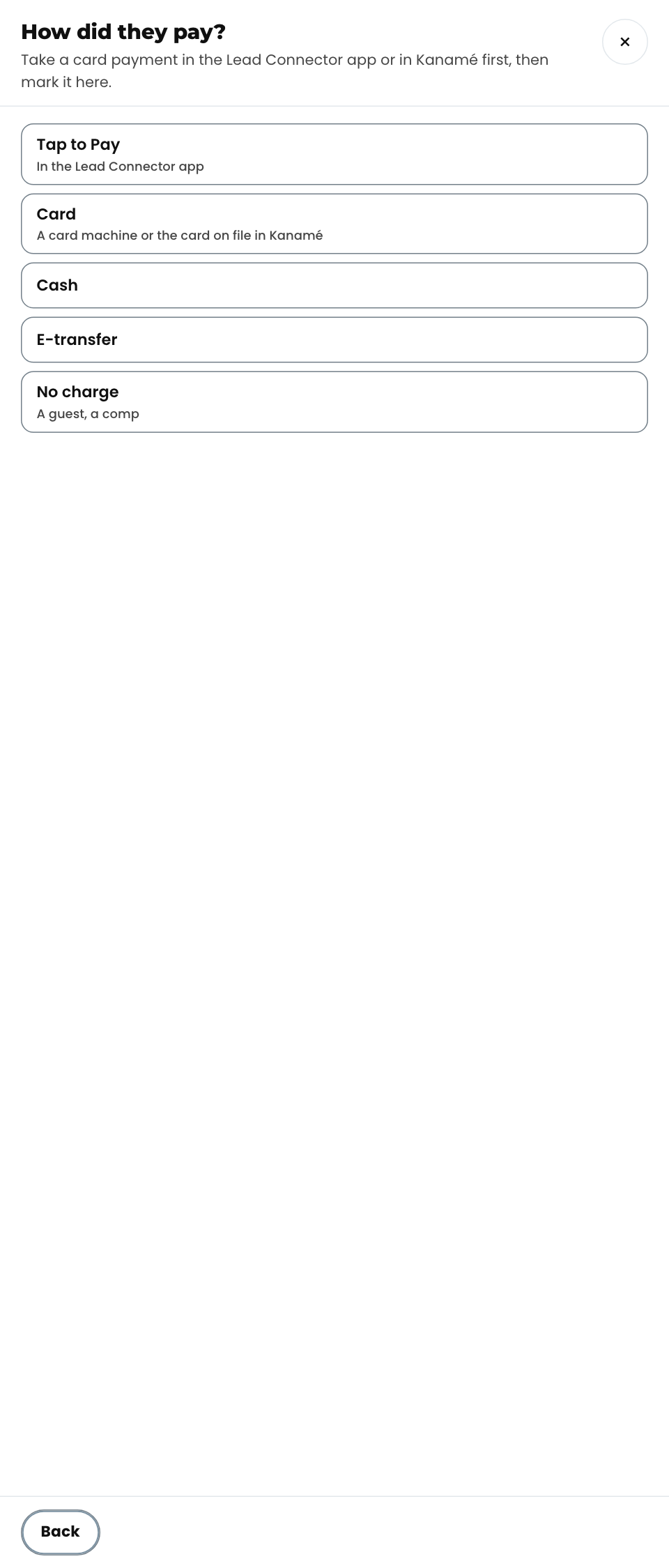
Tap Drop-in at the top of Today (or Add someone on the date's list). Pick the class, then search for the person: anyone who has come before, or a dancer at the studio, fills the form in for you. Otherwise type their name, mobile and birth year. Choose Booking for themselves or Someone booked for them; under-18s get a line for a parent or guardian. Tick Waiver signed, and They're here now for a walk-in. Then pick how they paid: Tap to Pay, Card, Cash, E-transfer, No charge, or Collect later for someone who will pay at the door. A full class asks before it lets you add one more.
Front deskSomeone paid. How do I mark it?#
Take the money first: a tap in the Lead Connector app (Tap to Pay), a card on the card machine or their card on file in Kanamé, cash, or an e-transfer. Then open the date, find the person, tap Paid and pick how. Anyone still to pay shows To collect with the amount, and the date's numbers at the top say how many. Marked the wrong person? Not paid after all undoes it. A card refund is done in Kanamé, under Payments, Transactions.
Read more in Kanamé Support
Related
Front desk, OwnerCan people book a drop-in online?#
Yes, for the classes the studio has put online (at The Dance Method, the three Academy classes, at thedancemethod.com/academy-drop-in). People book any day, any time, up to 15 minutes before the class, and pay when they book. While they pay, their name shows on the date's list as Not paid for up to 30 minutes: leave it. Once they pay it turns Paid online by itself; if they don't finish, it comes off the list and the spot opens again. To cancel someone who booked online, refund them in Kanamé under Payments, Transactions (24 hours ahead or more), then take them off the list.
Front desk, OwnerHow do I change or cancel a drop-in date?#
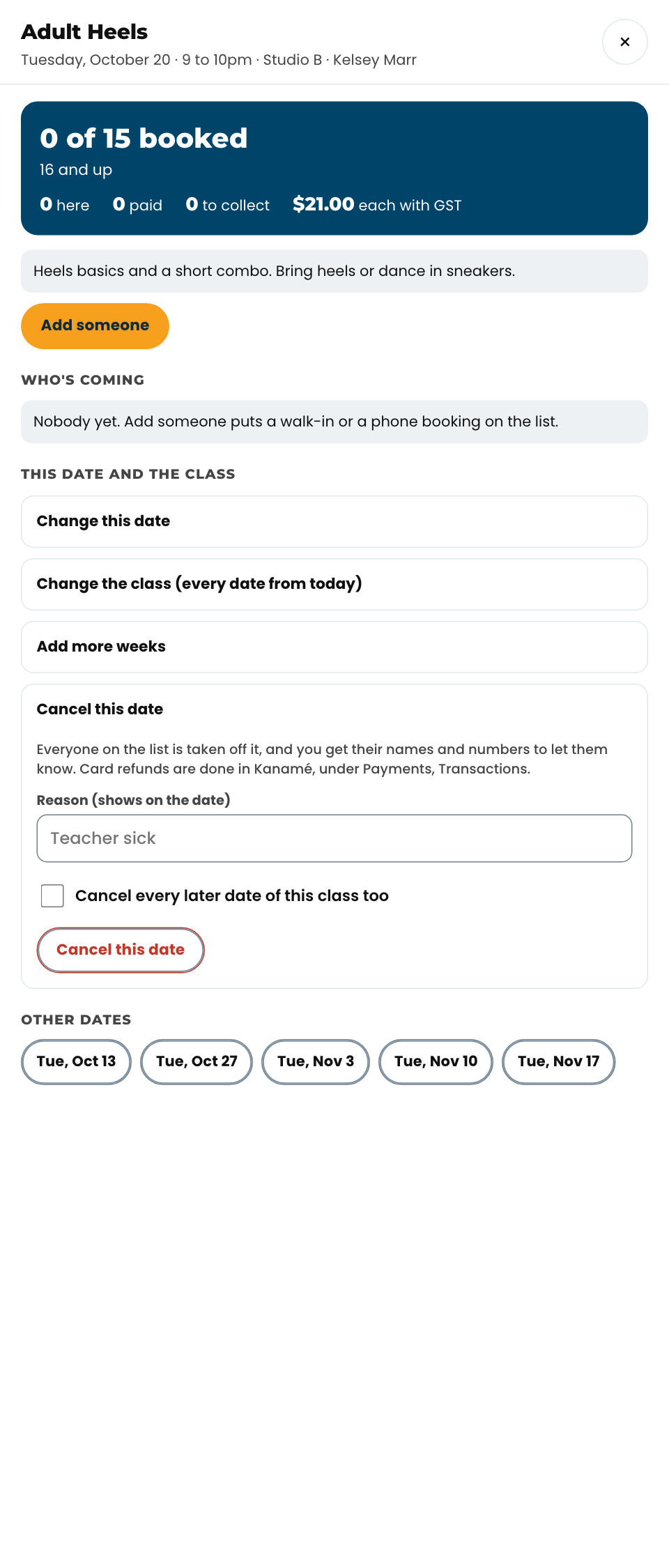
Open the date. Change this date moves it (date, time, studio) or changes its spots or price; it won't move onto a studio that is taken. Change the class renames it or changes the price and spots for every coming date; people already booked keep the price they booked at. Add more weeks carries a run on. Cancel this date takes everyone off the list and shows their names, numbers and who paid how, so you can let them know and refund them; tick the box to cancel every later date too. Nobody is texted automatically yet.
TeachersI'm teaching a drop-in class. Where is my list?#
On the attendance page, sign in and tap Drop-ins today (it shows on a day with a drop-in), then the class. You see who is booked and anything you should know about them. Tap Here as each person comes in, or Didn't come at the end. Someone not on the list, or marked Not paid yet, goes to the front desk first. A guest teacher without a PIN: the front desk takes the list from the console instead.
## Competitive (add-on)
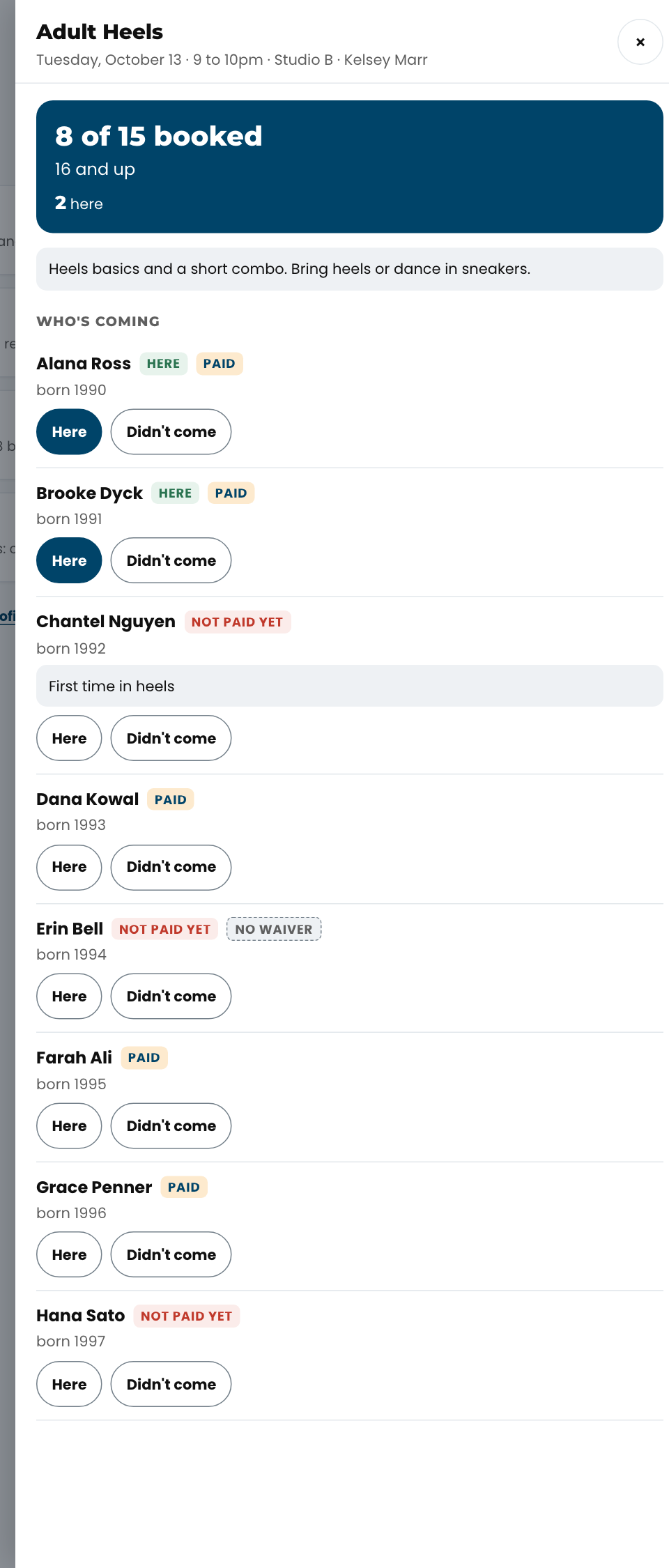
Competitive 11
Front desk, OwnerWhat is the Competitive tab?#
It holds the competitive season: every routine and who is in it, costume options and orders, each dancer's measurements, competition fees, and attendance at rehearsals. Five views across the top: Routines, Dancers, Costumes, Fees and Rehearsals. Change things here; the old sheets get a read-only copy every night and are no longer where changes go.
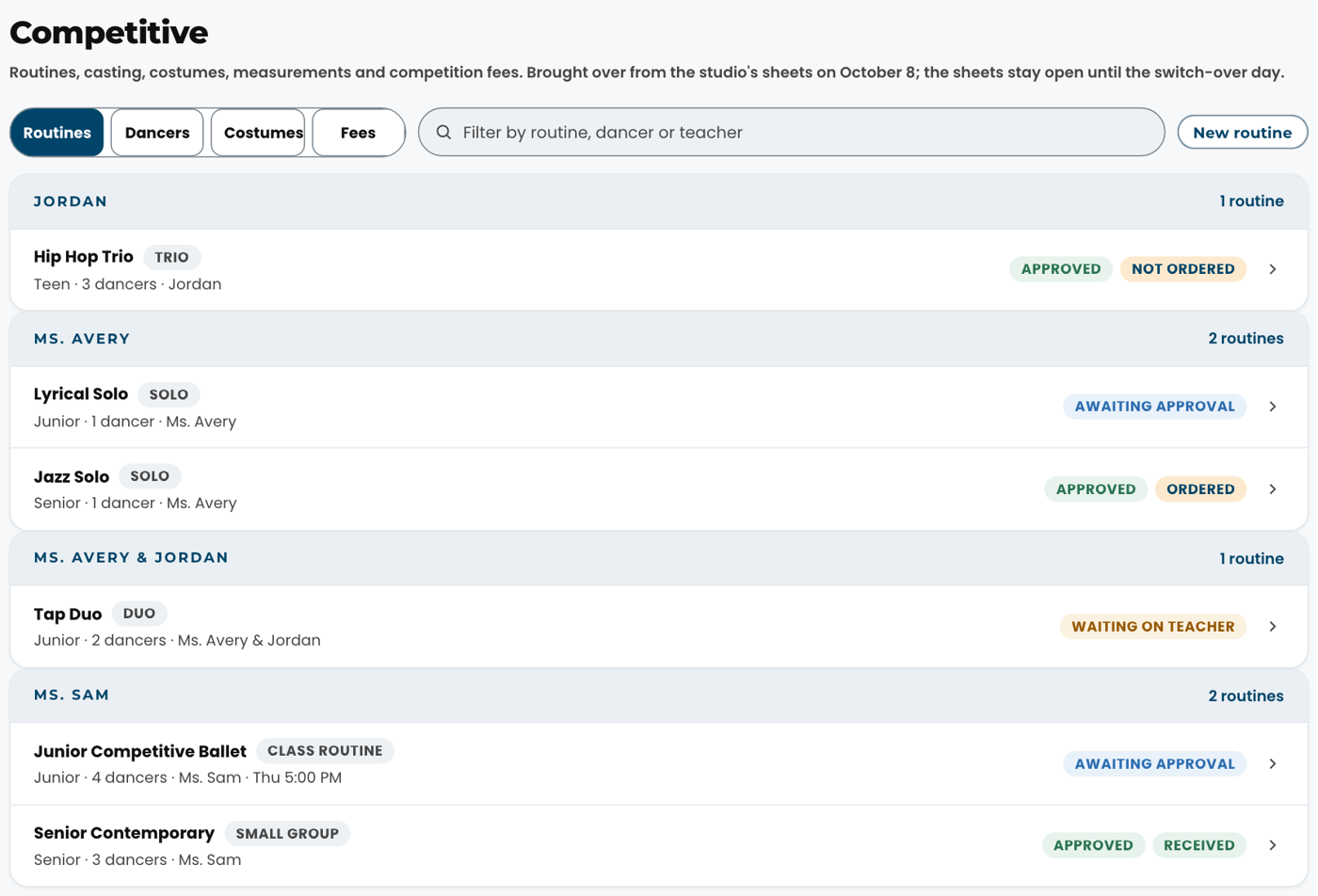
Front desk, OwnerHow do I add or remove a dancer from a routine?#
Open the routine. Under Dancers, type the name in Add a dancer and tap Add. Not on the competitive list yet? Use Search StudioLab dancers below it. To take someone out, tap Remove. Their fee for that routine starts or stops with them, and the change shows under History.
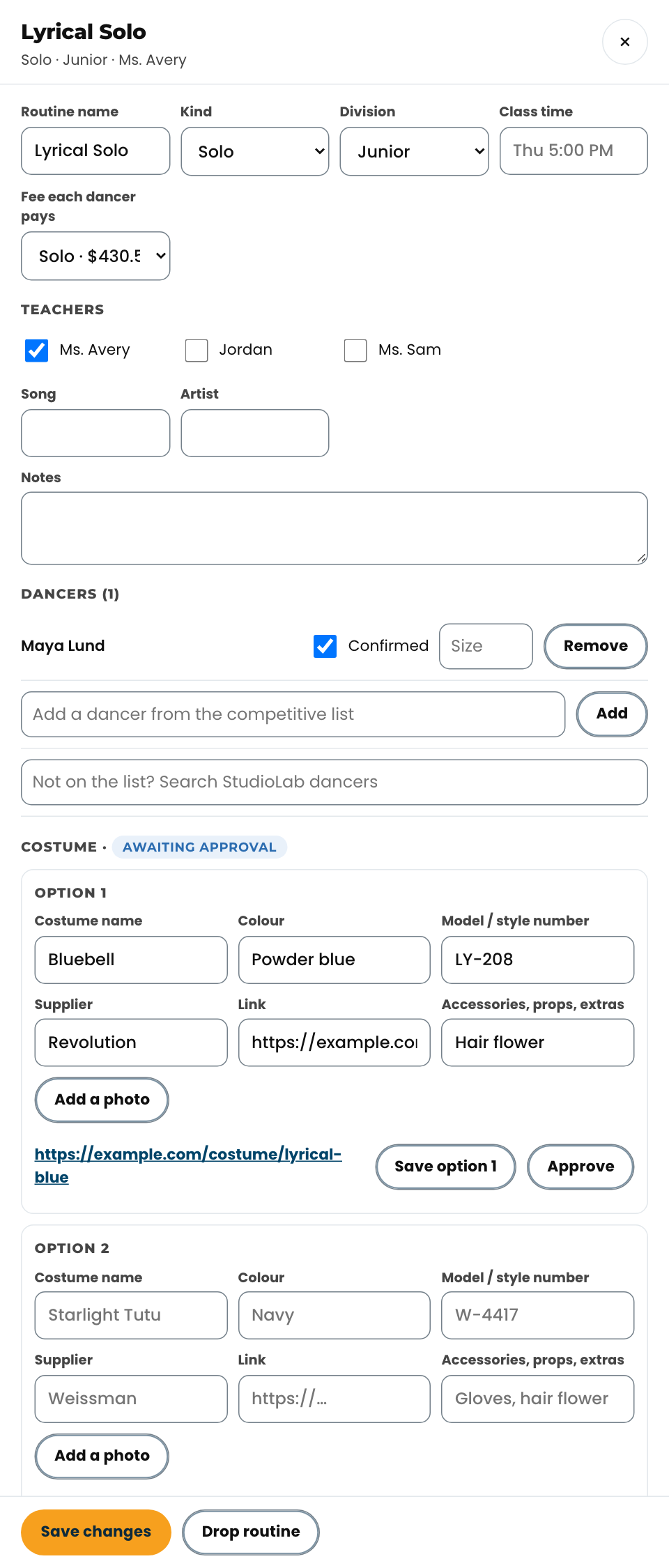
Front desk, OwnerHow does a costume go from idea to ordered?#
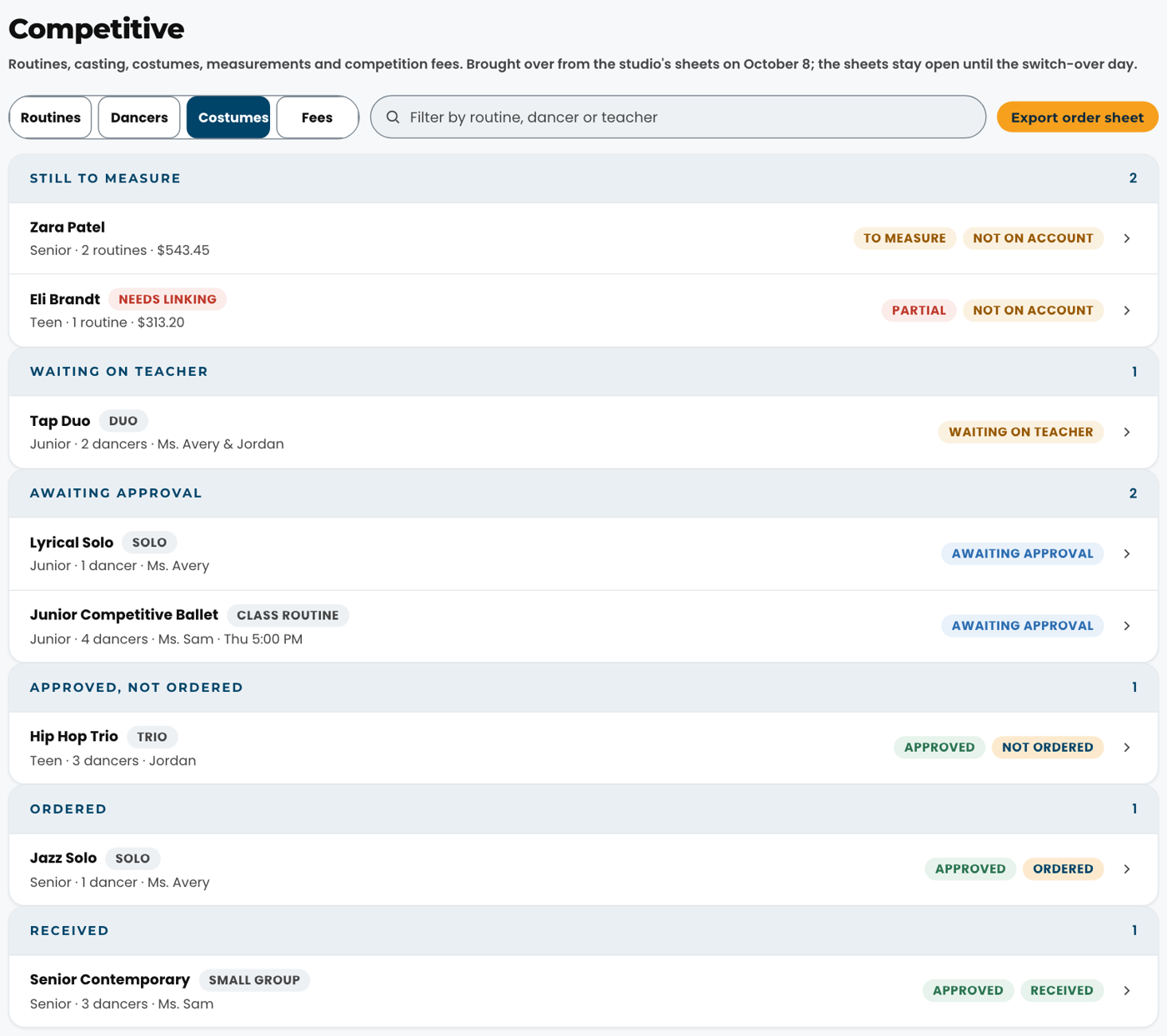
The teacher adds up to three options: the costume's name, colour, model or style number, supplier, a link, any extras, and a photo if there is one. The routine shows Awaiting approval. Open it and tap Approve on the one you want. Then set Ordered when you order it and Received when it arrives. The Costumes view lists everything by stage, and Export order sheet downloads one row per dancer per routine with the approved costume, extras, size and measurements.
Front desk, OwnerHow do I enter measurements?#
Dancers, open the dancer, type the measurements in inches and tap Save measurements. Inseam is only needed when the costume needs it. The date measured and who measured are kept.
Front desk, OwnerWhat does "Needs linking" mean?#
The name on the competitive list doesn't match exactly one current StudioLab dancer: a spelling difference, two records with the same name, or StudioLab changed the dancer's record. Open the dancer, search, and tap This one. Their routines and fees stay as they are. If a dancer is linked to the wrong StudioLab record, open them and use Wrong dancer? Change the link.
Front desk, OwnerHow do I mark fees as added to a family's account?#
Fees, open the dancer, check the routines and the total, then tap Mark added to account. If anything changes afterwards (a routine added, a rate changed), the dancer shows Changed since added with the old and new amounts, so you know which accounts to fix. Tap Mark the new total added once you have.
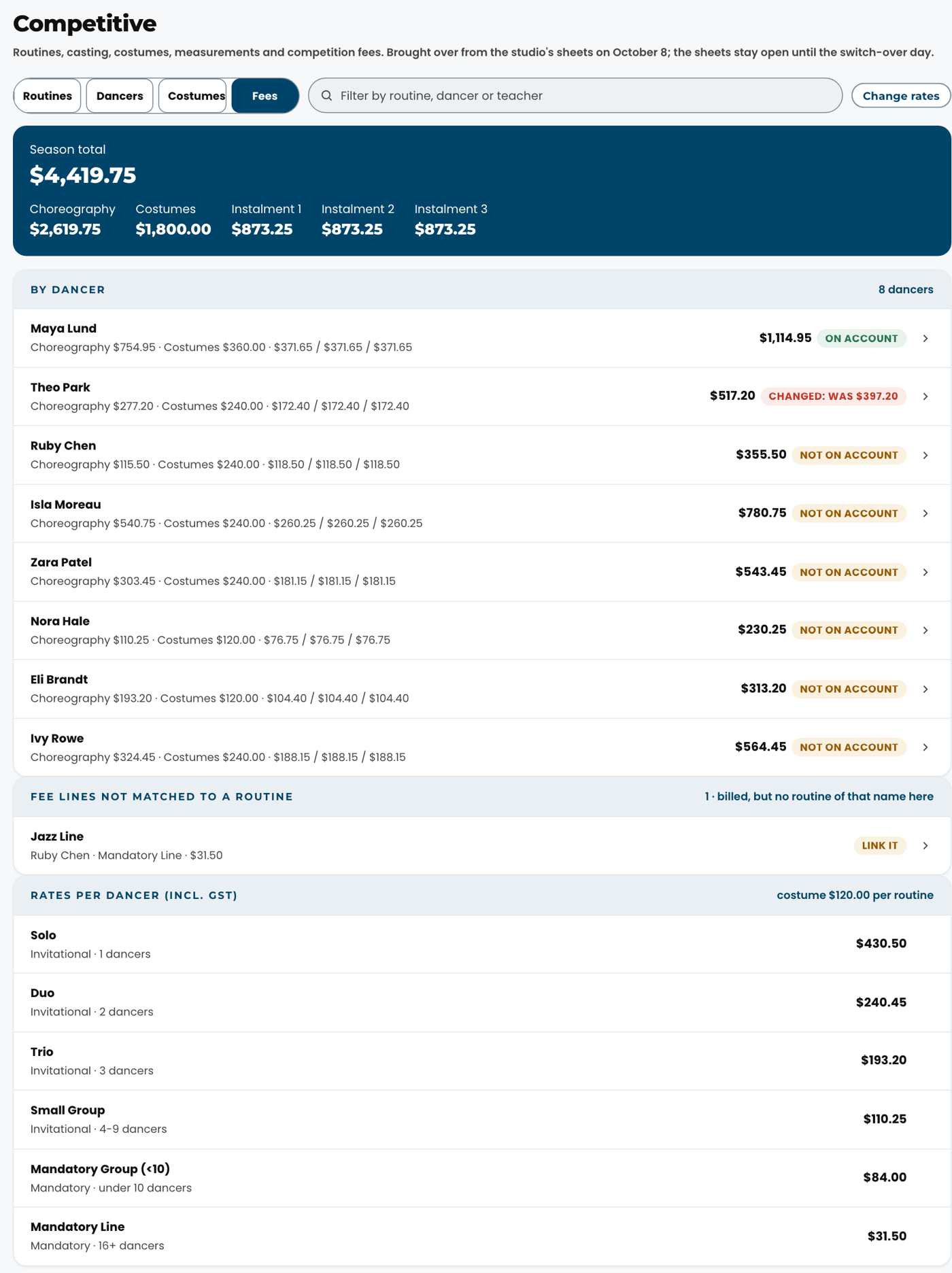
Front desk, OwnerWhat are "Fee lines not matched to a routine"?#
Charges that came from the fee sheet without a routine of the same name here (for example a line billed as one routine that is two classes here). Open the line, pick the routine under Routine, and save. The amount doesn't change.
TeachersHow do I take attendance at a competitive rehearsal?#
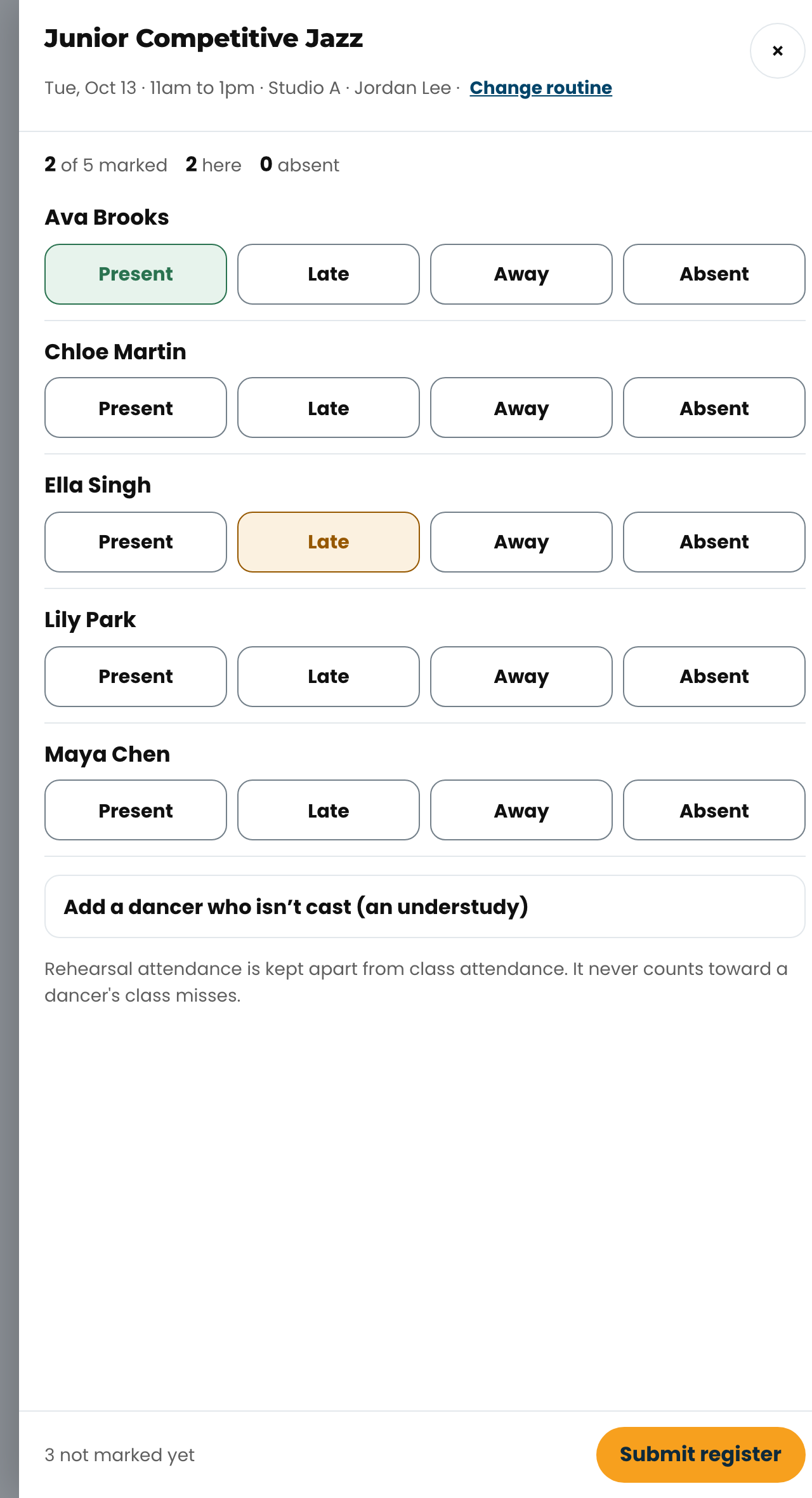
The same way as a class. On the attendance page tap Rehearsals today (it shows on a day with one), or Take attendance, where the day's rehearsals are listed under Competitive rehearsals after the classes. On a weekend with only rehearsals, they are the list. Tap the rehearsal: the register is everyone cast in its routine. Tap Present, Late, Away (they told us) or Absent for each dancer, then Submit register. Someone who isn't cast came along (an understudy)? Add a dancer who isn't cast, type their name, tap it. You can finish a register up to a week after the rehearsal; after that the front desk changes it.
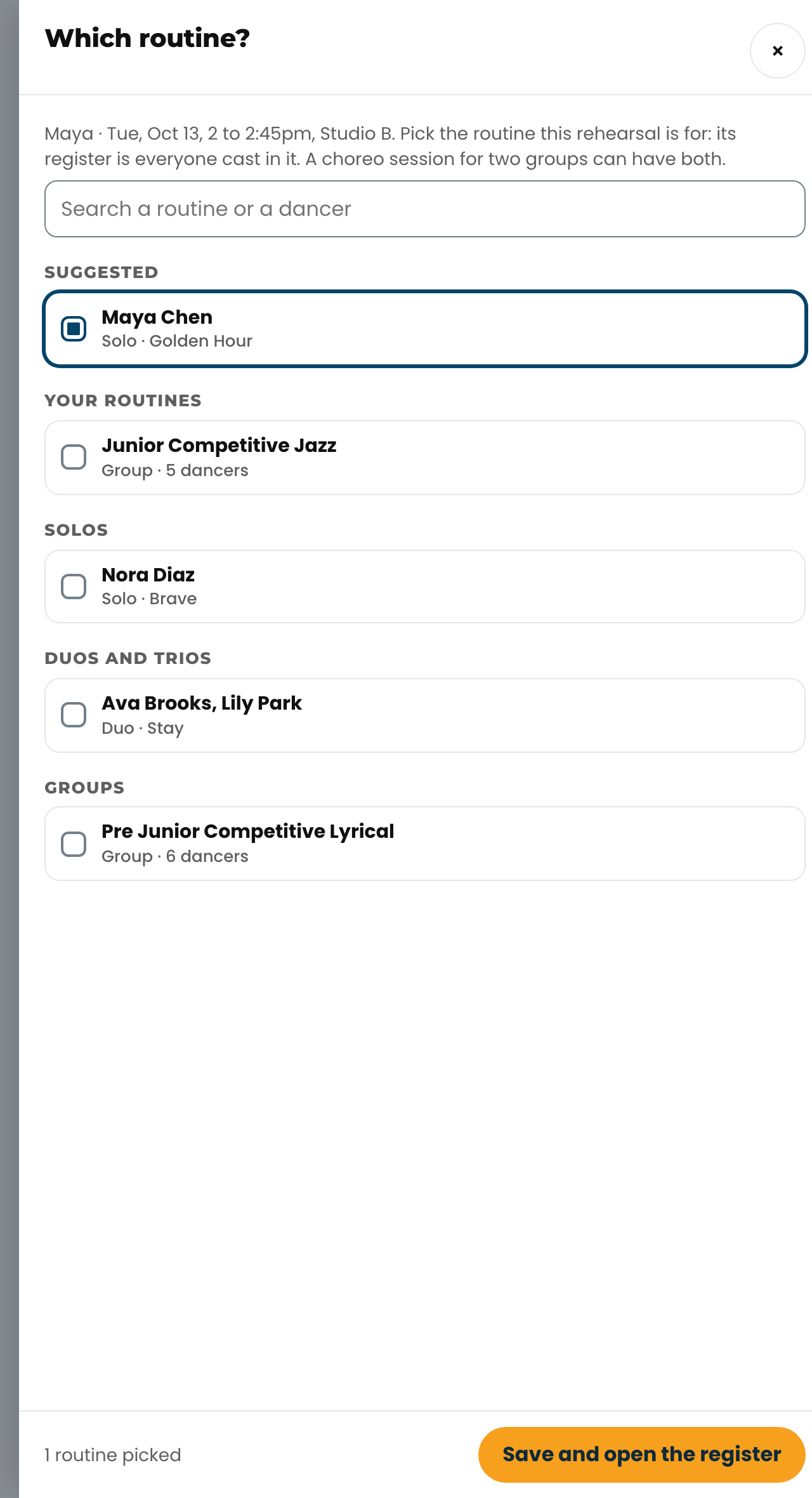
TeachersA rehearsal says "Pick its routine". What do I do?#
It was booked before Studios asked which routine it's for, so it has no register yet. Tap it: the routine it probably is sits at the top under Suggested, already ticked. Check it, tick a second routine if the session covers two groups, and tap Save and open the register. It applies to every week of that booking, so you only do it once. Only the teacher who booked it, or the front desk, can pick it; anyone else sees who to ask. New bookings pick the routine when they're made (Competition routine on the booking sheet).
Front desk, Owner, TeachersDoes a missed rehearsal count as a missed class?#
No. Rehearsal attendance is kept apart from class attendance. It never counts toward the attendance follow-ups on Today (2 missed days in 2 weeks), the Missed 5 or more classes list, the Attendance report or the class numbers in Numbers, and families aren't told anything from it. It shows on its own: Competitive, Rehearsals, on Today, and as its own line on a dancer's record.
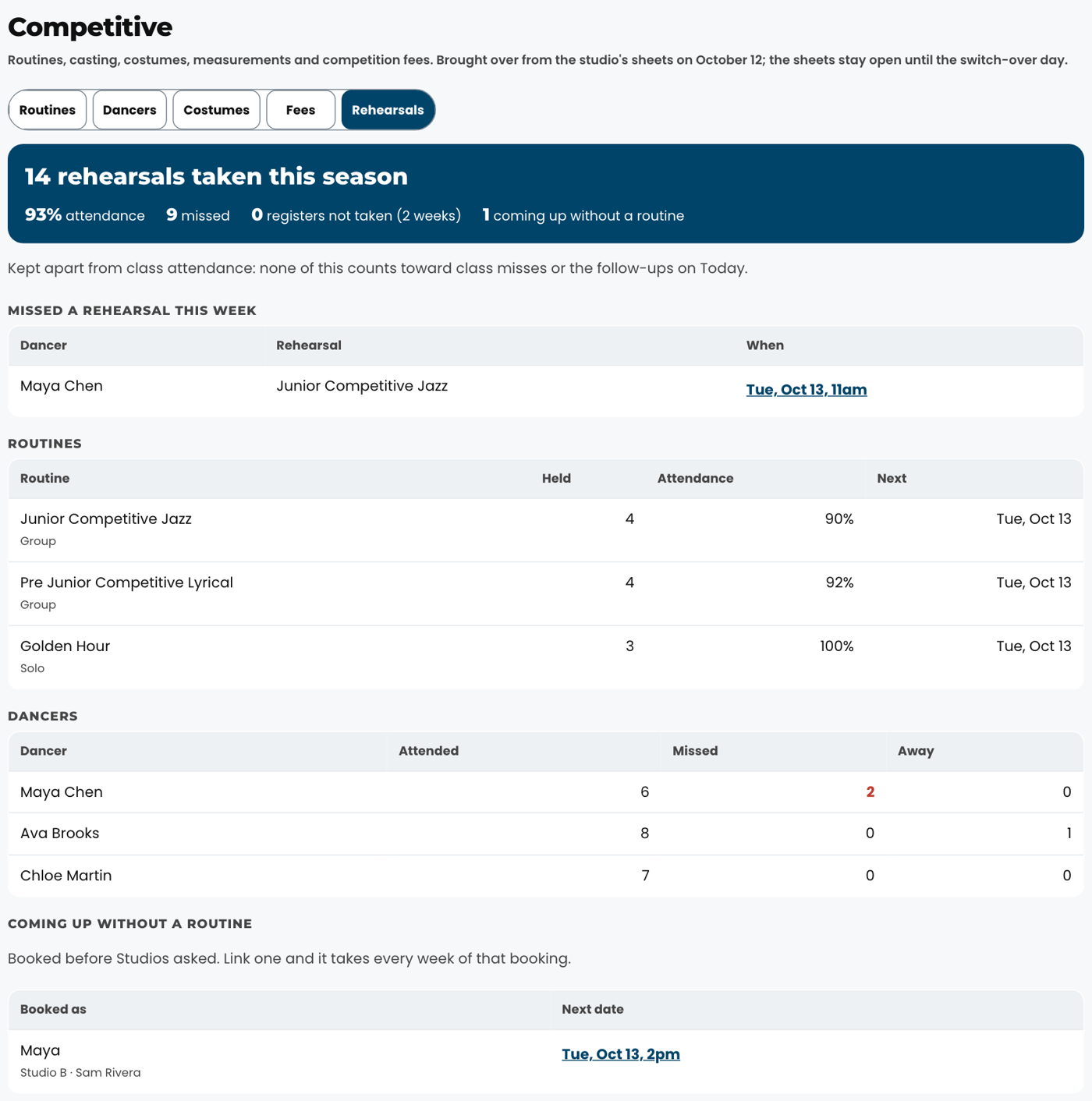
Front desk, OwnerWhere do I see who came to rehearsals?#
Competitive, Rehearsals. At the top: how many rehearsals have been taken this season and the attendance. Then Missed a rehearsal this week (tap the date to open that register), each routine with how many rehearsals it has had, its attendance and its next date, and each dancer's attended, missed and away. Registers not taken lists any rehearsal in the last two weeks nobody marked, and Coming up without a routine lists bookings that still need theirs (tap one to pick it). Today's rehearsals are also on Today, in the day with the classes, and a dancer's record shows a Competitive rehearsals line.
Families & the portal 4
EveryoneWhat can a parent do in the family portal?#
See each dancer's weekly schedule, register for classes, read studio notices, update their own contact details, sign the season policies, and (where turned on) see their balance and pay. The portal is at https://tdm.dsge.ca/. They log in with the email on their family record.
Front deskA parent cannot log in to the portal.#
Open the family in the console and check the email on the account. That is the address the sign-in link goes to, so a typo or an old address is the usual cause. If it is wrong, fix it in quick-edit. Then tap Send sign-in link; the screen tells you which address it went to. Have the parent check that inbox (and the Promotions or Junk folder). The link works for 15 minutes and once only. There is no password to reset: the portal signs parents in by link.
Front deskHow do I walk a parent through their portal on the phone?#
Open the family in the console and tap View portal as this family. Their portal opens in a new tab exactly as they see it, with a banner saying you are viewing as them. You can look at every screen and point them to the right button, but nothing can be changed or paid from your view. Close the tab when you are done; the view ends on its own after 15 minutes. Each time you do this is recorded, so use it only while helping that family.
Front deskA parent asks what "Register" means next to a class.#
It means the class is open and their dancer is the right age for it. Tapping it adds the class to their registration. Enrolled next to a dancer's name means it is done. By audition means the class is competitive and needs the teacher's yes first.
Owner & admin 2
Front deskA teacher is locked out or forgot their PIN. What do I do?#
Five wrong PINs in a row lock that person for ten minutes and their row on Team shows locked 10 min with an Unlock button; tap it and they can try again straight away. If they have forgotten the PIN, open them on Team and tap New temporary PIN on their Sign-in card, choose one, and tell it to them in person; they pick their own at the next sign-in. Twenty wrong PINs across the whole studio in ten minutes pause sign-in for everyone for ten minutes, on every device. That is deliberate: it is what stops a guessed login. Wait it out; nothing needs resetting.
Related
Front deskThe front desk is away. How does someone else cover it?#
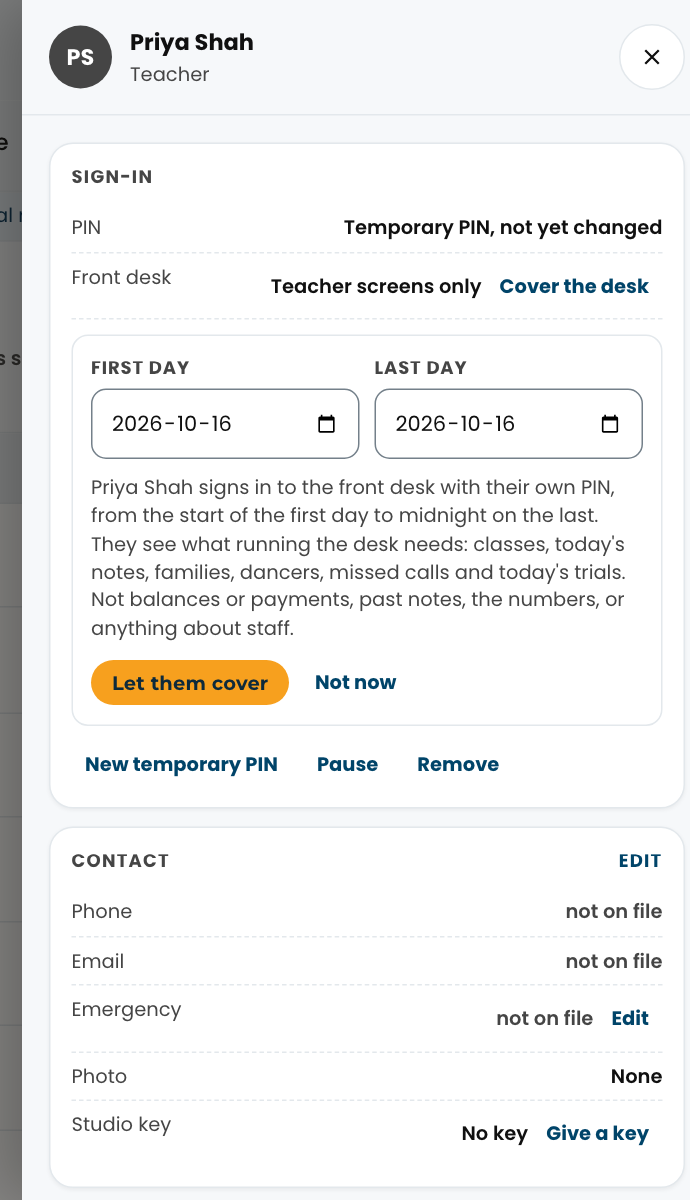
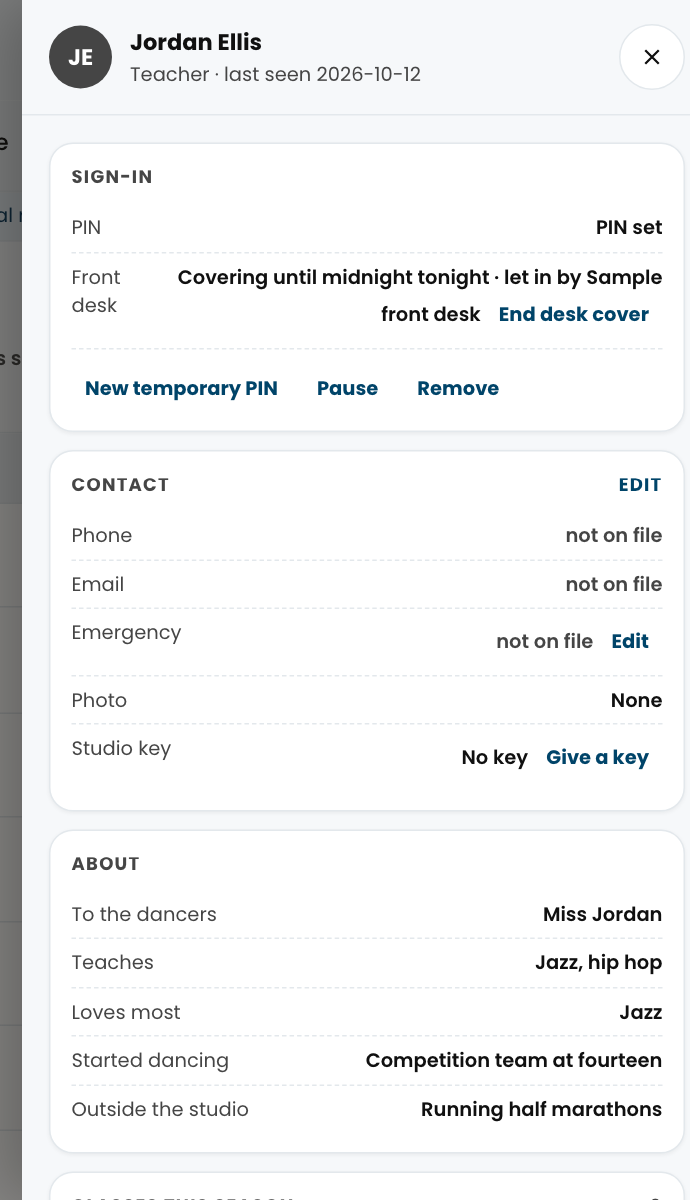
Ask a teacher to cover, then let them in from Team: open the teacher, tap Cover the desk on their Sign-in card, pick the First day and Last day (both start as today) and tap Let them cover. Set it up ahead whenever you know: a teacher opening on Friday can be set on Wednesday, so nobody has to remember on the morning. A cover can start any day in the next 60 days and run up to 14 days. From the start of the first day they sign in to the front desk under Covering the desk today? with their own name and PIN, until midnight on the last day; before the first day their PIN opens nothing, and the sign-in never shows anyone who is covering. There is nothing to hand over, and never share your own PIN: everything a cover does is recorded under their name. It works from your phone, so whoever is off sick can set it up when they call in. A cover gets what running the desk needs: Today, Classes and the registers, Families and Dancers (phone, pickup people, allergies and emergency contacts), Missed calls (reply, mark handled, book a trial) and Studios, and they can add a note on a family or a dancer. Balances and payments, family emails, past notes and the Notes tab, the Trials board, Numbers, Team, Notices and Competitive stay with you and Orielle, and they see that a teacher is away but not why. End desk cover on the same card ends it straight away, and Cancel desk cover takes back one set up ahead; otherwise it ends at midnight on the last day. A teacher has one cover at a time, so setting a new one replaces the old. The Team list shows who is covering, who has a cover coming (Desk cover Fri, Oct 16) and who set it up. Only a teacher can cover: the shared substitute PIN never opens the desk.
Your studio 7
EveryoneWhen is the studio closed this season?#
Season 8 (2026/27) closures, as loaded into Studio OS. A closed day shows on the attendance calendar and on Studios, and no class runs. If a date changes, tell Isabel or the Studio OS team and the calendar updates the same day.
- September 30, 2026: Truth & Reconciliation Day
- October 12, 2026: Thanksgiving
- October 31, 2026: Halloween
- November 11, 2026: Remembrance Day
- December 21, 2026 to January 3, 2027: Winter Break
- February 15, 2027: Louis Riel Day
- March 28 to April 3, 2027: Spring Break
- May 22 to 24, 2027: May Long Weekend
EveryoneWhat are the key dates this season?#
Classes start September 14, 2026. The terms:
- Twistin Tots Term 1: September 14, 2026 to January 31, 2027
- Twistin Tots Term 2: February 1 to June 8, 2027
- Adult classes Term 1: September 14 to December 20, 2026
- Adult classes Term 2: January 4 to June 8, 2027
Events and milestones through the season:
- November 20 to 22, 2026: PressPlay Vancouver convention
- November 29 to December 5, 2026: Parent Observation Week (Twistin Tots Term 1)
- December 20, 2026: Last day before Winter Break
- January 4, 2027: First day after Winter Break
- January 18 to 24, 2027: Parent Observation Week (5+)
- January 25 to 31, 2027: Parent Presentation Week (Twistin Tots Term 1)
- February 1, 2027: Twistin Tots Term 2 starts
- February 22 to 25, 2027: Ballet Presentations (Comp, Pre Junior+)
- April 26 to May 2, 2027: Parent Observation Week (Twistin Tots Term 2)
- June 5 to 6, 2027: Recital Picture Weekend
- June 8, 2027: Last day of classes
- June 9 to 11, 2027: Recital at MTC
Open House, Showcase and Dress Rehearsal dates are set later in the season and are added here when Orielle confirms them.
EveryoneWhen are competitions this season?#
Competitive dancers travel to these. Regular classes still run at the studio unless a closure says otherwise.
- March 9 to 13, 2027: OnTheFloor
- March 20 to 23, 2027: Terpsichore (optional, select invitational routines)
- April 21 to 25, 2027: CNDC
- May 6 to 9, 2027: CanDance
- May 20 to 24, 2027: DanceCanada
EveryoneWhat is the dress code for each class?#
What dancers wear, by style. Use this when a family asks at the desk or a dancer arrives in the wrong shoes. The studio handbook is the full version.
- Hip Hop: Hair out of the face. Dance attire (sweatpants, leggings, shorts, bodysuit, t-shirt); no dresses or denim. Indoor white sneakers.
- Contemporary (Junior to Senior): Fitted dance attire. Bare feet, or contemporary socks if the instructor approves. No ankle, coloured or patterned socks.
- Acro and Conditioning (all ages): Black leotard or bodysuit, black leggings or fitted shorts, hair in a ponytail, bare feet.
- Ballet, recreational (Pre Junior to Senior): Black leotard or bodysuit, pink ballet tights, pink ballet slippers, classical ballet bun. Pointe shoes need teacher approval. Competitive ballet: see the studio handbook or website.
- Jazz, Tap, Musical Theatre, Lyrical (Pre Junior to Senior): Black leotard or bodysuit. Lyrical and Jazz: turning shoes or foot undies. Tap: black lace-up tap shoes. Musical Theatre: black jazz shoes. Hair out of the face (bun, ponytail, braid).
Front deskA parent asks what a class style is. What do I say?#
One line per style, in the studio's own words, so the desk and the phone give the same answer.
- Tap: Rhythm-based class where dancers create music with their feet: timing, coordination, musicality and rhythm patterns. Builds balance, concentration and listening skills.
- Jazz: High-energy style combining technique, athleticism and performance: kicks, turns, jumps, flexibility and musicality. Builds confidence, stage presence and versatility.
- Ballet: Follows the Cecchetti Program from Kindergarten through Grade 6 and beyond, building technique, posture, flexibility, musicality, strength and artistry. Recreational dancers do Cecchetti Presentation Classes every second year; competitive dancers (Pre Junior+) alternate annually between Presentation Classes and Ballet Examinations.
- Pointe: Advanced pointe-shoe work with emphasis on safe technique, alignment, control and injury prevention. May perform as part of the ballet program with instructor approval. Invite only.
- Hip Hop: Energetic urban style with expressive movement, sharp isolations and rhythmic beats, including breaking, popping, locking and krumping. Encourages individuality and personal style.
- Lyrical: Blends ballet technique with expressive storytelling: fluid choreography, musical interpretation and performance quality. Encourages creativity and emotional expression.
- Ballroom: Introduction to ballroom and Latin styles: partner work, posture, rhythm, musicality and movement patterns. Builds confidence and social dance skills.
- Acrobatics: Fusion of dance and gymnastics: rolls, cartwheels, bridges, handstands, balances, limbers and acro tricks, taught with proper technique and progressions. Complements all dance styles.
- Pre Pointe: For dedicated ballet dancers preparing for pointe work: strength, alignment, balance, foot and ankle conditioning and core stability. Does not perform at recital. Must be enrolled in 2 ballet classes a week.
- Conditioning: Cross-training class for all styles: strength, flexibility, balance, endurance, mobility and injury prevention, to support safe, confident, high-level performance.
- Contemporary: Combines ballet, jazz and modern dance: movement quality, floor work, improvisation and storytelling. Builds strength, versatility and artistry.
- Technique Lab: Supplemental ballet training for competitive dancers: alignment, turnout, flexibility, strength, turns, jumps and artistry. Does not perform at recital. Must be enrolled in 2 ballet classes a week.
- Musical Theatre: Broadway-style storytelling through movement, jazz, ballet and contemporary technique, character work and performance. Perfect for dancers who love to perform.
- Twistin Tots (Ages 3-4): An exciting introduction to dance: basic steps and foundational skills through pathways, patterns, rhythm and movement, plus teamwork and coordination. Builds confidence and creativity.
- You & Me (Parent & Child): For parents or guardians and their 2-year-olds to explore dance together: basic steps, movement, rhythm and coordination in a playful, nurturing environment. Builds bonding time and a love of dance.
Front deskWe are still using StudioLab for some things. Which system do I use for what?#
Until January 2027, registrations, enrolments and payments stay in StudioLab. Studio OS reads from it every morning, so anything entered there appears in the console and on rosters within a day. Attendance, check-ins, notices, follow-ups, missed calls and trials run in Studio OS. If you change a family's phone or email, change it in Studio OS; that is where the texts come from. When in doubt: money and enrolment in StudioLab, everything about today in Studio OS.
EveryoneWho do I ask at TDM?#
Isabel (Front desk) for anything day to day: (204) 560-2936, hello@thedancemethod.com, Orielle (Owner) for policies, staffing and anything a parent escalates.
Related